
Customize Related Lists
You can customize the buttons, columns displayed, column order, and record sort order of related lists on record detail pages in Salesforce and the Salesforce Customer Portal.
Required Editions
| Available in: both Salesforce Classic and Lightning Experience |
| Available in: All Editions except Database.com |
| User Permissions Needed | |
|---|---|
| To customize related lists: | Customize Application |
- From the management settings for the object you want to edit, go to Page Layouts.
-
Click
 on a layout’s row in the list view, and
select Edit, or click the name of the layout.
on a layout’s row in the list view, and
select Edit, or click the name of the layout.
-
To edit a related list, double-click its tab. If you’re using the enhanced page
layout editor, you can also click
 .
A related list configuration window appears.
.
A related list configuration window appears.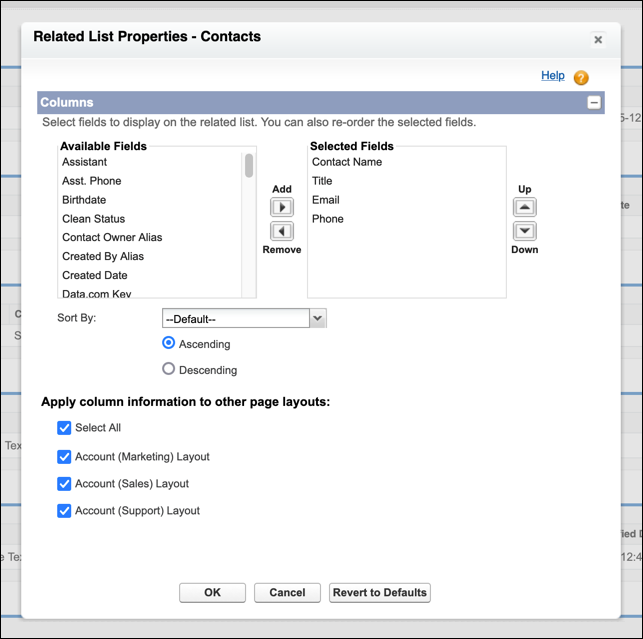
 Note You can’t customize the History related list because it links to data stored elsewhere.
 -
Select the fields to include in the related list, define the order to display
the fields, and select the record sort order.
The default sort order is by record ID. You can include up to 10 fields per related list. To display more than four fields in Lightning Experience, edit the related list component in the Lightning App Builder and choose Enhanced List as the related list type.
-
If desired, select other page layouts to apply your related list customizations
to.
Only layouts that include this related list appear in the list. Layouts that include related lists with the same customizations as the current layout had when you opened it are selected by default. Salesforce's assessment of which layouts have the same customizations is based on the state of the current layout prior to editing it. This can lead to previously deselected layouts becoming re-selected when an edited layout is reopened. To avoid unintended changes across multiple layouts, always verify the list of selected layouts.
-
If you have quick actions or custom list buttons configured for the related
list’s object, from the Buttons section header, click +
to customize which standard buttons, custom buttons, and quick actions appear on
the related list.
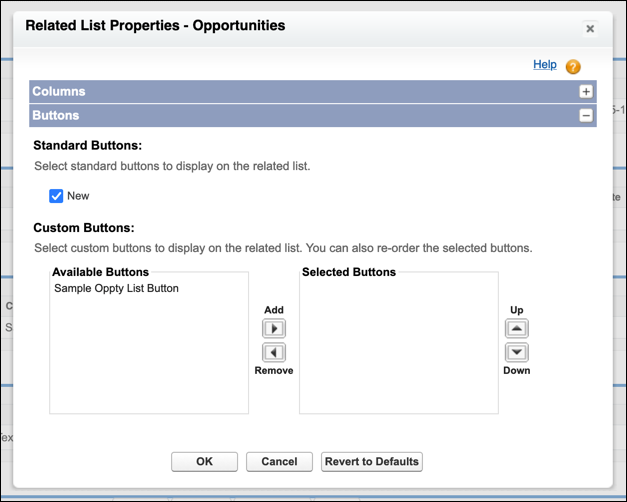
The quick action or custom button must be defined for the object contained in the related list. For example, to display a quick action on the Contacts related list of an account, define the quick action for contacts, not accounts. For custom buttons, the button Type must be List Button.
- If necessary, click Revert to Defaults to undo any customizations and use the default Salesforce settings in the related list.
-
To store your customizations, click OK.
The related list changes aren’t saved until you save the page layout.
-
Save the page layout.
If you add, move, or remove related lists from the layout, then click to save the page layout, you have the option to apply those related list changes to all users, even if they already customized their display. This action isn’t reversible.
To update the related list type, move the related list on the record page, and more, select the related list on the record page in the Lightning App Builder. To further customize the list or to reorder the list’s actions from the Lightning App Builder, upgrade to the Dynamic Related List - Single component.
