
You are here:
Add or Edit a Custom Metadata Type Declaratively
You can declaratively create and update custom metadata types.
Required Editions
| Available in: Salesforce Classic and Lightning Experience |
Available in: Enterprise, Performance, Unlimited, and Developer Editions You can create, edit, and delete custom metadata type records from installed packages in: Group and Professional Editions |
| User Permissions Needed | |
|---|---|
| To create or edit custom metadata types: | Customize Application |
Custom metadata types and records have names and labels. Type names must be unique within their namespace. Record names must be unique within their custom metadata type and namespace.
- From Setup, in the Quick Find box, enter Custom Metadata Types and then select Custom Metadata Types.
- On the All Custom Metadata Types page, click New Custom Metadata Type, or click the Label name to modify an existing custom metadata type.
-
Complete these fields.
Field Description Label Refers to the type in a user interface page. Plural Label The plural name of the type. If you create a tab for this type, Plural Label is used. Starts with a vowel sound Indicates whether “an” precedes the label rather than “a” (only when applicable for your org’s default language). Object Name A unique name to refer to the object when using the API. In managed packages, this name prevents naming conflicts with package installations. Use only alphanumeric characters and underscores. The name must begin with a letter and have no spaces. It can’t end with an underscore or contain two consecutive underscores. Description An optional description of the object. A meaningful description helps you understand the differences between your custom objects when you view them in a list. Visibility Who can see the type.
- (Public) Regardless of the type of package (managed
or unmanaged), these have access:
- Apex
- Formulas
- Flows
- API for users with Customize Application permission or permissions granted through profiles or permission sets. The custom metadata type, fields, and unprotected records are visible in Setup.
- (Protected) Only Apex code in the same namespace can see the type. The name of the type and the record are visible if they’re referenced in a formula.
- (PackageProtected) When in a second-generation managed package, only Apex code in the same managed package can see the type. The name of the type and the record are visible if they’re referenced in a formula.
- (Public) Regardless of the type of package (managed
or unmanaged), these have access:
- Click Save.
-
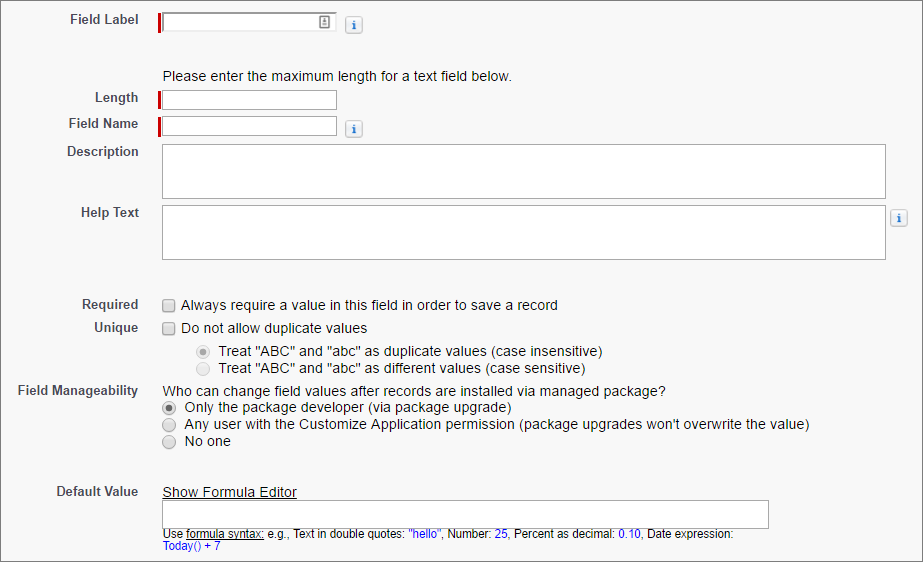
Under Custom Fields, click New to start adding fields to
the custom metadata type. Specify the type of information that the field
contains, such as a picklist or metadata relationship. For each field, choose a Field
Manageability value to determine who can change the field later.
- If FieldType is
MetadataRelationshipand the manageability of the entity definition field is subscriber-controlled, the Field Definition field must be subscriber-controlled. - If the manageability of the entity definition field is
upgradeable, the Field Definition field must be either upgradeable or subscriber-controlled.
- If FieldType is
Custom metadata types created before the Winter ’15 release don’t automatically get layouts. Before adding, updating, or viewing records of this custom metadata type using the UI, you must add a layout that contains all the fields that you want to make editable. In the All Custom Metadata Types page, click the custom metadata type. Then click New under Page Layouts.
