
Define Custom Buttons and Links
Define the action that occurs when a user clicks a custom button or link. Custom buttons and links can streamline actions within Salesforce or integrate Salesforce data with external URLs, applications, or systems.
Required Editions
| Available in: Salesforce Classic |
Custom buttons and links are available in: All Editions Visualforce pages and s-controls are available in: Contact Manager, Group, Professional, Enterprise, Performance, Unlimited, and Developer Editions |
| User Permissions Needed | |
|---|---|
| To create or change custom buttons or links: | Customize Application |

If you want the button or link to launch a custom page or other code, consider a Visualforce page.
-
From the management settings for the object that you want to edit, go to Buttons,
Links, and Actions.
 Note Custom buttons aren’t available on the User object or custom home pages. Custom buttons and links are available for activities under the individual object management settings for tasks and events. To override a standard button that applies to both tasks and events, go to the object management settings for activities.
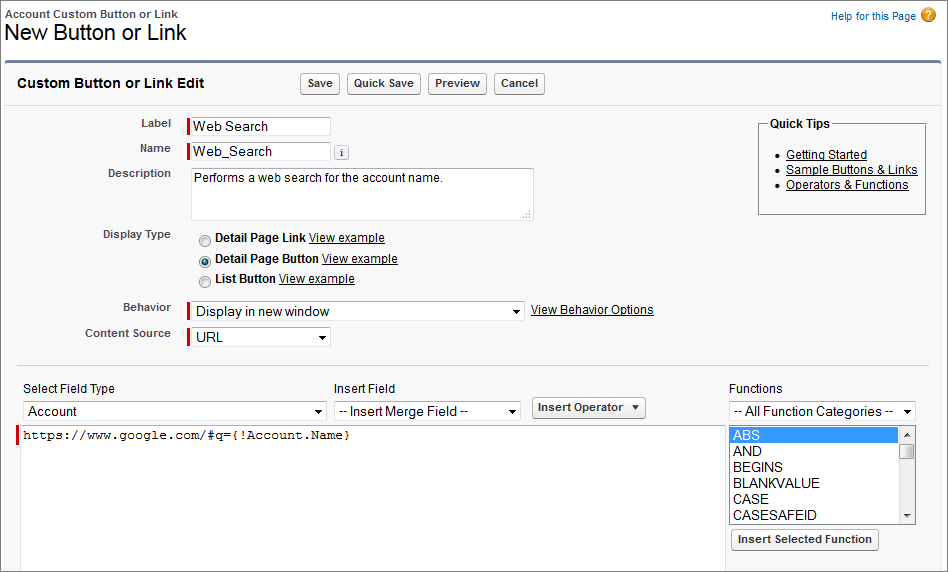
 - Click New Button or Link. Or, to add a predefined custom link, click Default Custom Links.
-
For Display Type, select Detail Page
Link, Detail Page Button, or List
Button.
If you select List Button, and your list button requires users to select individual records in a list, then select Display Checkboxes (for Multi-Record Selection). When you select this option, a checkbox appears next to each list item to let users select records, and the list button action is applied to those records. Don’t select Display Checkboxes (for Multi-Record Selection) if your list button doesn’t require users to select individual records in the list. For example, your list button links to a URL that doesn’t support POST operations, such as a URL that links to a Lightning component.In Lightning Experience, when you select Display Checkboxes (for Multi-Record Selection), the related list type must be set to Enhanced List. You can set the related list type from the Related List–Single component or Related Lists component on a record page in the Lightning App Builder.
- Enter the button or link attributes.
- To validate all Salesforce merge fields and functions, click Check Syntax.
- Click Save when you’re finished, or click Quick Save to save and continue editing. If you set the content source to URL, saving validates the URL you defined.
- To open a button or link using settings other than the user’s default browser settings, click Window Open Properties on the button or link’s detail page.
- To view all references to the new button or link, click Where is this used? on its detail page.
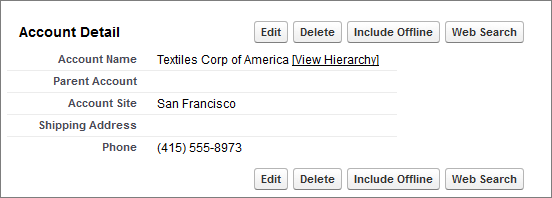
Before you can use your custom buttons and links, add them to an object’s page layout. You can then see and use the button or link on a record detail page.
- Custom Button and Link Fields
This table describes the fields that are available when you create a custom button or link. - Construct Effective Custom URL Buttons and Links
Use these methods to construct effective custom URL buttons and links. - Edit Window Open Properties
Custom buttons and links can open in different types of windows. If you configure a custom button or link to open in a window, set the window properties. If you leave the window properties blank, the custom button or link uses the default settings of the user’s browser. - Merge Fields for Custom Buttons and Links
A merge field is a field that incorporates values from an object record. You can put merge fields in an email template, mail merge template, custom link, or formula. - Add Default Custom Links
Update predefined custom links for account, contact, lead, campaign, and solution detail pages. - Custom Link Best Practices
Custom buttons and links can streamline actions within Salesforce, or integrate Salesforce data with external URLs, applications, or systems. Use these tips to get the most out of your custom links.
