
Monitor Deployments
You can monitor deployments that are in progress, check which deployments are waiting for execution, and view the results of completed deployments on the Deployment Status page.
Required Editions
| Available in: both Salesforce Classic and Lightning Experience |
| Available in: Enterprise, Performance, Unlimited, Developer, and Database.com Editions |
| User Permissions Needed | |
|---|---|
| To view metadata deployments: | Modify Metadata Through Metadata API Functions |
This page lists all deployments—change sets, Metadata API-based deployments, including deployments started from the Salesforce Extensions for Visual Studio Code and package installations.
The size and complexity of the metadata components affect the deployment time. To track the status of deployments that are in progress or have completed in the last 30 days, from Setup, enter Deployment in the Quick Find box, then select Deployment Status. Deployments are listed in different sections depending on their status.
In-Progress and Queued Deployments
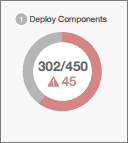
When running a deployment, the Deployment Status page shows you the real-time progress of your current deployment. This page contains charts that provide a visual representation of the overall deployment progress. The first chart shows how many components have already been deployed out of the total and includes the number of components with errors. For example, the following chart indicates that 302 components were processed successfully out of 450 and there were 45 components with errors.
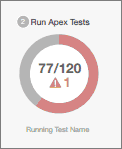
After all components have been deployed without errors, Apex tests start executing, if required or enabled. A second chart shows how many Apex tests have run out of the total number of tests and the number of errors returned. In addition, the chart shows the name of the currently running test. For example, in the following chart, 77 tests have completed execution out of a total of 120, and 1 test failed.
The following information is displayed for the current deployment.
If the current deployment has errors, you can view these errors before the deployment finishes by clicking View Errors.
Pending Deployments
You can initiate multiple deployments, but only one deployment can run at a time. The other deployments will remain in the queue waiting to be executed after the current deployment finishes. Queued deployments are listed under Pending Deployments in the order they will be executed.
Deployment Validations
A deployment validation is a deployment that is used only to check the results of deploying components and is rolled back. A validation doesn't save any deployed components or change the Salesforce org in any way. You can determine whether a deployment is a validation only (Validate) or an actual deployment (Deploy) by inspecting the information for pending deployments or the Status column of deployments in the Failed and Succeeded sections.
If a validation completed successfully in the last 10 days, and all tests passed with sufficient code coverage, you can perform a quick deployment by deploying this validation to production without running tests.
Cancel a Deployment
You can cancel a deployment while it’s in progress or in
the queue by clicking Cancel next to the deployment. The deployment then
has the status Cancel Requested until the deployment is
completely canceled. A canceled deployment is listed in the Failed section.
Completed Deployments
Deployments that have finished are listed either in the Failed or Succeeded sections depending on their status.
Deployments that have finished but failed, and deployments that were canceled are listed in the Failed section. No changes were committed to the Salesforce org for these deployments because files were missing, components had errors, tests failed, or the deployment was canceled.
Deployments that have completed successfully or have partially succeeded are listed in the
Succeeded section. Only deployments to a non-production org can partially succeed. These are
deployments that have the rollbackOnError field set to
false in the deployment options and have errors in a
subset of components. In a partially succeeded deployment, the failed components aren’t
committed and the remaining components are committed to the org.
To get more details about a deployment, click View Details next to a deployment. Use the information on the Deployment Details page to view the errors and troubleshoot problems for a failed or partially succeeded deployment. The Deployment Details page includes the error messages that occurred during the deployment, errors for Apex tests with stack trace information, code coverage warnings, and information about slow tests. For a successful deployment, the Deployment Details page shows information about the deployment including how many components were deployed and how many Apex tests were run.
Deployment Status
The Status column for completed deployments in the Failed and Succeeded sections lists the type and status of a deployment and has two parts:
- The prefix indicates whether the deployment is a validation only (Validate:) or an actual deployment (Deploy:).
- The second part of the status value contains the status of the deployment: Failed or Canceled for failed deployments, Succeeded for succeeded deployments, or Partially Succeeded for partially succeeded deployments.
Quick Deployments
As part of a deployment, all Apex tests are run in production. If the production org contains many Apex tests, executing the tests can be time consuming and can delay your deployment. To reduce deployment time to production, you can perform a quick deployment by skipping the execution of tests. Quick deployments are available for change sets and Metadata API components when the following requirements are met.
- The components have been validated successfully for the target environment within the last 10 days.
- As part of the validation, Apex tests in the target org have passed.
- Code coverage requirements are met.
- If all tests in the org or all local tests are run, overall code coverage is at least 75%, and Apex triggers have some coverage.
- If specific tests are run with the Run specified tests test level, each class and trigger that was deployed is covered by at least 75% individually.
A validation is a deployment that’s used only to check the results of deploying components and doesn’t save any components in the org. A validation enables you to view the success or failure messages that you would receive with an actual deployment. You can validate change sets or metadata components through the API.
To learn how to validate a change set, see Validate a Change Set in the Salesforce Help.
Performing a Quick Deployment through the User Interface or the API
To perform a quick deployment, first run a validation-only deployment with Apex test execution on the set of components that you need to deploy. If your validation succeeds and qualifies for a quick deployment, you can start a quick deployment.
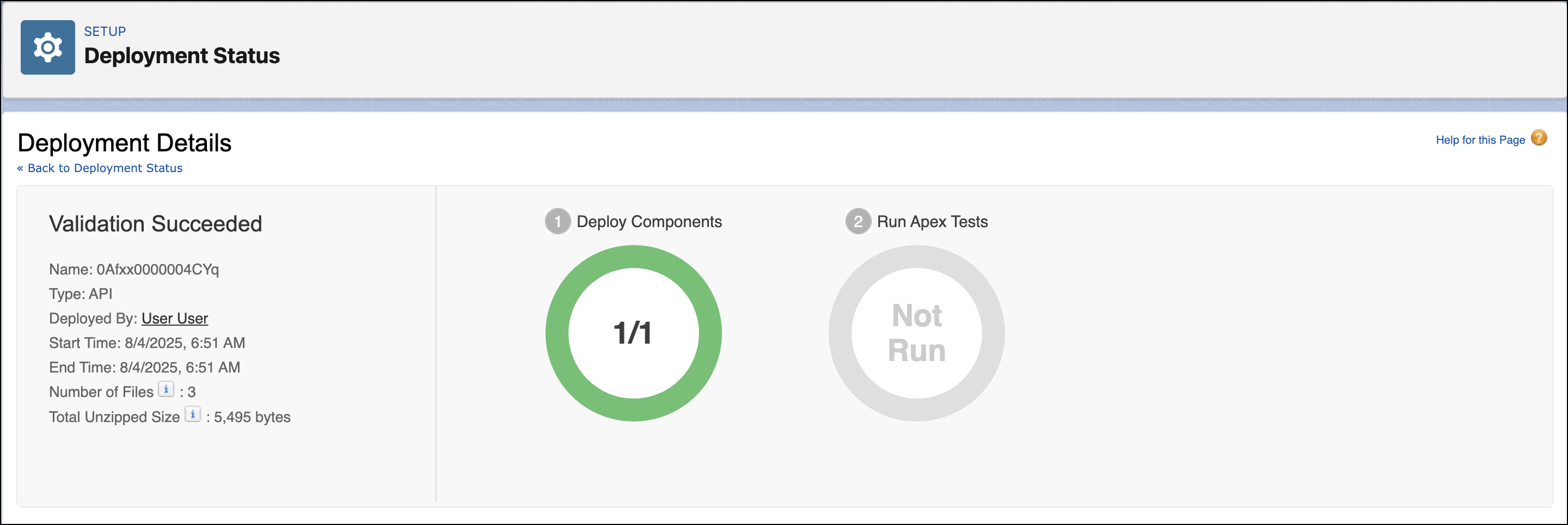
You can quick-deploy validated change sets and Metadata API components in the user interface. In the Deployment Status page, deploy a recent validation by clicking Quick Deploy next to your validation or on the validation’s detail page. This button appears only for qualifying validations.
To learn how to perform a quick deployment of change sets and run
specific tests, check out this video:  Release Management: Deploy Changes
Efficiently with Quick Deployments & Test Levels (Salesforce Classic).
Release Management: Deploy Changes
Efficiently with Quick Deployments & Test Levels (Salesforce Classic).
Alternatively, you can start a quick deployment through Metadata API
for Metadata API components (excluding change sets). For Metadata API, call deployRecentValidation() and pass it the validation ID.
Quick Deploy is enabled for recent validations in which Apex tests have executed successfully and code coverage requirements have been met. Note the following.
- In production, quick deployments are supported for validations that meet the criteria. You can deploy recent validations of change sets and Metadata API components.
- In sandbox, Quick Deploy is supported only for validations that explicitly enable test execution (for example, by choosing a test option when validating inbound sets or through the testLevel parameter for the Migration Tool). By default, Apex tests aren’t required nor ran in sandbox deployments.
- If you perform a deployment after a validation, whether through Quick Deploy, a package installation, or a regular deployment, all validations no longer qualify for quick deployment. Revalidate the set of components to quick-deploy.
Performance Tuning Resources for Long-Running Tests
If required or enabled, Apex tests run as part of a deployment after all components are deployed. Apex tests that take a long time to execute delay the entire deployment. The top-five long-running tests, that is the top-five tests that ran longer than two minutes, are flagged for a completed deployment in the Deployment Details page. You can improve the performance of these tests to make them more efficient and speed up future deployments. There can be many causes for slow performance. For example, accessing org data instead of using test data, or exercising SOQL queries or Apex code with poor performance. Here are some resources you can use to learn about performance best practices for Apex and SOQL.
