
You are here:
Stalled Commits
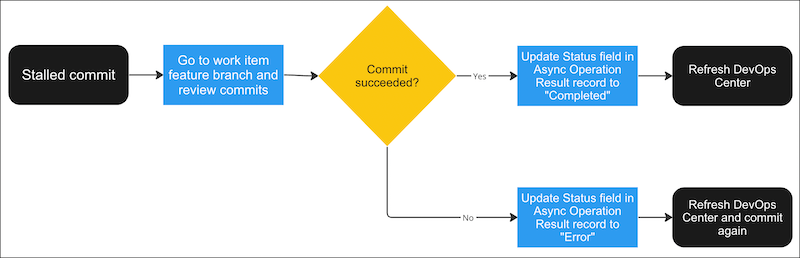
A stalled commit can occur when the updates from the external services back to DevOps Center are interrupted during the commit operation. After you determine when the failure occurred, you can fix it.
Here are the most common scenarios:
- Commit operation failed when pushing changes to the feature branch.
- Commit operation succeeded and changes were pushed to the feature branch, but the commit appears stalled in DevOps Center.
To determine how to proceed to fix the stalled commit, first troubleshoot to discover if the commit succeeded or failed. Then execute a query to find the associated Async Operation Result record and update its status.

- In the work item, click the link for the branch to view it in the source control repository.
- Find the commits list in the source control repository.
In GitHub, click the <n> commits link to view commits for the feature branch.
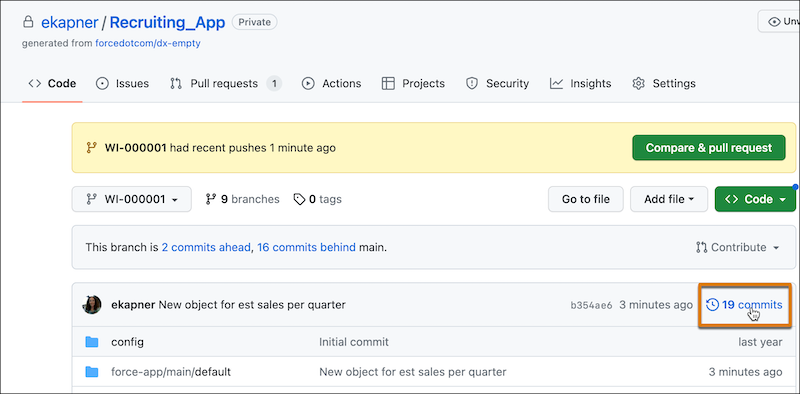
In Bitbucket, the list of commits is on the branch’s page.
- See if you can find the commit that contains the changes you selected. Look at the commit
descriptions to identify the commit.
- If you find the commit in the list, the commit succeeded.
- If you don’t see the commit in the list, the commit failed.
Now you’re ready to find the associated Async Operation Result record in DevOps Center.
- In the org in which DevOps Center is installed, launch Developer Console, then select the Query Editor tab.
- Enter this SOQL query to find the associated commit that’s still In Progress.
In this example, line breaks were added for readability purposes. If you copy this query, remove the line breaks before running it.
SELECT Id FROM sf_devops__Async_Operation_Result__c
WHERE sf_devops__Operation__c = 'METADATA_COMMIT' AND
sf_devops__Status__c = 'In Progress'
If you see only one record, select to highlight it, click Open Detail Page, and then go to the next step. If the query returns multiple records, look at each record to determine the correct one.
- Select a record to highlight it, then click Open Detail Page.
- In the Async Operation Result, look in the Logs section to see if the text contains
references to the metadata that you’re trying to commit (1). In the example, the referenced
metadata is
CustomObject:Estimated_Sales_per_Quarter__cand its layout.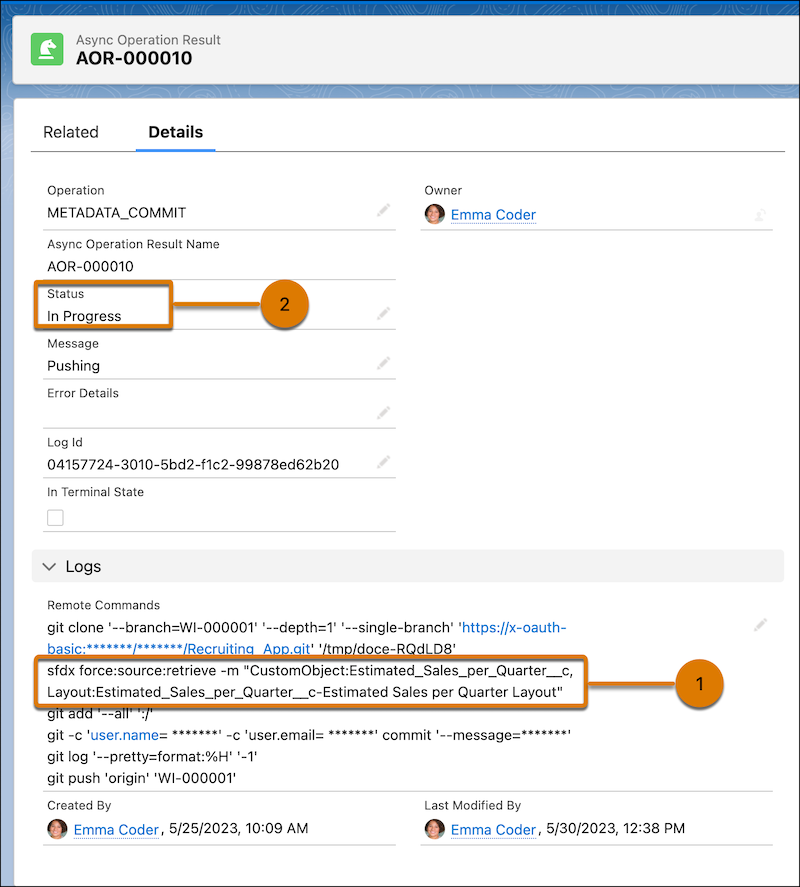
- After you find the correct record, go to the next step.
- In the Async Operation Result record, change the Status (2) based on if the commit
succeeded or failed, then click Save.
- If the commit succeeded, change the Status to Completed.
- If the commit failed, change the Status to Error.
- Refresh DevOps Center, then proceed with the work item.
- If the commit succeeded, the work item is ready for additional commits, or to move to the next stage, In Review.
- If the commit failed, select the changes again and commit them.
