
You are here:
Synchronize Your Development Environment
If you’re working on a team with multiple developers, it’s likely that your dev environment is going to become out of sync with the source control repository. DevOps Center tracks the differences between each development environment and the first pipeline stage’s branch.
When a development environment is connected to a work item, you’re notified if it’s not up-to-date and given the option to synchronize it before starting new work. You can also choose to synchronize it at any time. This synchronization process ensures that you’re developing against the latest integrated source of truth, including changes from other teammates. It also ensures that your changes are compatible with other changes in the pipeline and reduces the possibility of conflicts when promoting changes.
From the Environments tab, you can see whether each development environment is in sync or not, see the differences if it’s not in sync, and optionally synchronize. The synchronization process runs a deployment of the changes from the first pipeline stage branch into the development environment. For this reason, you’re presented with deployment options when the synchronization process is initiated.
You can synchronize a development environment if it doesn't contain any In Progress work items.
- From Pipeline, open the Environments tab.
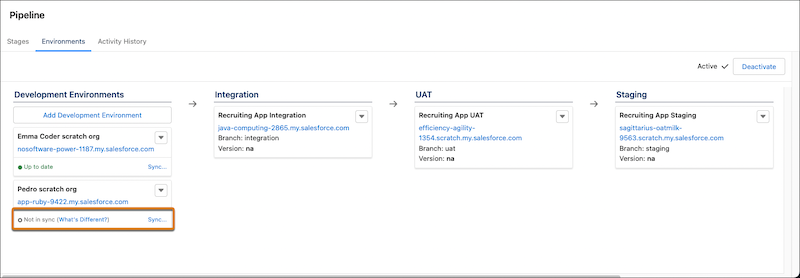
The status of the development environment, Pedro scratch org, indicates that it’s out-of-sync.
- (Optional) To see the differences between the dev environment and the next pipeline stage’s branch, click What’s Different.
- Click Sync.
- Select a synchronization option.
Changes Not in Dev Environment (recommended) Deploy only the changed metadata (files) from the next stage’s branch to your development environment. All Deploy everything in the next stage’s branch to the development environment. Select this option if your deployments are failing due to dependent or missing metadata that doesn’t exist in the What’s Different list but does exist in the next stage’s branch. The synchronization process runs a deployment of the changes from the first pipeline stage branch into the development environment. For this reason, you’re presented with deployment options when the synchronization process is initiated.
If the source environment exists in the project pipeline, then DevOps Center is aware of its ancestry and you can select Changes Not in Dev Environment. If you’re synchronizing a scratch org or a sandbox where DevOps Center can’t determine the ancestry, we recommend that you select All to deploy all changes from the first pipeline stage’s branch to this development environment.
- Click Start Sync.
