You are here:
Combine Work Items in DevOps Center (Managed Package)
Prevent potential conflicts during the promotion process by combining work items that share metadata components. In some cases, the source control repository doesn’t know how to reconcile the changes to the same metadata component. Sometimes the promotion is blocked based on a dependency with a shared component. But have no fear, DevOps Center detects the shared components and provides you with a way to promote your changes through the release pipeline with confidence.


In DevOps Center, work items can move only forward through the pipeline. After a work item has been promoted to the first pipeline stage, you can’t revert it or change the status to Never. Because you can’t abandon a work item in a pipeline stage, all work items must eventually move through the pipeline to ensure all pipeline stage branches and their corresponding environments are in sync. Although it seems counterintuitive to move changes you don’t want through the release pipeline, combining work items merges all the changes together to achieve the desired results.
Externally Merged Changes
If you already externally merged one of the work items with shared components to the target branch, we can’t combine. Complete the promotion, resolve the conflict (if necessary), and then deploy the other work items.
For information about handling external merges in next-generation DevOps Center, see External Merges.
Common Scenarios
Let’s say you discover a bug during testing or the requirements change. You create another work item that modifies the component just the way you want it, then promote this change through the pipeline. However, the source control repository doesn’t know which change is the one you really want, which causes a conflict. To address the conflict and enable you to complete the promotion, you can combine work items that share components. During the combining process, the changes are merged. The latest version of the component with the required modifications “wins” and moves forward.
In another scenario, you have two work items: one that creates a new object, and another that changes the object, such as adding or deleting a field. If you attempt to promote the work item with the change before you promote the work item with the addition, the promotion is blocked due to the dependency between the work items. The next pipeline stage’s branch doesn’t know about the new component so it causes an error because it can’t merge a change to something that doesn’t already exist in its branch.
When DevOps Center detects a potential conflict due to work items that share components or contain dependencies, it provides you with the option to combine the work items so you can continue with the promotion.
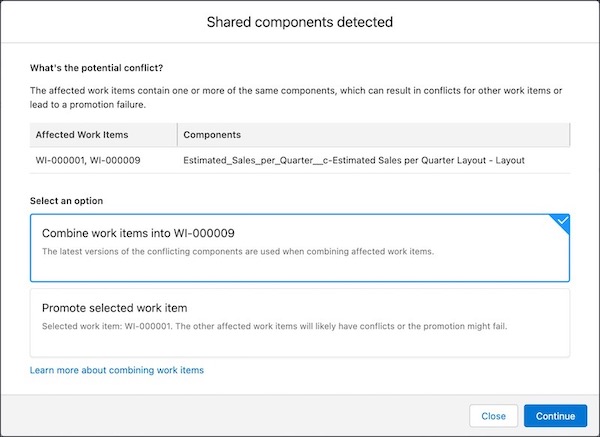
Combining work items merges their feature branches into one feature branch, which avoids downstream conflicts. If you don't combine the work items, you’ll likely have to manually resolve the conflicts or promote the dependent work items first to avoid promotion failures.
When work items are combined, all the metadata components from all work items are combined, not just the changes that affect shared components. For best results, follow DevOps best practices by keeping your work item scope as small as possible by including only related changes.
| Scenario | What Happens When DevOps Center Combines Work Items |
|---|---|
| You’re trying to promote multiple work items that share components. You selected all the work items that share components in the stage’s branch. | DevOps Center combines the changes into the latest work item’s feature branch. The latest version of the component is used when the changes are merged. |
| You’re trying to promote multiple work items that share components, but you didn’t select all the work items that share components in the stage’s branch. | DevOps Center combines all the changes for the work items that contain shared components, even if you didn’t initially select those work items for promotion. DevOps Center combines the changes into the latest work item’s feature branch. The latest version of the component is used when the changes are merged. |
| You’re trying to promote multiple work items that share components, and one of the work items has a dependency on another work item, so the promotion is blocked. This dependency causes a rebase error in the source control system. | DevOps Center combines the changes of the dependent work items into the latest work item’s feature branch. The latest version of the component is used when the changes are merged. |
Work items are combined in the order created. We start with the oldest work item, apply the changes from the second work item, and so on, until we merge the changes from the newest work item. For shared components, the resulting metadata is an accumulation of all the changes (commits), which are now reflected in the source control repository in a single work item’s feature branch (the latest work item). DevOps Center removes the now obsolete work item feature branches for the older work items from the source control repository.
Work Items List
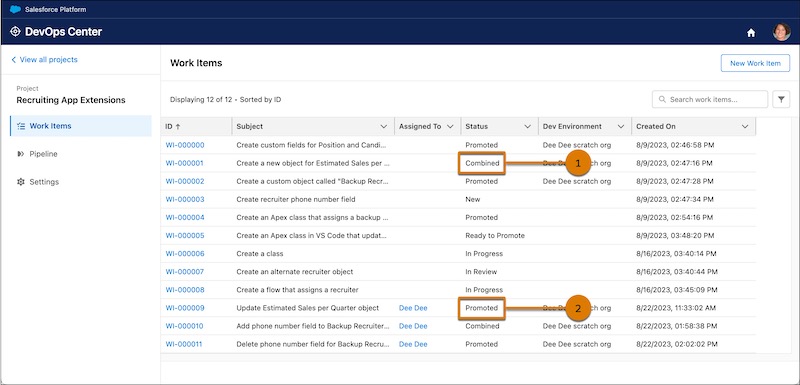
Work items that are combined with other work items have a status of Combined (1) in the Work Items list. The latest work item moves forward with the status of Promoted (2).
Work Item Activity History
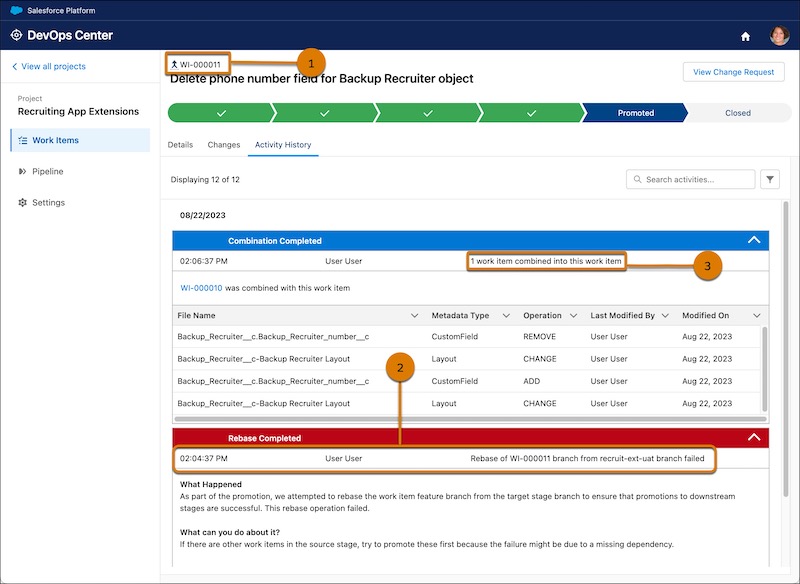
DevOps Center captures the details for combined work items in their activity history. In this
example, WI-000010 was combined into WI-000011. The activity history for WI-000011
includes the  Merge icon next to
the work item number to identify that this work item was combined with one or more
work items (1). You can see that:
Merge icon next to
the work item number to identify that this work item was combined with one or more
work items (1). You can see that:
- A dependency caused a rebase error that blocked its promotion (2).
- The work item was combined with WI-000010 (3).
- The combination and promotion were successful (3).
Pipeline Stages
After a successful combination and promotion, the
work item moves forward to the first pipeline stage using the latest work item
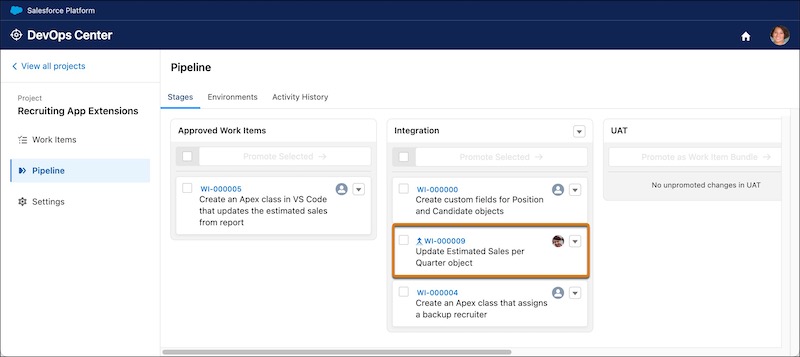
number. You can identify a combined work item by the Merge icon.