
You are here:
Stalled Promotions
Stalled promotions can happen during several points in the promotion process. After you determine where the failure occurred, you can fix it.
The promotion process comprises two main steps: deploying the selected metadata to the target stage’s org, and pushing the merged metadata to the target stage’s branch. A stalled promotion can occur when updates from external services back to DevOps Center get interrupted during one of these operations. This communication breakdown results in one of these types of stalled promotions:
- Promotion failed–the changes weren’t promoted to either the target pipeline environment or the associated target pipeline branch. To fix the issue, execute a query to find the affected record, then change the Status to Error so you can try the promotion again.
- Promotion succeeded–the changes were promoted to both the target pipeline environment and the associated target pipeline branch, but weren’t properly reflected in DevOps Center. To fix the issue, execute a query to find the affected record, then change to Status to Completed.
- Deployment succeeded but the branch wasn’t merged–the changes exist in the target pipeline environment but don’t appear in the associated target pipeline branch. To fix the issue, execute a query to find the affected record, then change the status to Error so you can try the promotion again.
To determine how to proceed to fix the stalled promotion, first troubleshoot to discover where the error occurred.
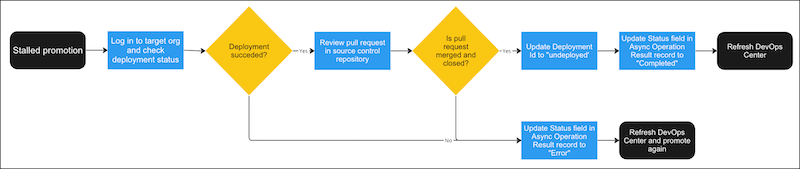
- Log in to the target org and check the deployment status.
From Setup, type Deployment Status, then select Deployment Status.
- Check to see if the deployment failed.
- If the deployment failed, reset the status of the work item and try again. See Fix a Stall Promotion When the Promotion Failed for instructions.
- If the deployment succeeded, continue to the next step.
- If the deployment succeeded, check to see if the pull (change) request in the source
control system was merged.
- View the pull request in the source control repository. If you see the Stalled Promotion error, you can use the dropdown to view the change request. If the promotion message says “Pushing,” the dropdown menu is disabled. Go to the source control system directly and select the project repository to see the list of change requests.
- Click Pull Requests.
- If all the pull requests are closed, the promotion was successful but not properly reflected in DevOps Center. See Fix a Stalled Promotion when the Promotion Succeeded for instructions. If you see open pull requests, continue to the next step.
- Look for the pull requests associated with your stalled promotion.
- If you attempted to promote all work items in the stage, look for a pull request with
the title that begins with
[DO NOT MERGE] For DevOps Center use
       only - <source stage> to <target stage>
. - If you selected a subset of items to promote, look at each pull request that contains
the work item ID, for example,
[DevOps Center] Merge WI-000002 to
       <target stage>
. - If you attempted to promote a work item bundle, look for the pull request with the
associated source and target stage, for example,
[DevOps Center]
       <source stage> to <target stage>
.
- If you attempted to promote all work items in the stage, look for a pull request with
the title that begins with
- Determine what to do next.
- If all the associated pull requests are merged (closed), see Fix a Stalled Promotion when the Promotion Succeeded for instructions.
- If any of the associated pull requests weren’t merged (still open), update the status of the promotion record and try the promotion again. See Fix a Stalled Promotion When Deployment Succeeds But Merging to Branch Fails for instructions.
- Fix a Stalled Promotion When the Promotion Failed
After you determine that your stalled promotion is due to a failure, update the status of the record and try the promotion again. - Fix a Stalled Promotion When the Promotion Succeeded
After you determine that the stalled promotion was successful but not property reflected in DevOps Center, update the status of the Async Operation Result record to update the results in DevOps Center. - Fix a Stalled Promotion When Deployment Succeeds But Merge to Branch Fails
After you determine that the deployment succeeded but the changes aren’t reflected in the associated pipeline branch, update the status of the Async Operation Result record, then try the promotion again.
