
You are here:
Promote Individual Work Items
After a work item is considered “ready to promote,” it’s added to the Approved Work Items list. You can then promote individual work items to the first pipeline stage.
To ensure DevOps Center can process all the changes during the promotion, follow these guidelines to avoid promotion errors.
- Limit the total number of work items to approximately 50 or fewer in each non-bundled pipeline stage.
- When promoting work items from the Approved Work Items list, select up to 15 work items at a time.
- When promoting work items from a non-bundled pipeline stage, up to 25 work items at a time.
- Click Pipeline.
- Under Approved Work Items, select the work items to promote to the next stage.
- Click Promote Selected.
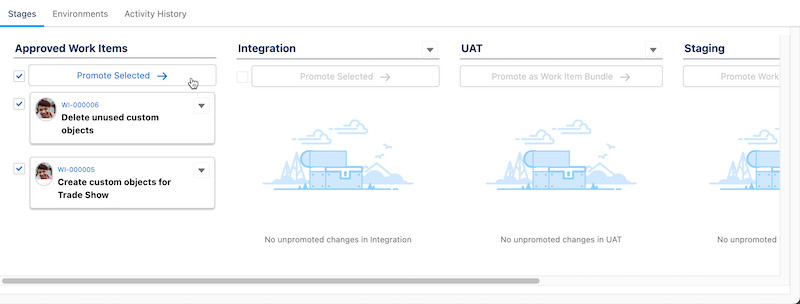
- If you haven’t logged in to the environment for the next pipeline stage from within DevOps Center, complete the login process, then reselect the items to promote and click Promote Selected.
- In the Promotion Options dialog, select a promotion option and which Apex tests to run.
- Click Promote.
If DevOps Center doesn’t detect any conflicts or shared components, the selected work items are merged and deployed to the environment associated with the next stage.
- (Optional) If DevOps Center detects a dependency or shared components for the selected work
items, DevOps Center provides you with the option to combine the work items to address the
conflict.
Proceed by choosing one of these options:
- Combine the work items.
For either shared components or a dependency, combine the work items. DevOps Center uses the latest versions of the conflicting components. See Combine Work Items in DevOps Center (Managed Package). Combining work items merges all changes into one feature branch so you avoid downstream merge conflicts.
- Attempt to promote the originally selected work items.
If shared components are detected, promote the selected work items. However, it’s likely that the other work items, which you don’t choose to promote, still contain conflicts. The promotion is blocked until you manually fix the conflict in the source control system. For GitHub, see Review and Resolve Conflicts in Your Source Control. For Bitbucket, see the Bitbucket documentation.
- Promote the work item even though there’s a dependency with another work item.
If the promotion is blocked, promote the dependent work item at a later time. However, it’s likely that the other work items still have conflicts. The promotion is blocked until you manually fix the conflict in the source control system. For GitHub, see Review and Resolve Conflicts in Your Source Control. For Bitbucket, see the Bitbucket documentation.
- Combine the work items.
