
You are here:
Error: Deployment of the work items into the next stage failed
This error occurs when deploying or promoting metadata components with unsupported special characters to a pipeline stage. The error text displays the component name and indicates that it wasn’t able to find the component in the zipped directory. To fix this error, replace the non-supported special characters with their URL-encoded versions.
DevOps Center and its underlying technologies, such as Metadata API and Salesforce CLI, support these special characters:
/\^$#+?()|[]{}!@$&:’,”If you try to promote a component with an unsupported special character, the promotion fails. From the pipeline, click View Details to view the error from the Activity History page.
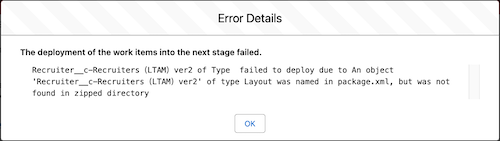
To fix this error, first run a query to view the Submit Component record for the component name with the unsupported special character. Then substitute the unsupported character with its URL-encoded version.
In this example, the problematic component is a page layout named Layout:Recruiters(LTAM)ver2 that uses full-width parentheses, which are not
supported characters. These characters are commonly used in East Asian languages,
particularly in Chinese, Japanese, and Korean (CJK) scripts.
- In the DevOps Center org, run a SOQL query to identify the Submit Component record
associated with the component with the unsupported special character.
SELECT id, sf_devops__Source_Component__c, sf_devops__File_Path__c,
sf_devops__Change_Submission__r.sf_devops__Work_Item__r.Name FROM sf_devops__Submit_Component__c
WHERE sf_devops__Source_Component__c = '<source-component-name>' and
sf_devops__Change_Submission__r.sf_devops__Work_Item__r.Name = '<work-item-name>'
Substitute the name of the <source-component-name> and <work-item-name> with your specific details.
In our example, the SOQL query looks like this:
SELECT id, sf_devops__Source_Component__c, sf_devops__File_Path__c,
sf_devops__Change_Submission__r.sf_devops__Work_Item__r.Name FROM sf_devops__Submit_Component__c
WHERE sf_devops__Source_Component__c = 'Layout:Recruiter__c-Recruiters(LTAM)ver2'
AND sf_devops__Change_Submission__r.sf_devops__Work_Item__r.Name = 'WI-000129'
The query returns the file path name that contains the encoded version of the special characters.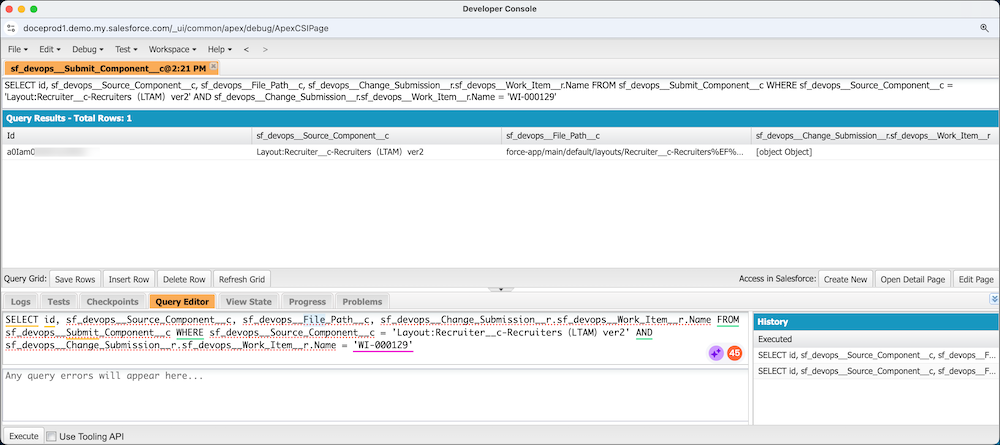
- Update sf_devops__Source_Component__c to replace the special characters with its
encoded version.
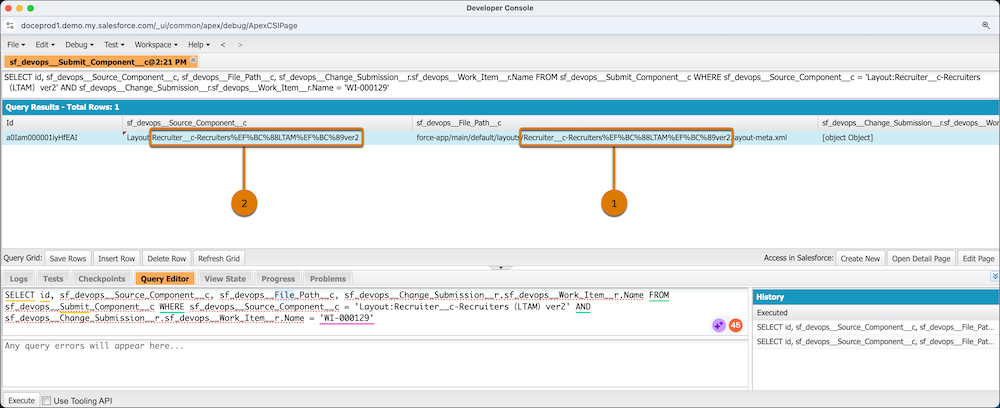
In the sf_devops__File_Path__c field, copy the component name with the encoded special character (1), replace the non-encoded name in the sf_devops__Source_Component__c field (2). If using Developer Console as your query editor, you can double-click the fields when copying and pasting.
- Repeat to fix any other affected source components.
- Save the changes.
- Back in DevOps Center, try the promotion again.
