
You are here:
Review Changes in GitHub
Create a change request (pull request) so that a team member can review and approve your changes.
main.
-
From the work item, click Create Review to move the work item to
In Review.
DevOps Center creates a change request and automatically opens a pull request for the changes in your work item branch.
-
(Optional) Click View Change Request to open a browser tab showing the pull request in
GitHub, where reviewers can see the file changes.
You can identify that DevOps Center created the change request by the subject line (1) and auto-generated comment (2).
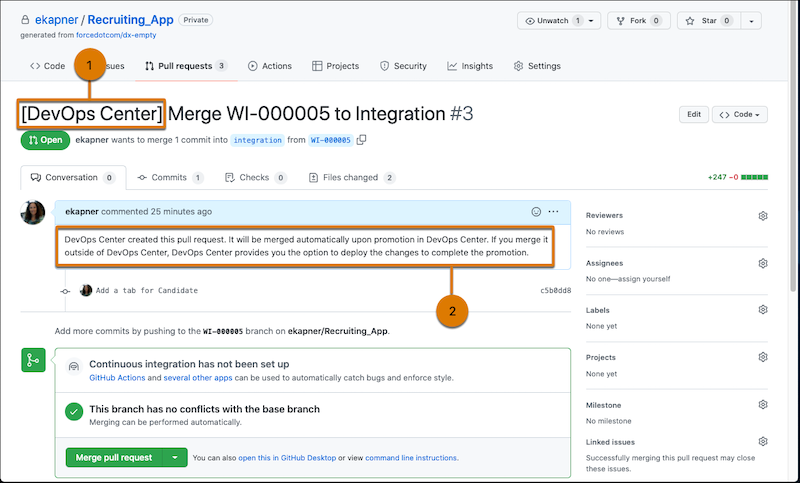
- Team members can add comments and have discussion in the pull request about the changes.
-
Go back to DevOps Center.
What you do next depends on whether you merged the pull request in GitHub.
- If you didn’t merge the pull request, indicate that the work item is ready to promote.
- If you merged the pull request, the work item status is updated to Ready to Promote. The next step is to complete the promotion in DevOps Center or using Salesforce CLI.
To improve release quality, we recommend you set up and use DevOps Testing.
Did this article solve your issue?
Let us know so we can improve!
