
You are here:
Work in a Connected Dev Environment
When you choose to work in a connected development environment, you perform much of your development and configuration tasks directly in a Developer or Developer Pro sandbox with source tracking enabled. We also support scratch orgs, which have source tracking enabled by default.
- In Work Items, click the ID of a work item to open it.
- Because you want to perform your development work in your developer org, select
I Want to Develop and Commit My Changes to the Work Item Feature Branch from DevOps
Center Using a Connected Development Environment, then select your development
environment from the list.
Development environments were added to the project during setup to make them available for team members. During setup, each environment has a nickname to make it easier to recognize. To begin work, select the development environment you want to use for this work item. If you don’t see your development environment listed, ask your team manager or Salesforce admin to add it.
- Click Proceed.
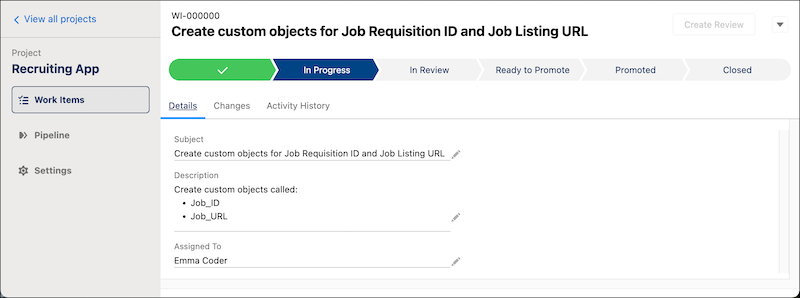
- Click the Details tab to view the description for the work item scope.
If the work item is unassigned, assign it to yourself.
- In the Changes tab, click the dev environment nickname to open it.If you haven’t yet logged into this development environment from within DevOps Center, complete the login process, then click the environment nickname link again to open the development environment.
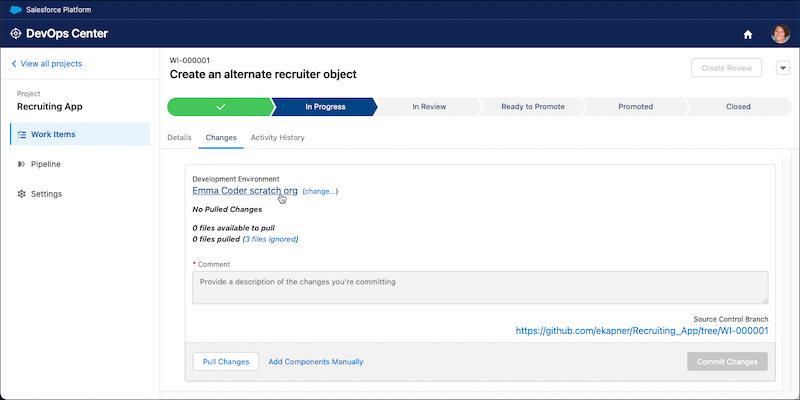
After you complete your development work, pull changes from the development environment.
