
You are here:
Analyze Test Reports to Identify Failures
Test reports show you which test suites passed and, more importantly, which ones failed. Use the insights from these reports to proactively address and fix root causes, and improve the quality of your work items.
Required Editions
| Available in: Lightning Experience |
| Available in: Enterprise, Performance, Professional (API access required), Unlimited, and Developer Editions |
| User Permissions Needed | |
|---|---|
| To view test results: | DevOps Testing Manager OR DevOps Testing User |
When you run test suites manually or automatically, the ideal scenario is that the test suites and quality gate rules pass, and your work item is promoted in DevOps Center. However, if a quality gate rule or test suite run fails, use the Test Suite Execution Groups, Test Suite Executions, and Test Executions tabs to identify and resolve issues.
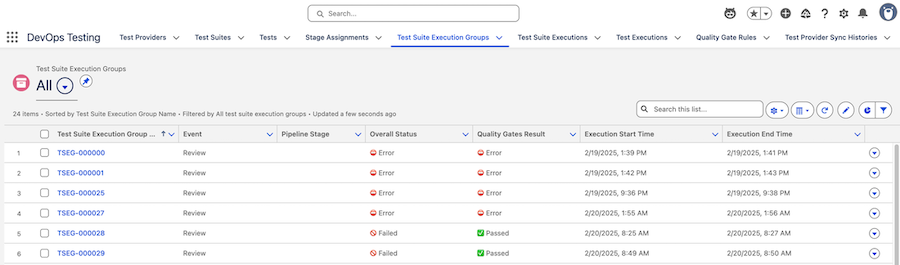
- Go to the Test Suite Execution Groups tab.
- Identify failed test suite execution groups from the Status and Quality Gate Rules Status columns.
-
Select the test suite execution group record that you want to analyze, and then select the
Related tab.
This tab lists all test suites that are part of the test suite execution group.
-
Select the test suite that you want to analyze.
You’re redirected to the test suite executions record page.
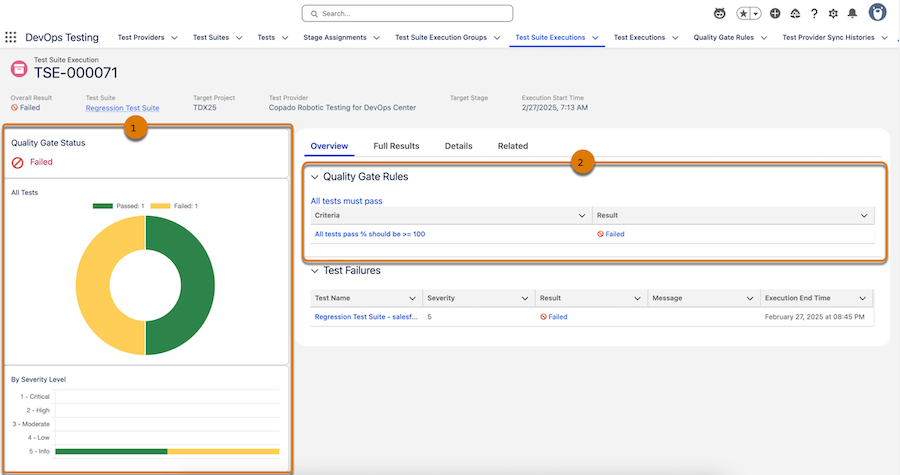
- From the Overview tab, review the Quality Gate Status (1) and Quality Gate Rules (2) to assess quality gate rule and test performance.
- Analyze the donut chart to determine the overall pass and fail ratio of tests within the test suite, and assess the performance of your tests.
- Analyze the bar chart to identify the number of tests that passed or failed, categorized by severity level. Use this information to prioritize fixing test failures.
-
Select the Full Results tab to view a list of all test results.
Each test result includes a link to the individual test record page, where you can see detailed test run information.
- Select the Details tab to view additional information about the test suite run, including code coverage (for Apex Unit Testing), pass and fail rate, start and end times, report URL, and result details.
- Select the Related tab to view details such as test names, severity levels, and whether the tests are marked as essential.
-
To identify test-level issues, complete these steps.
-
Select the test record under the Test Failures section.
You’re redirected to the Tests tab.
- Select the Details tab to identify the exact point and reason for the test failure.
-
Select the test record under the Test Failures section.
Did this article solve your issue?
Let us know so we can improve!
