
Update an Expiring Certificate for Your Custom Domain
If you serve your domain with your HTTPS certificate on Salesforce servers, avoid disruption to your domain by renewing or replacing your certificate before it expires. You can find the expiration date for your HTTPS certificates on the Certificate and Key Management Setup page. Also, admins receive an expiring certificate notification email before the certificate expires.
Required Editions
| Available in: both Salesforce Classic and Lightning Experience |
| Available in: Enterprise, Performance, and Unlimited Editions. |
| Applies to: Salesforce Sites and LWR, Aura, and Visualforce sites |
| User Permissions Needed | |
|---|---|
| To create, edit, and manage certificates: | Customize Application |
| To edit a domain: | Manage Custom Domains |

Unfamiliar with terms like DNS and certificate? See Custom Domain Terminology.
By default, when you generate a certificate authority (CA)-signed HTTPS certificate in Salesforce, that certificate expires in a year, after which the certificate isn’t trusted. If you serve your site with a certificate that you uploaded to your Experience Cloud site, that certificate also expires periodically. To avoid downtime and allow time for testing, update your certificate at least one week before the certificate expires.
-
Download your existing certificate.
It’s a good idea to save a copy of any key before you delete it. If there’s an issue after you delete a certificate, you can import the key later.
- From Setup, in the Quick Find box, enter Certificate and Key Management, and then select Certificate and Key Management.
- In the Label column, select the certificate to download.
- On the Certificate and Key Detail page, select Download Certificate.
- Save the *.crt file to a safe location.
-
Create and upload a new certificate to Salesforce.
Although it’s technically possible to update your existing certificate, we recommend that you create a certificate in Salesforce when your certificate is about to expire. This approach increases the security of your certificate because adding a certificate generates a new public-private key pair for encryption
- If your CA uses intermediate certificates, see the instructions in the knowledge article, Merge a complete certificate chain for custom HTTPS domains.
- To upload your certificate to Salesforce, see Generate a Certificate Signed by a Certificate Authority. You can get the required CA signature as a part of that process.
- To import an existing certificate that is already signed, see the knowledge article, Use HTTPS certificate that exists within your Community domain.
-
To use the new certificate, update your custom domain.
- From Setup, in the Quick Find box, enter Domains, and then select Domains.
- Next to your domain, select Edit.
-
Under the domain configuration option, serve the domain with your HTTPS certificate
on Salesforce servers, and clear the certificate field. Then select the lookup icon
(
 ).
).
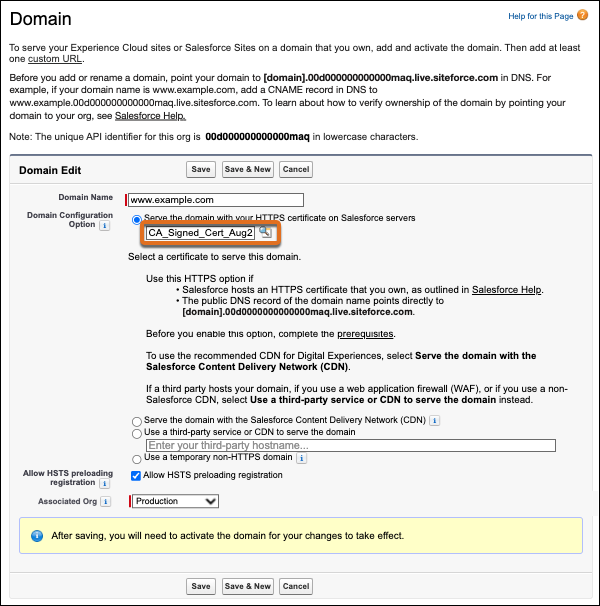
- In the lookup window, select the label of the new certificate.
- Save your changes.
It can take up to 4 hours for the updated certificate to take effect. -
Validate your domain.
Because it can take up to 4 hours for the change to take effect, we recommend that you validate your domain both after you save your changes and then again the next day.
-
Optionally, delete your old certificate.
- From Setup, in the Quick Find box, enter Certificate and Key Management, and then select Certificate and Key Management.
-
For the expired certificate, select Del.
This option is available only when no domain, identity provider, single sign-on (SSO) setting, or connected app uses the certificate.
