
Prerequisites for a Custom Domain That Uses a Third-Party Service or CDN
If a non-Salesforce service or content delivery network (CDN) serves your domain, complete these steps before you add your domain in Salesforce. To confirm your domain ownership, update your domain’s Domain Name Service (DNS) configuration. Then work with the third-party provider to ensure access to the required HTTP protocols, configure caching and request handling, and review reverse proxy restrictions. If you’re using a third-party CDN, update the header in your CDN to track IP addresses.
Required Editions
| Available in: both Salesforce Classic and Lightning Experience |
| Available in: Enterprise, Performance, and Unlimited Editions. |
| Applies to: Salesforce Sites and LWR, Aura, and Visualforce sites |
| User Permissions Needed | |
|---|---|
| To view a domain: | Manage Custom Domains OR View Setup and Configuration |

Update Your Domain’s DNS Configuration
When you add a custom domain, Salesforce checks DNS to verify that you own the domain. Before you set up your custom domain that uses a third-party service or CDN, update DNS to include the required canonical name (CNAME) or text (TXT) record for your domain.
- If your domain has an existing A, AAAA, or CNAME record, you can’t add a CNAME record. Instead, use a TXT record in DNS to set up a temporary non-HTTPS domain. See Use a Temporary Non-HTTPS Domain to Serve Your Custom Domain.
- Otherwise, add a CNAME record in DNS that points to your org’s *.live.siteforce.com CNAME. See Point Your Custom Domain to Your Org.
After you configure your domain that uses a third-party service or CDN, you can delete the TXT or CNAME record. Deleting unnecessary DNS records can improve performance. Optionally, to make it easier to switch to another domain configuration option in the future, you can keep the CNAME record in DNS. If you choose to keep the record, check with your third-party provider to ensure that their services are supported with that configuration.
Verify That Required HTTP Protocols Are Allowed
Some third-party hosts, CDNs, and web application firewalls (WAFs) restrict HTTP protocols. When the third-party provider that serves your custom domain doesn’t allow the DELETE and PATCH HTTP protocols, users can’t perform actions in Salesforce that rely on those protocols.
For example, assume that a third-party CDN serves a custom domain and that custom domain serves an Experience Cloud site page with an embedded a CRM analytics dashboard. If that third-party CDN doesn’t allow the HTTP PATCH and DELETE protocols, users can create a view within that dashboard, but they can’t edit or delete that view.
To prevent these issues, verify that your third-party service or CDN allows the POST, PUT, PATCH, and DELETE HTTP protocols. If the provider restricts these protocols by default, work with the provider to allow them for your domain before you activate your custom domain.
Caching
Make sure that when your proxy or CDN service processes an incoming request without a cached response, the service forwards the request to your custom domain’s target host name using HTTPS.
Also, when caching responses, your CDN must
honor the Salesforce Cache-Control response header. Specifically, ensure
that your CDN follows these rules when it operates as a reverse-proxy server.
- Your CDN caches responses only when
publicexists in the SalesforceCache-Controlresponse header. - If
private,no-store, orno-cacheexists in the SalesforceCache-Controlresponse header, the CDN doesn’t cache that response. - To determine the cache duration, the CDN uses
s-maxage, if present in the Salesforce Cache-Control response header. Ifs-maxageisn’t present, then the CDN usesmax-age. The CDN never increases the cache duration, regardless of whether it’s derived froms-maxageormax-age.
Request Configuration: Host HTTP Header
To serve your custom domain with a third-party service or CDN, configure your proxy or CDN
service so that the requests sent to Salesforce contain the originally requested
Host HTTP header. In other words, ensure that your custom domain name—the
domain that users see in their original web browser request—is the Host
HTTP header value in requests sent to Salesforce.
As an example, let’s say that a non-Salesforce CDN serves your custom domain,
www.example.com. When a web browser requests
https://www.example.com/hello/world, your CDN sends the request to
Salesforce at
https://MyDomainName.my.salesforce.com/hello/world
while setting the Host header to www.example.com.
Salesforce then processes the request at
MyDomainName.my.salesforce.com as a request for
www.example.com with a path of /hello/world. If
the Host header isn’t set to your custom domain,
www.example.com, then Salesforce can’t process the request properly.
URL Paths in Requests
Ensure that your third-party service or CDN processes requests without decoding the path of
the requested URLs. For example, if the path includes %2F, Salesforce
requires that the URL includes %2F, not the decoded ASCII value,
/.
Point Your Custom Domain to Your Org with Your Target Host Name
To point your custom domain that uses a third-party service or CDN to your org, the third-party uses a target host name. A target host name is the host name to which your proxy or CDN forwards requests to your custom domain. In other words, the target host name is how your third-party service or CDN delivers content from your sites in Salesforce.
For custom domains that use a third-party service or CDN, your org’s My Domain login URL is the target host name for the domain. Work with your third-party provider to forward your proxy or CDN requests to that host name.
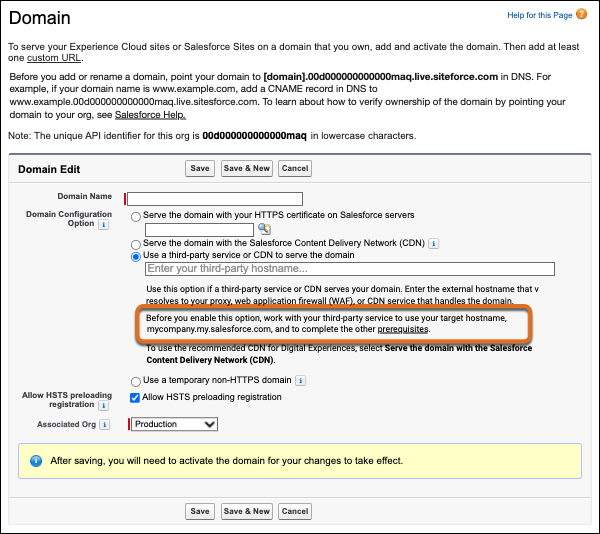
To get the target host name to provide to your third-party service or CDN, in Setup, find and select Domains, and then click Add Domain.
When you select Use a third-party service or CDN to serve the domain, your target host name is included in the guidance for that domain configuration option.
Reverse Proxy Restrictions
A reverse proxy is a type of proxy server used to direct client requests to the server that provides the requested resource. Because reverse proxies can increase scalability, performance, resilience, and security, large websites and CDNs often use reverse proxies as part of their load-balancing techniques.
To ensure that traffic is routed to the correct site URL, we recommend that your
third-party service or CDN’s reverse proxy server forward the full root-relative path of
your site. For example, when delivering resources from
https://MyDomainName.my.site.com/store/sales, the
service or CDN’s reverse proxy server passes /store/sales, not the
relative path /sales. Otherwise, some pages and features can load
resources from paths outside of a site’s prefix.
If your third-party service or CDN declines to forward the full root-relative path for all requests, we strongly recommend that you test your custom domain for any resulting issues. During testing, identify the places where resources are incorrectly loaded. Then work with your third-party service or CDN to update their reverse proxy server to correctly handle those requests.
Configure Your CDN to Pass the Origin IP Address
If you use an external CDN and location-based audience targeting in Experience Cloud, set
the True-Client-IP HTTP header in your external CDN. Without this header,
audience targeting can return unexpected results.
If you use an external CDN and you use IP restrictions for location-based audience
targeting in Experience Cloud, set the True-Client-IP header in your
external CDN. This setting helps to pass the IP address of the original client back to
Salesforce. Without this header, calls to your site and audience targeting can return
unexpected results. For more information about IP address tracking and restrictions with a
custom domain, see Considerations for Custom Domains That Use a Third-Party Service or CDN.
For help with setting the True-Client-IP header, including any additional
recommended settings to protect you against address spoofing, refer to your CDN provider
documentation.
