
Set Up a Custom Domain That Uses a Third-Party Service or CDN
Add a domain in Salesforce that’s hosted by a non-Salesforce service or content delivery network (CDN). After you set up your domain in Salesforce, that domain can serve your Experience Cloud sites or Salesforce Sites.
Required Editions
| Available in: both Salesforce Classic and Lightning Experience |
| Available in: Enterprise, Performance, and Unlimited Editions. |
| Applies to: Salesforce Sites and LWR, Aura, and Visualforce sites |
| User Permissions Needed | |
|---|---|
| To view a domain: | Manage Custom Domains OR View Setup and Configuration |
| To add a domain: | Manage Custom Domains OR View Setup and Configuration plus either a Site.com Publisher license or Create and Set Up Experiences |
| To edit or delete a domain: | Manage Custom Domains |
| To add, edit, and delete custom URLs: | Manage Custom Domains OR View Setup and Configuration AND either Create and Set Up Experiences OR a Site.com Publisher license |

Before you add a custom domain that’s hosted by a third-party service or CDN, review these important considerations.
- With this option, a third-party service or CDN hosts your domain. To use the recommended CDN for Digital Experiences, see Serve Your Experience Cloud Site with the Salesforce Content Delivery Network (CDN). To use an HTTPS certificate that you own to serve your custom domain on Salesforce servers, see Serve a Custom Domain with Your HTTPS Certificate on Salesforce Servers.
- To create or activate a custom domain for testing in a sandbox, log in to the production org that owns the sandbox, and then go to the Domains Setup page.
- To minimize disruption for your users, provision and activate your custom domain when your site traffic is low.
Before you add your domain in Salesforce, review the considerations for this option, and then complete the custom domain prerequisites.
- Complete the prerequisites for this option.
- From Setup, in the Quick Find box, enter Domains, and then select Domains.
- Click Add a Domain.
-
Enter the domain name.
Salesforce validates ownership based on the fully qualified domain name (FQDN) that you enter when you add a domain to your org. If you get an error message, point your custom domain to your org, and then wait for the changes to propagate. After you update your domain’s DNS record, it can take up to 20 hours for that change to take effect worldwide.
-
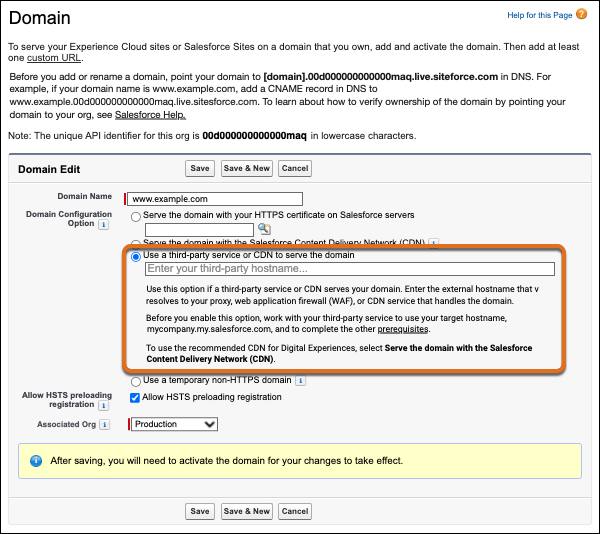
For Domain Configuration Option, select Use a third-party service or
CDN to serve the domain.
Here’s the Domain page when you select the domain configuration option to use a third-party service or CDN to serve the domain.
-
Enter your external host name.
If you’re hosting the domain yourself, specify the public host name of your host. Typically, the third-party CDN service has a unique canonical name (CNAME). Specify this host name in the external host name field in your domain configuration.
 Warning
Double check the public host name in the external host name field. If the host name is misspelled or if you don’t control the DNS record or the service of the specified host name, an attacker can potentially take over the live service of the custom domain.
For example, assume that a third-party CDN serves your custom domain www.example.com and that the corresponding external host name is cdn.example.com. If you mistakenly enter cdn.exmple.com as the external host name, an attacker can register exmple.com and use that incorrect domain to serve content on your custom domain.
For steps that you can take to help prevent domain takeovers, see Maintain Your Custom Domain in Salesforce Help.
-
If your domain is a registrable domain such as https://example.com, to avoid
vulnerabilities during HTTP redirects, select Allow HSTS preloading
registration.
This setting adds the preload directive to the HSTS header. After you enable this setting, submit your domain at https://hstspreload.org. For more information, including how to enable HSTS preloading for a domain with a subdomain, see Enable HSTS Preloading on a Custom Domain.
-
For Associated Org, select the org from which you want this custom domain to
serve site content.
For example, to serve the sites in your production org, select Production. Or select a sandbox where you want to test this custom domain.
This field only appears in production orgs with associated sandboxes. You can edit this field only from production orgs. For more information, see Test Your Custom Domains in a Sandbox.
-
Save your domain.
After you save your custom domain, Salesforce provisions the domain or gets it ready to be used. The provisioning process can take 4–14 hours. During provisioning, your site can be inaccessible.
When that process is complete, the domain’s status on the Domains Setup page changes to Awaiting Activation and you receive an email.
Newly created custom domains use HTTP, not HTTPS, until you activate the domain.
-
Delete the CNAME record that you added in DNS to verify that you own the
domain.
Deleting unnecessary DNS records can improve performance. Optionally, to make it easier to switch to another domain configuration option in the future, you can skip this step. Before you opt to keep the CNAME record, check with your third-party provider to make sure that their services are supported with that configuration.
-
To activate your domain, on the Domains Setup page, click
Activate next to your custom domain name.
 Note You edit and activate custom domains for a sandbox in production.
Your site can be unavailable for 5–10 minutes, so activate your custom domain when your site traffic is low. When your site is active, the status changes from Awaiting Activation to Completed and the Current Domain Configuration Option changes to Domain is served by an external host.
- To serve your sites via your activated domain, add a custom URL.
-
If the domain only has legacy Site.com custom URLs unrelated to Experience
Cloud sites, manually publish the affected Site.com sites via the Site.com
Studio to implement the changes.
If at least one Experience Cloud site or a Salesforce Site exists on the same domain as a legacy Site.com site related to an Experience Cloud site, the changes are automatically published on that domain. For more ways to configure custom domains, see Options to Serve a Custom Domain.
This diagram shows the routing of traffic when a third-party service or CDN serves content from your Experience Cloud site on your custom domain. In this example, the domain name is www.example.com, the 18-digit org ID is 00d000000000000013, and the org’s target host name is usa00.sfdc-xx18.salesforce.com.
The dashed line ( ) represents the configuration that points your domain to your
third-party service or CDN. The dotted line (
) represents the configuration that points your domain to your
third-party service or CDN. The dotted line ( )
represents routing through DNS, and the solid lines (
)
represents routing through DNS, and the solid lines ( ) represent
user traffic flow through HTTPS. The gray lines represent traffic that originates
outside Salesforce, and the blue lines represent traffic that originates in
Salesforce.
) represent
user traffic flow through HTTPS. The gray lines represent traffic that originates
outside Salesforce, and the blue lines represent traffic that originates in
Salesforce.
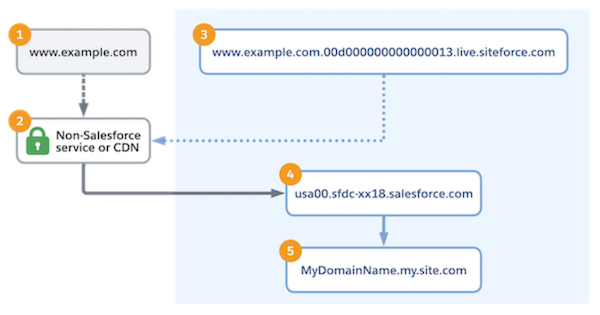
Your custom domain (1) points to the third-party service or CDN (2). For example, you point your custom domain to the third party in DNS, or you set up a web application filter (WAF) as a proxy.
The Salesforce CNAME (3) uses the external host name of the domain in Salesforce to point to your non-Salesforce service or CDN (2). In the third-party service or CDN, the configuration points to your org’s target host name (4). To identify the domain and serve content from your site (5), Salesforce uses the value passed in the Host HTTP Header of the request from the third-party service or CDN.
