
Use a Temporary Non-HTTPS Domain to Serve Your Custom Domain
Salesforce requires that you serve your custom domain via HTTPS. However, some configuration steps can require a temporary non-HTTPS configuration. If your HTTPS certificate isn’t ready to be uploaded to Salesforce, you can use a temporary domain to start configuring your custom URLs. Also, when your domain serves other content, or when you want to move a custom domain to a new production org, you can use a temporary domain to minimize disruption to your domain.
Required Editions
| Available in: both Salesforce Classic and Lightning Experience |
| Available in: Enterprise, Performance, and Unlimited Editions. |
| Applies to: Salesforce Sites and LWR, Aura, and Visualforce sites |
| User Permissions Needed | |
|---|---|
| To view a domain: | Manage Custom Domains OR View Setup and Configuration |
| To add a domain: | Manage Custom Domains OR View Setup and Configuration plus either a Site.com Publisher license or Create and Set Up Experiences |
| To edit or delete a domain: | Manage Custom Domains |
| To add, edit, and delete custom URLs: | Manage Custom Domains OR View Setup and Configuration AND either Create and Set Up Experiences OR a Site.com Publisher license |

Before you set up a temporary non-HTTPS domain, complete the custom domain prerequisites. The steps to point your domain to your Salesforce org are included in this topic.

- Determine how to serve your domain with HTTPS after you complete the steps that require a temporary non-HTTPS domain. See Determine How to Serve Your Custom Domain.
-
If your fully qualified domain name (FQDN) doesn’t have an existing an A, AAAA,
or CNAME record in DNS, add a CNAME record that points to your internal
Salesforce CNAME.
Work with your DNS provider to complete this step. See Point Your Custom Domain to Your Salesforce Org.
-
If an A, AAAA, or CNAME record exists for your FQDN in DNS, add a DNS TXT
record to validate your ownership of the domain.
When your domain’s DNS record points to a service or server, either through an A or AAAA (address) record that points to an IP address or through an existing CNAME record, removing or updating the existing pointers in DNS can disrupt your website until you set up and activate the custom domain in Salesforce.
To avoid unnecessary downtime, add a DNS TXT record to verify ownership. After you activate your custom domain in Salesforce, you can delete the TXT record.
The domain for which we add the TXT record in DNS varies based on your current configuration.
-
If an A or AAAA record exists for your FQDN in DNS, add a DNS TXT
record for your FQDN that equals your 18-character org ID.
Work with your DNS provider to complete this step.
The TXT record has no effect on the mapping of the existing A or AAAA record.
Here’s an example of a DNS TXT record for www.example.com that contains an org ID.
Name TTL CLASS TYPE VALUE -------------------------------------------------------------------- www.example.com. 600 IN TXT "00d000000000000map" -
If a CNAME record exists for your FQDN in DNS, add a DNS TXT record for
the parent domain of your FQDN that equals your 18-character org
ID.
Work with your DNS provider to complete this step.
A domain can't have both a CNAME and a TXT record in DNS. So, to avoid downtime for your FQDN, we're going to add a parent domain as a temporary custom domain in Salesforce. Later, the verification process automatically approves your FQDN as a subdomain of an existing custom domain.
To allow Salesforce to verify your ownership of the the parent domain, add a DNS TXT record for the parent domain of your FQDN that points to your 18-digit internal Salesforce CNAME.
For example, if the FQDN that you want to serve your site content is www.example.com, add a TXT record for the parent domain example.com in DNS.
Here’s an example of a DNS TXT record for example.com that contains an org ID.
Name                TTL   CLASS   TYPE    VALUE
--------------------------------------------------------------------
example.com.    600   IN      TXT     "00d000000000000map"
-
If an A or AAAA record exists for your FQDN in DNS, add a DNS TXT
record for your FQDN that equals your 18-character org ID.
- From Setup, in the Quick Find box, enter Domains, and then select Domains.
- Click Add a Domain.
-
For Domain Name, enter the FQDN that matches the TXT record that you added in
DNS.
Salesforce validates that the domain points to your org via the TXT message.
For example, if you added a TXT record in DNS for example.com a parent domain of www.example.com, enter example.com.
-
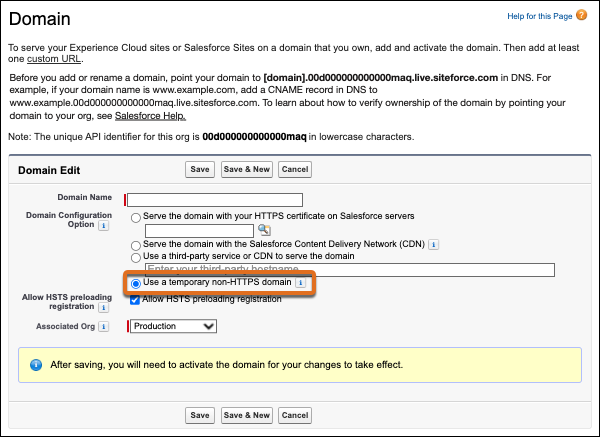
For Domain Configuration Option, select Use a temporary non-HTTPS
domain.
-
For Associated Org, select the org from which you want this custom domain to
serve site content.
For example, to create a temporary custom domain in your production org, select Production. Or select a sandbox where you want to test this custom domain.
This field only appears in production orgs with associated sandboxes. You can edit this field only from production orgs. For more information, see Test Your Custom Domains in a Sandbox.
-
Save your domain.
After you save your new domain, Salesforce provisions the domain or gets it ready to be used. Provisioning can take up to 8 hours. During provisioning, your site can be inaccessible and your site visitors can experience errors.
When that process is complete, the domain’s status on the Domains Setup page changes to Awaiting Activation and you receive an email.
-
To configure your domain to serve your sites, add a custom
URL.
When you add the first custom URL for your domain, Salesforce provisions the domain or gets it ready to be used. The provisioning process can take up to 8 hours. During provisioning, your site can be inaccessible and your site visitors can experience errors.
When that process is complete, the domain’s status on the Domains Setup page changes to Awaiting Activation and you receive an email.
-
To activate your domain, on the Domains Setup page, click
Activate next to your custom domain name.
Note Custom domains for a sandbox are edited and activated in production.
Your site can be unavailable for 5–10 minutes, so activate your custom domain when your site traffic is low. When your site is active, the status changes from Awaiting Activation to Completed and the Current Domain Configuration Option changes to No HTTPS (Temporary).
-
If you added a parent domain, add another temporary non-HTTPS domain for your
FQDN that points to another service or server with a CNAME record.
- On the Domains Setup page, click Add a Domain.
-
For Domain Name, enter the FQDN for your domain.
For example, if you added example.com as a temporary non-HTTPS domain so that you can add www.example.com as a custom domain, enter www.example.com.
This domain name passes the Salesforce verification check because www.example.com is a subdomain of example.com and example.com is an existing domain in Salesforce.
- For Domain Configuration Option, select Use a temporary non-HTTPS domain.
-
For Associated Org, select the org from which you want this custom
domain to serve site content.
For example, to create a temporary custom domain in your production org, select Production. Or select a sandbox where you want to test this custom domain.
This field only appears in production orgs with associated sandboxes. You can edit this field only from production orgs. For more information, see Test Your Custom Domains in a Sandbox.
-
Save your domain.
After you save your new domain, Salesforce provisions the domain or gets it ready to be used. Provisioning can take up to 8 hours. During provisioning, your site can be inaccessible and your site visitors can experience errors.
When that process is complete, the domain’s status on the Domains Setup page changes to Awaiting Activation and you receive an email.
-
To activate your domain, on the Domains Setup page, click
Activate next to your custom domain
name.
Note Custom domains for a sandbox are edited and activated in production.
Your site can be unavailable for 5–10 minutes, so activate your custom domain when your site traffic is low. When your site is active, the status changes from Awaiting Activation to Completed, and the Current Domain Configuration Option changes to No HTTPS (Temporary).
- To configure your domain to serve your sites, add a custom URL.
-
Update your domain to use HTTPS.
Until you activate the domain, the configuration uses HTTP.
- If your domain serves content from another service, see Change the Domain Configuration Option for Your Custom Domain.
- To move your custom domain to a new production org, see Move a Domain to Another Production Org.
-
When your updated domain is live, remove any temporary configuration in
Salesforce and in DNS.
- Delete any temporary non-HTTPS domains that are no longer needed. See Delete a Domain.
- In DNS, delete the TXT records that you added to set up the temporary domain. Work with your DNS provider to complete this step.
This diagram shows the routing of traffic when Salesforce serves your domain as a
temporary non-HTTPS domain. Dotted lines ( ) represent
DNS configurations, and the solid line (
) represent
DNS configurations, and the solid line ( ) represents user traffic flow through HTTP. The
gray line represents traffic that originates outside Salesforce, and the blue lines
represent traffic that originates in Salesforce. In this example, the domain name is
www.example.com and the 18-digit org ID is 00d000000000000013.
) represents user traffic flow through HTTP. The
gray line represents traffic that originates outside Salesforce, and the blue lines
represent traffic that originates in Salesforce. In this example, the domain name is
www.example.com and the 18-digit org ID is 00d000000000000013.
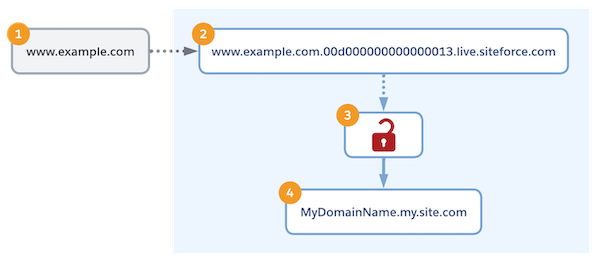
To confirm ownership of your custom domain (1), with your DNS provider, you point the domain to the Salesforce internal CNAME (2), which includes your org ID, via a CNAME or TXT record. If a CNAME record routes traffic to Salesforce, Salesforce uses an HTTP-only endpoint that’s served on a secure server (3) to serve the content from your Experience Cloud site (4). However, the hosted certificate (3) supports only HTTP on the custom domain instead of HTTPS. Also, the returned certificate creates a hostname-mismatch error because that certificate doesn't support the custom domain name.
