
Point Your Custom Domain to Your Salesforce Org
Before you add a domain in Salesforce, point your domain to your Salesforce org in Domain Name Service (DNS). If your custom domain uses your HTTPS Certificate or the Salesforce content delivery network (CDN) partner, add a canonical domain name (CNAME) record for your fully qualified domain (FQDN) to DNS. The CNAME record references your Salesforce org ID and your FQDN. Then, if you plan to use the Salesforce CDN to serve your Experience Cloud site on your custom domain, add a second CNAME record that our CDN partner requires.
Required Editions
| Available in: both Salesforce Classic and Lightning Experience |
| Available in: Enterprise, Performance, and Unlimited Editions. |
| Applies to: Salesforce Sites and LWR, Aura, and Visualforce sites |
| User Permissions Needed | |
|---|---|
| To view a domain: | Manage Custom Domains OR View Setup and Configuration |
| To add a domain: | Manage Custom Domains OR View Setup and Configuration plus either a Site.com Publisher license or Create and Set Up Experiences |
| To edit or delete a domain: | Manage Custom Domains |

When you add a custom domain, Salesforce checks the domain’s DNS configuration to verify that you own the domain. To meet this requirement, configure a CNAME record for your domain in DNS that point to your org. If you use the Salesforce content delivery network (CDN) or if Salesforce serves your domain with your HTTPS certificate, the CNAME record is required for your permanent custom domain configuration. If a third-party service or CDN serves your domain, the CNAME record is required for initial setup only.

-
Get the internal Salesforce CNAME.
- To test a custom domain in a sandbox, you create the domain in production and select the sandbox as the associated org. In DNS, use the internal Salesforce CNAME for your production org.
A canonical name (CNAME) record is an entry in the DNS record of a domain that points to a domain name instead of an IP address. When you add a domain in Salesforce, we verify that the domain points to your org via a CNAME record. That CNAME record has a target of your internal Salesforce CNAME, which includes your FQDN and your 18-digit Salesforce org ID.
You can find your internal Salesforce CNAME and 18-character org ID at the top of the Domain Setup page.
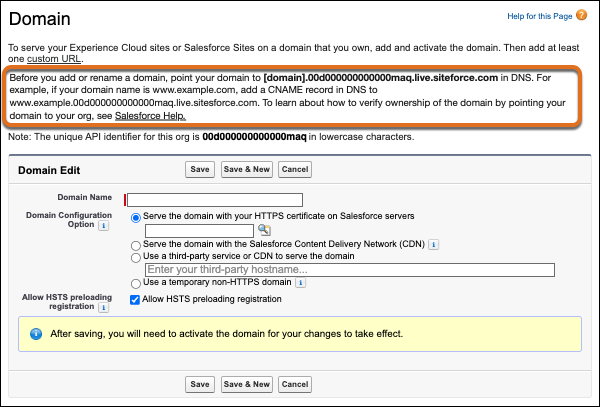
To get to this page, from Setup, in the Quick Find box, enter Domains, then select Domains, and then select Add a Domain. The option to add a domain is available only if at least one site exists in the org.
This internal Salesforce CNAME is in the format
[YourFQDN].[Your18CharOrgId].live.siteforce.com.Your domain’s fully qualified domain name (FQDN) is all the parts of the domain required to look up this authority by name unambiguously using the internet’s DNS system. For example, www.example.com.
For example, to add www.example.com as a domain in a production org, if your 18-character org ID is 00d000000000000maq, your domain’s internal Salesforce CNAME is www.example.com.00d000000000000maq.live.siteforce.com.
-
If you plan to use a registrable domain to serve your site, verify that your
DNS provider supports alias records or CNAME flattening. Then use the DNS
vendor’s configuration system to point the domain to your internal Salesforce
CNAME in DNS.
A registrable domain is a top-level domain, such as example.com without the www subdomain. For more information on registrable domains, also known as root domains or naked domains, see Custom Domain Prerequisites.
Also note these limitations for registrable domains.
- If your DNS provider doesn’t support alias records or CNAME flattening, you can’t use a registrable domain to serve your sites.
- Salesforce is unable to serve a registrable domain via our content delivery network (CDN) partner. The Salesforce CDN only serves subdomains such as www.example.com or parts.example.com. If your site needs a registrable domain served from a CDN, host it on a CDN outside of Salesforce.
-
If you don’t plan to use a registrable domain to serve your site, work with
your DNS provider to update DNS. Add a CNAME record for your fully qualified
domain name that points to your internal Salesforce CNAME.
Here’s an example of a CNAME record for www.example.com that points to an org with ID 00d000000000000maq.
NAME TTL CLASS TYPE VALUE -------------------------------------------------- www.example.com. 3600 IN CNAME www.example.com.00d000000000000maq.live.siteforce.com. -
If you plan to use the Salesforce CDN to serve your Experience Cloud site on
your custom domain, get the target value for your domain’s _acme-challenge CNAME
record.
- In Setup, enter Domains in the Quick Find box, and then select Domains, and then add or edit a domain.
- Select Serve the domain with the Salesforce Content Delivery Network (CDN) as the Domain Configuration Option.
The details for that option include the format of the _acme-challenge CNAME record.
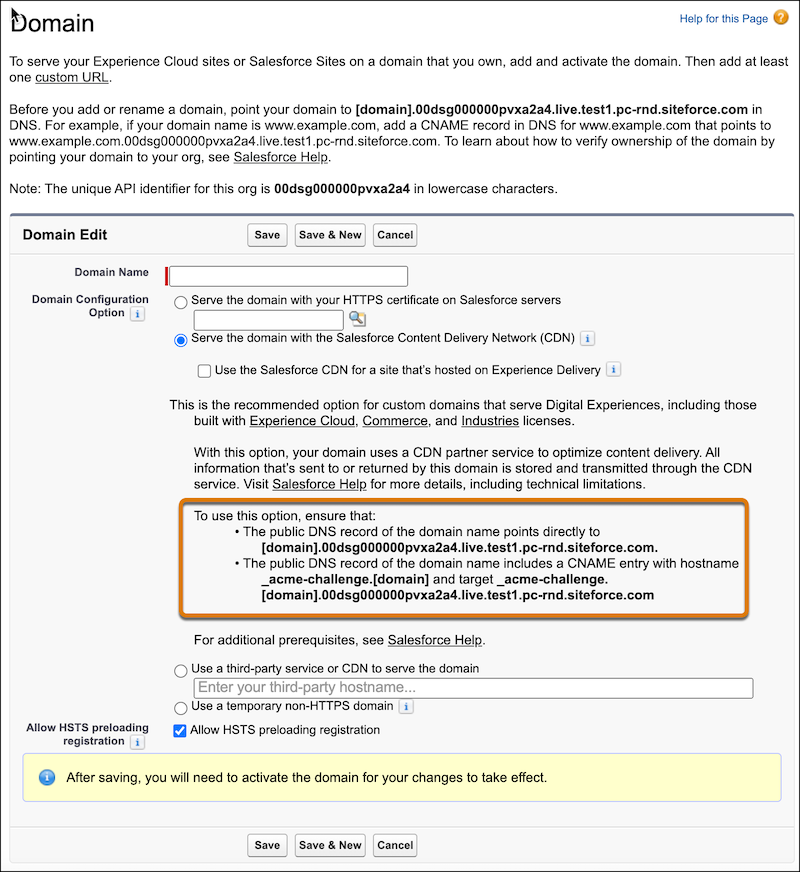
To get the values for your domain, replace [domain] with your FQDN. The full format for the _acme-challenge name is: _acme-challenge.[YourFQDN], and the format for the target value is _acme-challenge.[YourFQDN].[Your18charOrgId].live.siteforce.com.
-
If you plan to use the Salesforce CDN to serve your Experience Cloud site on
your custom domain, work with your DNS provider to add your domain’s
_acme-challenge CNAME record.
This CNAME record, referred to as the _acme-challenge, is for your domain’s certificate. The first CNAME record that you added is for your domain, pointing to your internal Salesforce CNAME. Both CNAME records are required for the Salesforce CDN.
 Important If other TXT records exist in DNS for your domain’s _acme-challenge subdomain, remove them before you provision your domain.
Here’s an example _acme-challenge CNAME record for www.example.com that points to an org with ID 00d000000000000maq.
NAME TTL CLASS TYPE VALUE -------------------------------------------------- _acme-challenge.www.example.com. 3600 IN CNAME _acme-challenge.www.example.com.00d000000000000maq.live.siteforce.com. -
Verify the CNAME record values.
-
On Windows, open Command Prompt, then enter
nslookup -type=recordtype domain, where domain is the domain name you intend to use as your custom domain, such as www.example.com. -
On MacOS or Linux, open Terminal, and then enter
dig -t recordtype
                                domain
, where domain is the domain name you intend to use as your custom domain, such as www.example.com.
If the returned CNAME values are incorrect or missing, work with your hosting provider to update the CNAME records.Note Some hosting providers’ configuration options can modify the CNAME value and prevent Salesforce from verifying ownership of that domain. For example, with some hosting providers, you can’t use the proxied option for DNS CNAME configuration. -
On Windows, open Command Prompt, then enter
