Some pages have Dynamic Forms enabled by default. For those that don't, you can migrate
the fields and sections from your existing record pages as individual components in the Lightning
App Builder. Then you can configure them the same way as the other components on the page, so that
your users get only the fields and sections that they want. If you have save options on your
account, case, or lead record pages, they are migrated.
Required Editions
Available in: Lightning Experience
Available in: Group, Professional, Enterprise,
Performance, Unlimited, and Developer Editions
User Permissions Needed
To create and save Lightning pages in the Lightning App Builder:
Customize Application
Note Dynamic Forms is supported for most, but not all standard LWC-enabled objects. See LWC Migration for Record Home Pages for a list of
LWC-enabled objects. If you open a record page for an object in the Lightning App Builder and
don't see a Fields tab in the component panel, then Dynamic Forms isn't supported for that
object. As an example, the Note object doesn’t support Dynamic Forms because it has a fixed
layout. Dynamic Forms isn’t supported on objects that are not LWC-enabled. For example,
Campaigns, Products, and Tasks, which are not LWC-enabled, use information from page layout.
Open a Dynamic Forms-supported object record page for Lightning Experience in one of these
ways.
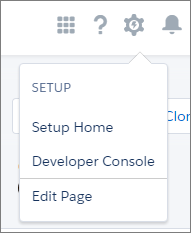
From the Setup menu on a record page, select Edit Page.
When you select Edit Page for the first time, Salesforce makes a
copy of the standard page. You edit this copy in the Lightning App Builder. If a customized
page exists and is active, selecting Edit Page opens that page to edit.
From the Object Manager in Setup, open a Dynamic Forms-supported object, then select
Lightning Record Pages.
Open a record page for a Dynamic Forms-supported object from the Lightning App Builder
list page in Setup. To find it, enter App Builder in the Quick Find
box, and then select Lightning App Builder.
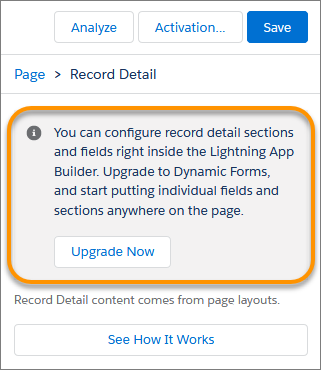
Click the Record Detail component.
In the component detail pane, click Upgrade Now to start the Dynamic
Forms migration wizard.
Walk through the wizard and select the page layout that has the fields that you want to
migrate to the page.
Why choose a page layout when the Fields tab has all the fields that you need? The upgrade
wizard takes the fields, sections, and save options from the page layout that you choose and
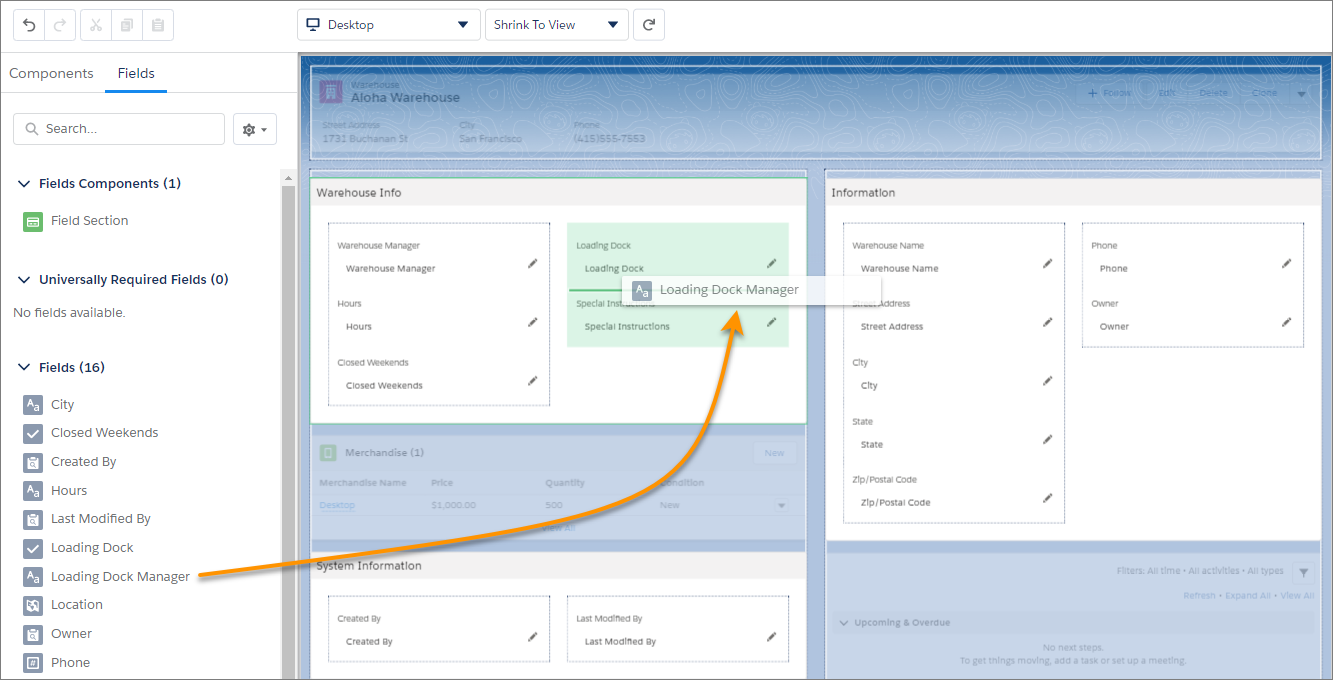
automatically adds them to your page. As long as a field is inside a Field Section component,
you can put it anywhere on the page, even inside tabs.
During migration, the Record Detail component is removed from the page and is replaced
with fields and sections that you can configure and place anywhere you like.
If your record page supports the phone form factor, a Record Detail - Mobile component
is added to your page as part of the migration. This component is unique to Dynamic Forms. It
shows the standard record detail fields and sections to your users when they view the page on a
mobile device.
If you have opted in to Dynamic Forms on Mobile, the Record Detail - Mobile component isn’t added
to pages you migrate to Dynamic Forms. The Dynamic Forms content is visible on mobile without
the need of the Record Detail - Mobile component
We use three kinds of cookies on our websites: required, functional, and advertising. You can choose whether functional and advertising cookies apply. Click on the different cookie categories to find out more about each category and to change the default settings.
Privacy Statement
Required Cookies
Always Active
Required cookies are necessary for basic website functionality. Some examples include: session cookies needed to transmit the website, authentication cookies, and security cookies.
Functional Cookies
Functional cookies enhance functions, performance, and services on the website. Some examples include: cookies used to analyze site traffic, cookies used for market research, and cookies used to display advertising that is not directed to a particular individual.
Advertising Cookies
Advertising cookies track activity across websites in order to understand a viewer’s interests, and direct them specific marketing. Some examples include: cookies used for remarketing, or interest-based advertising.