
Cross-Object Fields in Dynamic Forms
Drill into lookup relationship fields from the component palette on Dynamic Forms-enabled pages in the Lightning App Builder, and access fields from related objects. Drag the cross-object fields onto your record page to display relevant data from related objects.
Required Editions
| Available in: Lightning Experience |
Available in: Group, Professional, Enterprise, Performance, Unlimited, and Developer Editions |
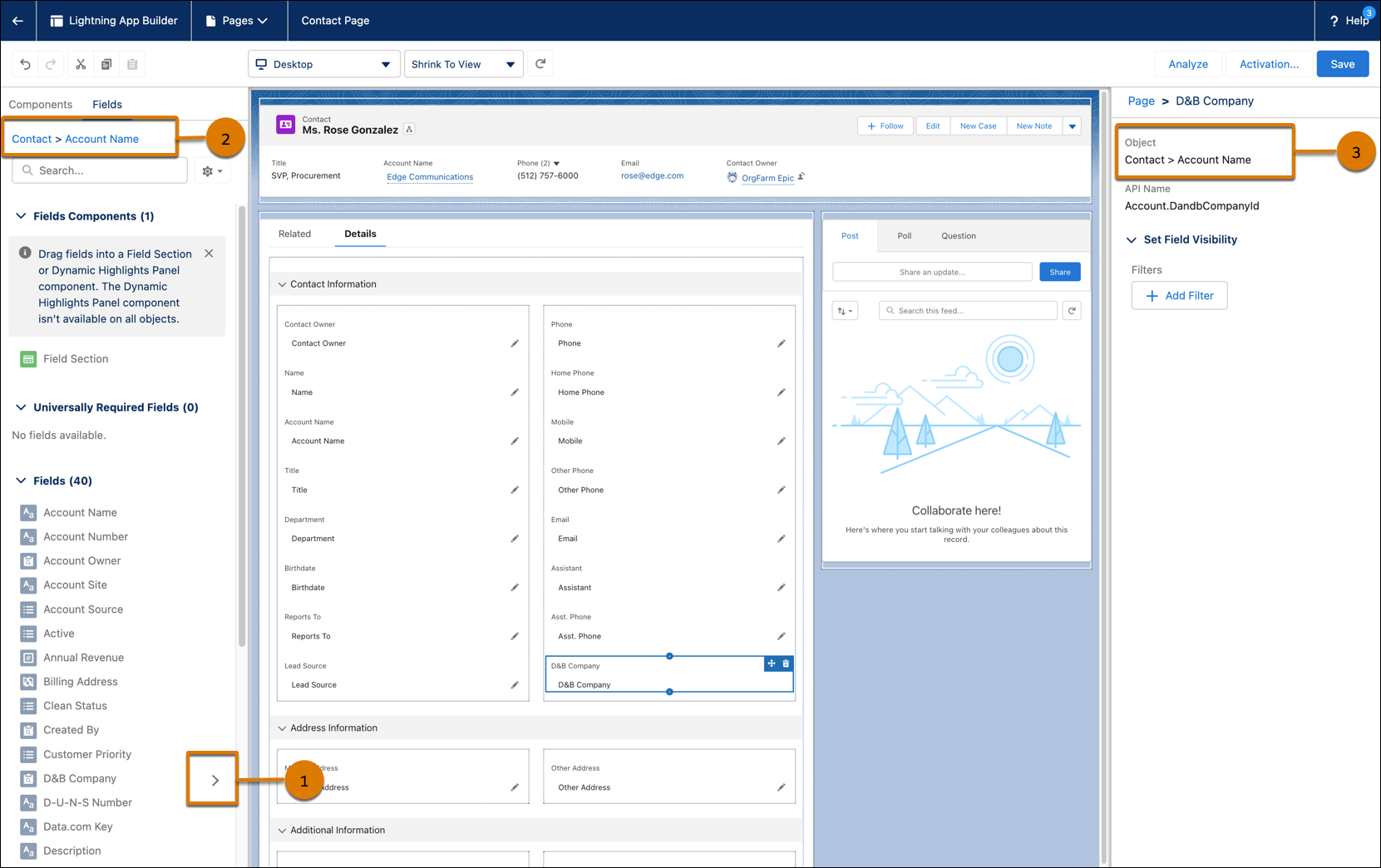
Cross-object fields are marked with an arrow icon (>) in the palette (1). Click the arrow icon to drill in.
Every time you drill into a cross-object field from the palette, the fields in the palette change to reflect the fields associated with the object that you clicked into. A breadcrumb at the top of the Fields tab tracks where you are (2).
When you select a cross-object field on the canvas, the Object property shows the relationship of the field to the base object associated with the Lightning page (3).
Dynamic Forms is supported for most but not all standard LWC-enabled objects. For a list of LWC-enabled objects, see LWC Migration for Record Home Pages. However, with cross-object fields in the palette, you can drill into an object that’s not LWC-enabled such as Price Book, see its fields on the palette, and then add them to your page. Sometimes fields from non-LWC-enabled objects on a Dynamic Forms-enabled page don’t show the same way as they do on their respective object record pages. For example, they can lose their custom formatting. This behavior applies not only to the page in view mode, but also to the create, edit, and clone windows.
Cross-Object Fields and Person Accounts
In orgs with Person Accounts enabled, the behavior of account fields that are cross-object fields at runtime can vary based on the account relationship of the object record that’s being viewed.
- On an object record with a person account relationship, general account cross-object fields are always shown, but business account cross-object fields are dropped.
- On an object record with a business account relationship, general account cross-object fields are always shown, but person account cross-object fields are dropped.
- On an object record without an account relationship, the default experience is the business account relationship with general and business account cross-object fields shown and person account cross-object fields dropped.
Limitations
Keep these limitations in mind when working with cross-object fields in Dynamic Forms.
- Polymorphic relationship fields aren’t supported as cross-object fields in Dynamic
Forms.
A polymorphic relationship field is one where the related object could be one of several different types of objects. You can choose a record coming from different objects in a polymorphic lookup. For example, the Who relationship field of a task can be a contact or a lead. You can find polymorphic lookup fields in standard objects.
- User object fields aren't supported as cross-object fields.
- Cross-object fields on Dynamic Forms-enabled pages aren’t editable in runtime. As a result, when users create, edit, or clone records that contain cross-object fields, the create, edit, or clone window scrolls to the first editable field, which sometimes aren’t at the top of the window.
- You can’t drill down more than two levels.
