
Dynamic Highlights Panel
The Dynamic Highlights Panel component displays up to 12 key record fields, which are configured in Lightning App Builder. The Dynamic Highlights Panel is responsive. When you change the size of your browser window, your information stays visible and wraps instead of being truncated.
Required Editions
| Available in: both Salesforce Classic (not available in all orgs) and Lightning Experience |
Available in: Group, Essentials, Professional, Enterprise, Performance, Unlimited, and Developer editions |
The Dynamic Highlights Panel is a container for fields, just like a Field Section. You can find it on the Fields tab in the Lightning App Builder.
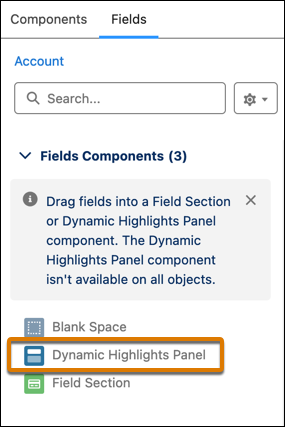
When you add the Dynamic Highlights Panel to the canvas, a Primary Field value is preset to the object’s Name field. You can change the Primary Field value in the property pane. If no secondary fields are added to the panel, the panel displays collapsed in runtime.
You can use visibility rules to show and hide fields in the panel. You can also apply conditional formatting to fields in the panel to make them stand out and help users quickly identify the most relevant information on the page.
You can also customize the actions that appear in the panel. The Dynamic Highlights Panel is supported for all LWC-enabled objects. For a list of LWC-enabled objects, see LWC Migration for Record Home Pages.
The Dynamic Highlights Panel must be enabled for mobile before your mobile users can see it on record pages. You can enable the panel on the Salesforce Mobile App page in Setup.
When you enable Dynamic Actions on Mobile, some visibility rules may not work on standard objects as expected. Enable the Dynamic Forms and Dynamic Highlights Panel on Mobile setting at the same time. Enabling both settings ensures record pages on mobile use the latest LWC-based Lightning page technology, which provides improved support for visibility rules.
The Dynamic Highlights Panel uses dynamic actions by default. Actions on pages that use the panel can come from different places based on how and where actions are configured and whether Dynamic Actions on Mobile is enabled.
- If Dynamic Actions on Mobile isn’t enabled for your org, desktop and mobile users viewing a page with the Dynamic Highlights Panel see the actions configured inside the Dynamic Highlights Panel. If the Dynamic Highlights Panel has no actions configured, desktop and mobile users see actions from the page layout. You can enable Dynamic Actions on Mobile from the Salesforce Mobile App page in Setup.
- If Dynamic Actions on Mobile is enabled for your org, a checkbox appears in the page
properties on record pages in Lightning App Builder.

If you don't select the checkbox, mobile and desktop users see the actions from the Dynamic Highlights Panel, if configured, and from the page layout if not configured.
When this option is selected, the page-level actions you configure in the page properties pane take precedence on mobile over all other actions on the page, including those configured in the Dynamic Highlights Panel, the Highlights Panel, or from the page layout.
