Loading
Salesforce now sends email only from verified domains. Read More
Extend Salesforce with Clicks, Not Code
Table of Contents
Select Filters

          No results
          No results
          Here are some search tips

          Check the spelling of your keywords.
          Use more general search terms.
          Select fewer filters to broaden your search.

          Search all of Salesforce Help
          Dynamic Interactions in the Lightning App Builder

          Dynamic Interactions in the Lightning App Builder

          Dynamic Interactions is part of our continuing drive to make Lightning pages more dynamic and interactive. With Dynamic Interactions, an event occurring in one component on a Lightning page, such as the user clicking an item in a list view, can update other components on the page. Dynamic Interactions lets admins create applications with components that communicate and transform based on user interactions, all in the Lightning App Builder UI. It unlocks capabilities that previously were reserved only for developers.

          Required Editions

          Available in: Lightning Experience

          Available in: Group, Professional, Enterprise, Performance, Unlimited, and Developer Editions

          To get the most out of Dynamic Interactions, admins and developers work together.

          Developers write custom components that power the Dynamic Interactions. The developer defines the events that the component supports and then exposes the events in the Lightning App Builder UI. Then, in the Lightning App Builder, an admin configures the event by setting up the interactions between the components.

          Dynamic Interactions has four major building blocks.

          • Event—Anything that can trigger an interaction, such as a mouse click, a button press, or a change in a field’s value.
          • Interaction—An activity that happens between the source and the target.
          • Source—The item triggering the event. Currently, only custom Lightning web components and the Dynamic Actions Bar component (Pilot) are supported as sources.
          • Target—The item that’s the target of the interaction. Any component on a Lightning page can be a target.

          An event occurring in one component (the source) can trigger changes in one or more other components on the page (the targets). A single source can have multiple targets.

          Note
          Note Dynamic Interactions is supported only on app pages, and interactions are limited to activity between components.
          Example
          Example

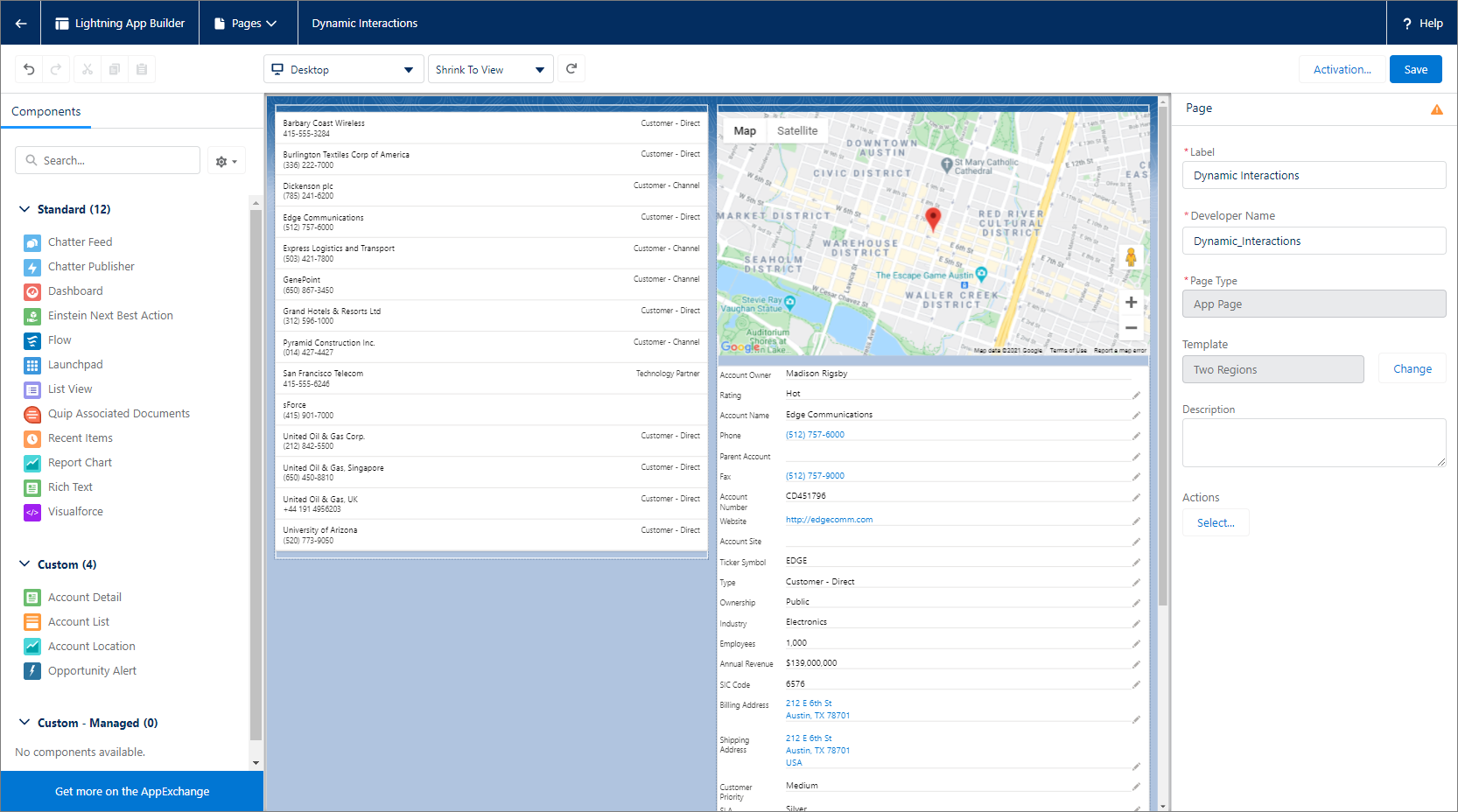
          Kai (they/them) and Rina (she/her) are an admin and developer team. Kai wants to give their on-the-go users an easy way to check the location of various accounts so that they can plan efficient site visits using a simple app page.

          Kai enlists Rina’s help to make this happen. As a developer, Rina knows that she can wire up events between components using code. But she wants to give Kai the power to configure the event interactions in the way that they need to without having to come back to her every time a change is necessary.

          Rina creates a custom source component for Kai, plus two other components to act as event targets. After installing the new components in their org, Kai has an app page with three custom components: Account List, Account Detail, and Account Location (a map).

          Dynamic Interactions sample page

          The source component is the Account List on the left. It has an Item Selected event enabled, which Rina exposed to the Lightning App Builder UI using new Dynamic Interactions code. After Kai finishes configuring the event interactions, when a user clicks a list item in the Account List component, the event fires. The Account Detail component updates to show that account’s details. At the same time, the Account Location component pinpoints that account’s location on a map. Every new click or tap on an account in the list results in updating the content in the other two components.

           
          Loading
          Salesforce Help | Article