
Validate and Sync an External Data Source
After you configure an external data source, synchronize it to map its tables with external objects in your Salesforce org. The content and data of external objects appear in federated search, together with your Salesforce content and data.
Required Editions
| User Permissions Needed | |
|---|---|
| To create an external object from an external data source: | Customize Application |
When you sync a large number of tables, you can select to execute the sync operation asynchronously as a background job and avoid connection timeout. You can view the list of sync operations performed as background jobs in the corresponding External Data Source page.

Note
- Syncing creates or overwrites Salesforce external objects that map to the external system’s schema. Syncing doesn’t copy any data into your Salesforce org or write data from your org to the external system.
- Syncing is a one-time process. If the external system’s schema changes, the modifications aren’t automatically synced to your Salesforce org. To reflect the changes in the external system, resync the objects. After resyncing, full field-level security to the external objects is granted to all users who have the same profile as the user who initiated the resync.
- Each org can have up to 200 external objects. External objects don’t count toward the amount for custom objects. Syncing fails if it causes your org to exceed 200 external objects.
- For Salesforce Connect external data sources, make sure that you read and understand the sync considerations. See Sync an External Data Source for Salesforce Connect.
- From Setup, enter External Data Sources in the Quick Find box, then select External Data Sources.
- Click the name of the external data source.
- Click Validate and Sync, and confirm that the connection is successful.
-
Select tables and click Sync to do the following for each
selected table.
- Automatically create a Salesforce external object.
- Automatically create a custom field for each table column that’s compatible with a Salesforce metadata field type.

Example The resulting external data source detail page includes a list of related external
objects like this.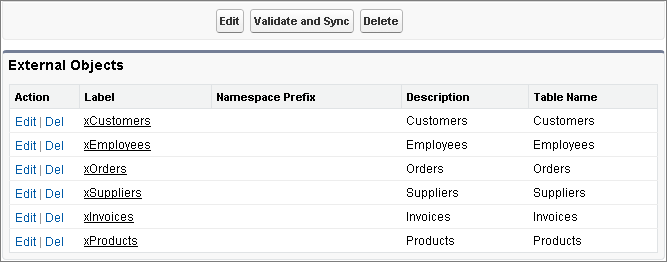
Did this article solve your issue?
Let us know so we can improve!
