
Tips for Writing Validation Rules
Keep these tips in mind when writing validation rules.
Required Editions
| Available in: both Salesforce Classic and Lightning Experience |
| Available in: Essentials, Contact Manager, Group, Professional, Enterprise, Performance, Unlimited, Developer, and Database.com Editions |
- Consider all the settings that can make a record fail validation, including assignment rules, field updates, field-level security, or hidden fields.
- Make sure to test a validation rule before activating it because if rules for the
same field conflict, users can’t save the record. Use the debug log to monitor the
details of your rule implementation.
 Tip A poorly designed validation rule can prevent users from saving valid data. Make sure you thoroughly test a validation rule before activating it. You can also use the debug log to monitor the details of your rule implementation.
 - When referencing related fields in a validation formula, make sure those objects are deployed.
- Use the RecordType.Id merge field in your formula to apply different validations for different record types.
- Boolean error condition expression works. For example:
- Correct:
CloseDate < TODAY() - Incorrect:
IF(CloseDate < TODAY(), TRUE,
                            FALSE)
- Correct:
- If a validation rule contains the BEGINS or CONTAINS function, it processes blank fields as valid. For example, a validation rule that tests whether the serial number of an asset begins with 3, all assets with a blank serial number are considered valid.
- When using a validation rule to ensure that a number field contains a specific
value, use the ISBLANK function to include fields that don’t contain any value. For
example, to validate that a custom field contains a value of 1, use this validation
rule to display an error if the field is blank or shows any other
number.
OR (ISBLANK (field__c), field__c<>1) - Avoid using the IsClosed or IsWon opportunity merge fields in validation formulas.
Instead, use the ISPICKVAL function to determine if the Stage contains the
appropriate value. For example,this validation formula makes a custom Project Start
Date field required whenever the Stage is Closed
Won.
AND(ISPICKVAL(StageName, "Closed Won"), ISBLANK(Project_Start_Date__c)) - Simplify your validation formulas by using checkbox fields, which don't require an
operator because they return true or false. For example, this validation formula
checks to be sure an opportunity has opportunity products using the HasOpportunityLineItem merge field before users
can save a change to
it.
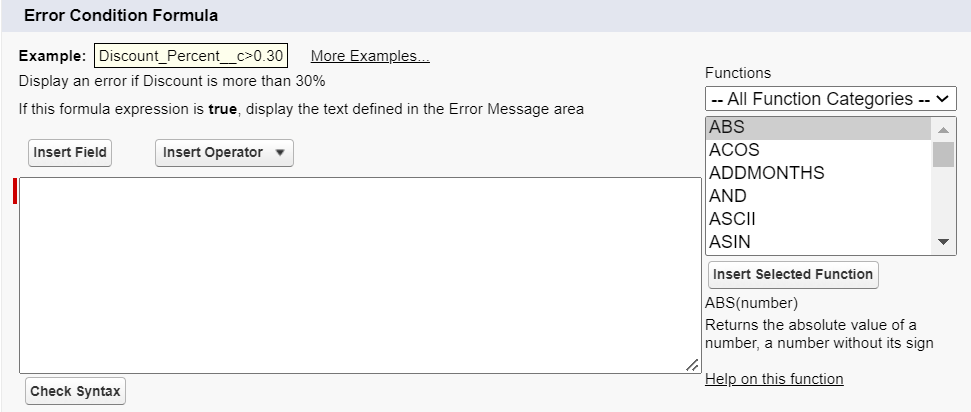
NOT(OR(ISNEW(),HasOpportunityLineItem)) - When creating or updating a validation rule, click Insert Field to check if a field is available for an entity. If the field doesn’t exist for an entity, an error appears.
Tips for Writing Validation Rule Error Messages
- Give instructions that tell the user the type of entry that’s valid, such as Close Date must be after today.
- Include the field label to identify the field that failed validation, especially if the error message appears at the top of the page.
- When defining validation rules, you can set the error location to Top of Page or Field. If the error location is set to a field that’s deleted later, read only, or to a field that isn’t visible on the page layout, Salesforce automatically changes the location to Top of Page.
- To translate error messages, use the Translation Workbench.
- Assign corresponding numbers to validation rules and their error messages to identify the source of the error.
Did this article solve your issue?
Let us know so we can improve!
