
You are here:
View Embedded Element Analytics and Detailed Insights
For active and previously run automation event-triggered, activation-triggered, and segment flows, element run data appears on the flow canvas. Access more detailed performance metrics on the element's Analytics tab and in the element record's Analytics tab.
Required Editions
| View supported editions. |
| This feature is only available in Marketing. To purchase, contact your Salesforce account executive. |
Before You Begin
Before viewing embedded element analytics and detailed insights, make sure you have the required permissions and setup:
- To view analytics for messaging engagement elements (such as a Send Email Message action), you need the Tableau Next Included App Business User permission set.
-
You must also have general reports access, which requires the permissions: Allow access to viewing reports in Data Cloud Reporting, Run Reports, View Reports in Public Folders.
- To view engagement analytics, you must have installed Marketing Performance, including the optional Flow Performance prerequisite. See Set Up Marketing Performance.
- To view element metric analytics, you must have installed Flow Performance. See Set Up Flow Performance.
 Note Using the Open Details feature in Flow Performance consumes Data Cloud credits, which can increase your bill. Learn more about the billing impact of Data Cloud-powered features.
 - After Winter '26, to access detailed performance analytics, an administrator must uninstall and reinstall Marketing Performance.
- Embedded analytics and detailed insights aren't available for flow runs that completed before Winter '25.
How to View Analytics
View element analytics directly in an element's configuration panel and access detailed performance insights.
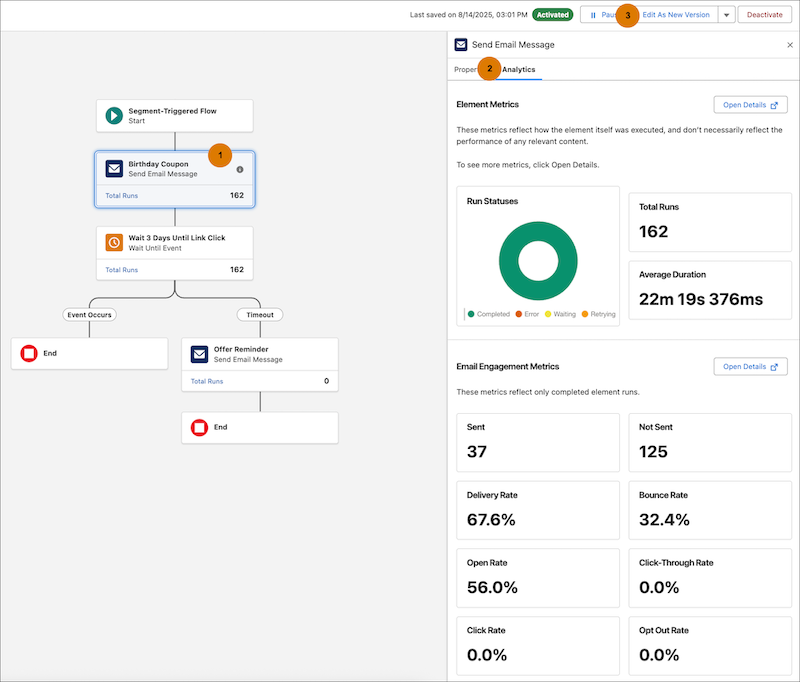
- To see an element's analytics, click the element (1). On the Analytics tab (2), you can see how many times an element was run, how many times it succeeded, how many times it errored, and its average duration.
- To filter metrics by date range, click the Edit Date Range icon next to the date range display on the canvas. Select a preset range—such as Last 7 Days or Last 30 Days—or select Custom to set specific start and end dates, then click Apply. The start date must be on or after the flow's activation date.
-
To view more detailed insights on your flow data, in an element's Analytics tab, click Open Details. This opens the element record page to its own Analytics tab. Run data on the element record page can take longer to update than data shown on the Analytics tab.
- To make changes to a flow, click Edit as New Version (3), or Save As New Flow in the dropdown menu. You can't edit a flow that has run or is scheduled to run.
