
You are here:
Grant Access to Records with Manual Sharing in Salesforce Classic
Use manual sharing to give specific other users access to an individual record.
Required Editions
| Available in: Salesforce Classic |
| Available in: Professional, Enterprise, Performance, Unlimited, and Developer Editions |
For example, the owner of a record wants to share a single case record with a coworker, because that coworker has experience resolving similar issues. The record owner creates a manual share that opens up access to only the one case record for their coworker (and users above the coworker in the role hierarchy). In this scenario, creating a manual share is easier and more secure than a sharing rule.
-
Click Sharing on the record you want to share.
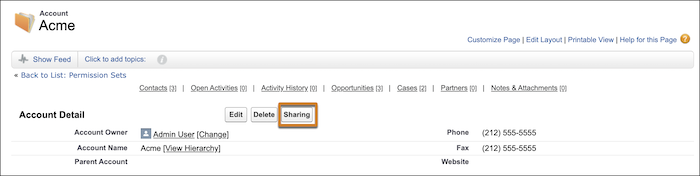
- Click Add.
-
From the Search dropdown list, select the type of group, user,
role, or territory to add.
Depending on the data in your org, your options can include:
Type Description Managers Groups All direct and indirect managers of a user. Manager Subordinates Groups Managers and all the direct and indirect reports they manage. Public Groups All public groups defined by your administrator. Personal Groups All personal groups defined by the record owner. Only record owners can share with their personal groups. Users All users in your org. Doesn’t include portal users. Roles All roles defined for your org, including all users in each role. Roles and Subordinates Deprecated. Use Roles and Internal Subordinates instead. Previously used for users in the role plus all users in roles below that role in the hierarchy.
In Salesforce orgs created before February 8, 2024 that enabled digital experiences before Winter ’26, manual shares accessible to Roles and Subordinates were automatically converted to be shared with Roles, Internal and Portal Subordinates. To secure external users’ access, remove Roles, Internal, and Portal Subordinates from the Share With list of your manual shares. Add Roles and Internal Subordinates instead.
Roles and Internal Subordinates All roles defined for your org. Includes all users in the specified role and all users in roles below that role. Doesn’t include partner portal and Customer Portal roles. Roles, Internal and Portal Subordinates Adds a role and its subordinate roles. Includes all users in that role plus all users in roles below that role. Only available when digital experiences is enabled for your org and Experience Cloud site users are created with external account roles other than a shared person account role. Includes site and portal users. Territories For organizations that use territory management, all territories defined for your org, including all users in each territory. Only the territories in the active territory model are available. Territories and Subordinates For orgs that use territory management, all users in the territory plus the users below that territory. Only the territories in the active territory model are available.  Note With more than 2,000 users, roles, and groups, if your query doesn’t match any items in a particular category, that category doesn’t show up in the Search dropdown menu. For example, if none of your group names contain the string CEO, after searching for CEO, the Groups option no longer appears in the dropdown. If you enter a new search term, all categories are still searched even if they don’t appear in the list. You can repopulate the dropdown by clearing your search terms and pressing Find.
 - Choose the specific groups, users, roles, or territories whom you want to give access by adding their names to the Share With list. Use the Add and Remove arrows to move the items from the Available list to the Share With list.
-
Choose the access level for the record you’re sharing and any associated records that
you own.
Access Level Description Full Access User can view, edit, delete, and transfer the record. User can also extend sharing access to other users. But the user can’t grant Full Access to other users. Read/Write User can view and edit the record, and add associated records, notes, and attachments to it. Read Only User can view the record, and add associated records to it. They can’t edit the record or add notes or attachments. Private User can’t access the record in any way. Note- If you’re sharing an opportunity, contact, or case, the users you share it with must have at least Read access to the associated parent account via sharing features or you must have the ability to also share the account. You have the ability to share the account if you are the account owner, are a Salesforce admin, are above the account owner in the role hierarchy, and or have the Modify All Records permission on Account. If you have the ability to share the account itself, the users you share the opportunity, contact, or case with are automatically given Read access to the parent account.
- If you’re sharing an account, the access level for its child opportunities, cases, and contacts can’t be greater than the account owner’s default access from organization-wide defaults and the owner’s role. You can only grant a greater level of access if you’re a Salesforce admin, have the Modify All Records permission on Account, or have the Modify All Data user permission.
- Contact Access isn’t available when the org-wide default for contacts is set to Controlled by Parent.
- Select the reason you’re sharing the record so users and administrators can understand.
- Save your changes.
