
How Page Layout Elements Display in Lightning Experience
When you change your page layouts in Salesforce Classic, it can impact the content shown on object record pages in Lightning Experience. However, in Lightning Experience, the page elements look different, and some features are not supported.
Required Editions
| Available in: Lightning Experience |
| Page layouts are available in: All Editions |
| Creation and deletion of page layouts is available in: Enterprise, Performance, Unlimited, and Developer Editions |
Here’s a sample contact record in Lightning Experience. The highlights panel (1) contains key record fields and is the only part of a record page that you can’t customize using the page layout editor. The fields in the highlights panel are customized using a compact layout.
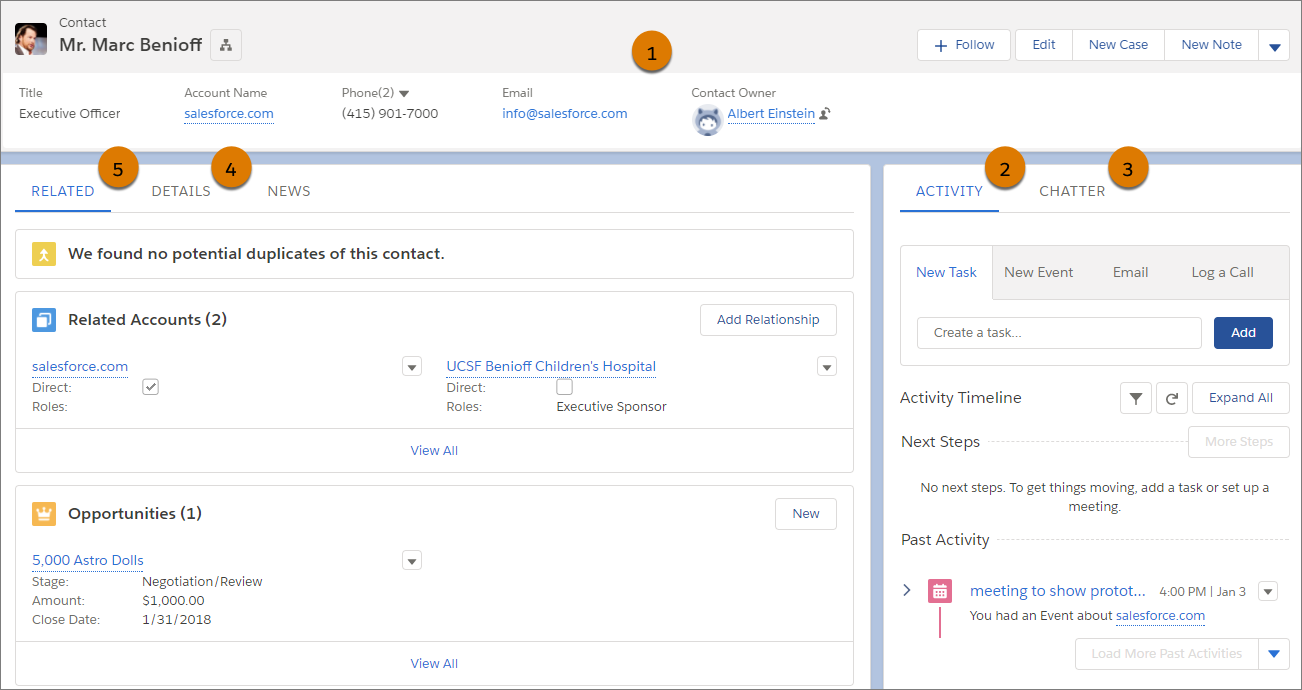
These page layout elements are supported in Lightning Experience.
| Feature | Description |
|---|---|
| Actions | Actions display in different places, such as the Highlights Panel (1), Activity tab (2), and the Chatter tab (3). The actions are derived from the list of actions in the Salesforce Mobile and Lightning Experience Actions section of the page layout. Important: Some actions aren’t supported in Lightning Experience. |
| Blank Spaces | Blank spaces are supported in Lightning Experience. |
| Canvas Apps | Canvas apps are supported in Lightning Experience. |
| Custom Links | Custom links display under the Details tab (4). |
| Fields | On pages that don’t use Dynamic Forms, fields from the page layout display in a block under the Details tab (4). You can remove or reorder fields on a page layout only via the page layout editor. On Dynamic Forms-enabled pages, fields can be put almost anywhere on the page, using the Lightning App Builder. A page layout defines which fields are available for use on the page, but the organization of the fields is done in the Lightning App Builder. See Break Up Your Record Details with Dynamic Forms. The top-down tab-key order, which allows users viewing a record detail page to move through a column of fields from top to bottom before moving focus to the top of the next column of fields, isn’t supported in Lightning Experience. Even if a page layout is configured for a top-down tab-key order, tabbing moves from left-to-right through field columns in Lightning Experience. |
| Related Lists | Related lists are included as Lightning components in Lightning Experience, and they appear in the Related tab (5). Not all related lists are supported in Lightning Experience. In Lightning Experience, the related list type determines how many fields are displayed in a related list. The Basic List related list type displays only the first four fields of a related list. The Enhanced List type shows up to 10 fields, lets you resize and sort columns, perform mass actions, and wrap text. To change the related list type, customize the Related List–Single component or the Related Lists component in the Lightning App Builder. |
| Report Charts | Report charts that you add to a page layout appear under the Details tab (4) in Lightning Experience. When you add a report chart to a page layout, it can take a few moments before the chart appears on Lightning record pages. |
| Sections | On pages that don’t use Dynamic Forms, sections appear along with fields under the Details tab (4). A section with no header is incorporated into the section above it. On Dynamic Forms-enabled pages, sections can be put almost anywhere on the page using the Lightning App Builder. See Break Up Your Record Details with Dynamic Forms. A section with no header is incorporated into the section above it. The Detail Page Visibility setting controls whether the section header appears for both the detail page and the edit page. If the section header is set to display (or hide) on the detail page, the header also displays (or hides) on the edit page. |
| Standard and Custom Buttons | Standard and custom buttons are treated as actions in Lightning Experience, just like in the Salesforce Mobile App. Buttons can appear in various places on a Lightning page, depending on the button type and the page type. Important:Custom buttons that call JavaScript aren’t supported in Lightning Experience. |
| Visualforce Pages | Visualforce pages that you added to the page layout appear under the Details tab (4). Only Visualforce pages with Available for Lightning Experience, Experience Builder sites, and the mobile app enabled display in Lightning Experience on Lightning pages, utility bars, and the Salesforce Mobile App. |
| Feature | Description |
|---|---|
| Actions | Actions display in different places, such as the Highlights Panel (1), Activity tab (2), and the Chatter tab (3). The actions are derived from the list of actions in the Salesforce Mobile and Lightning Experience Actions section of the page layout. Some actions aren’t supported in Lightning Experience. |
| Blank Spaces | Blank spaces are supported in Lightning Experience. |
| Canvas Apps | Canvas apps are supported in Lightning Experience. |
| Custom Links | Custom links display under the Details tab (4). |
| Fields | On pages that don’t use Dynamic Forms, fields from the page layout display in a block under the Details tab (4). You can remove or reorder fields on a page layout only via the page layout editor. On Dynamic Forms-enabled pages, fields can be put almost anywhere on the page, using the Lightning App Builder. A page layout defines which fields are available for use on the page, but the organization of the fields is done in the Lightning App Builder. See Break Up Your Record Details with Dynamic Forms. The top-down tab-key order, which allows users viewing a record detail page to move through a column of fields from top to bottom before moving focus to the top of the next column of fields, isn’t supported in Lightning Experience. Even if a page layout is configured for a top-down tab-key order, tabbing moves from left-to-right through field columns in Lightning Experience. |
| Related Lists | Related lists are included as Lightning components in Lightning Experience, and they appear in the Related tab (5). Not all related lists are supported in Lightning Experience. In Lightning Experience, the related list type determines how many fields are displayed in a related list. The Basic List related list type displays only the first four fields of a related list. The Enhanced List type shows up to 10 fields, lets you resize and sort columns, perform mass actions, and wrap text. To change the related list type, customize the Related List–Single component or the Related Lists component in the Lightning App Builder. |
| Report Charts | Report charts that you add to a page layout appear under the Details tab (4) in Lightning Experience. When you add a report chart to a page layout, it can take a few moments before the chart appears on Lightning record pages. |
| Sections | On pages that don’t use Dynamic Forms, sections appear along with fields under the Details tab (4). A section with no header is incorporated into the section above it. On Dynamic Forms-enabled pages, sections can be put almost anywhere on the page using the Lightning App Builder. See Break Up Your Record Details with Dynamic Forms. A section with no header is incorporated into the section above it. The Detail Page Visibility setting controls whether the section header appears for both the detail page and the edit page. If the section header is set to display (or hide) on the detail page, the header also displays (or hides) on the edit page. |
| Standard and Custom Buttons | Standard and custom buttons are treated as actions in Lightning Experience, just like in the Salesforce Mobile App. Buttons can appear in various places on a Lightning page, depending on the button type and the page type. Custom buttons that call JavaScript aren’t supported in Lightning Experience. |
| Visualforce Pages | Visualforce pages that you added to the page layout appear under the Details tab (4). Only Visualforce pages with Available for Lightning Experience, Experience Builder sites, and the mobile app enabled display in Lightning Experience on Lightning pages, utility bars, and the Salesforce Mobile App. |
These page layout elements aren’t supported in Lightning Experience.
- Expanded lookups
- Mobile cards
- S-controls
- Section header visibility for Edit Page
- Tags
The Lightning App Builder is used to customize the layout of Lightning Experience record home pages, not the enhanced page layout editor.
