
Create Dynamic Related Lists in Lightning App Builder
With dynamic related lists, you can add flexibility and control to related lists on your record pages. Add, customize, and filter related lists in the Lightning App Builder instead of in the page layout editor. To help your users see the most relevant records, set up two or more dynamic related lists with different filters on the same object.
Required Editions
| Available in: Lightning Experience |
| Available in: Group, Essentials, Professional, Enterprise, Performance, Unlimited, and Developer Editions |
| User Permissions Needed | |
|---|---|
| To create dynamic related lists: | Customize Application |
| To create and save Lightning pages in the Lightning App Builder: | Customize Application |
You can create dynamic related lists for custom objects and for Salesforce record home objects that are enabled for LWC. Dynamic related lists are supported by default on desktop. To use them on mobile, enable Dynamic Related Lists for Mobile (Beta) in Salesforce Mobile App Setup.
- From Setup, in the Quick Find box, enter App Builder, and then select Lightning App Builder.
- Edit an existing record page, or click New to create one.
- To add a new dynamic related list to your record page, drag the Dynamic Related List–Single component onto the page.
-
To upgrade an existing list, select a Related List–Single component on the
record page. Then, in the properties pane, click Upgrade
Now to convert it to a Dynamic Related List–Single
component.
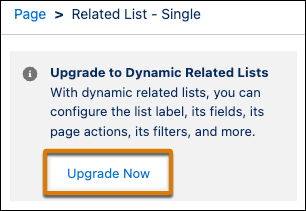
When you upgrade a list, Salesforce uses your assigned page layout to populate the fields and actions in the properties pane. If a related list isn’t defined on the object’s page layout, fields populate the properties pane in the default order defined by Salesforce, and actions don’t populate automatically.
If you don’t see the option to upgrade, Dynamic Related List–Single isn’t supported for the object associated with the record page or for the related list selected in the properties pane.
-
In the Dynamic Related List–Single properties pane, customize the list.
- Select the related list to add to the page and which record the list comes from.
- Give the list a descriptive name.
- Select a list type to define how the list appears on the page, and choose the number of records to show in the list.
- Show or hide actions on the list, and choose the actions that are available.
- Select and order the fields to show as columns in the list, and define the record sort order.
- Filter the records in the list. Users can’t remove the filters that you apply.
-
To add visibility rules based on the record field, device type, or other
filters, click Add Filter.
The
 on the
component indicates that visibility rules are applied.
on the
component indicates that visibility rules are applied. - Save your changes to the record page, and then activate the page to share it with your users.
