
Create a Mobile App Page with the Lightning App Builder
Create a mobile home page for the Salesforce mobile app. Your users can see this page right when they log in.
Required Editions
| Lightning App Builder available in: both Salesforce Classic and Lightning Experience |
| Lightning app pages available in: both the Salesforce mobile app and Lightning Experience |
Available in: Group, Essentials Professional, Enterprise, Performance, Unlimited, and Developer Editions |
| User Permissions Needed | |
|---|---|
| To create and save Lightning pages in the Lightning App Builder: | Customize Application |

- From Setup, enter App Builder in the Quick Find box, then select Lightning App Builder.
- Click New.
- Select App Page and then click Next.
-
Give your app page a label, and then click Next.
The label can be up to 80 characters.
-
Select the first template (Header and Left Sidebar) and click
Done.
If this is a mobile-only page, it doesn't matter which template you pick. If you plan to share this page between mobile and desktop users, choose the template most appropriate for desktop use. On mobile devices, the page responsively collapses into a single column.
-
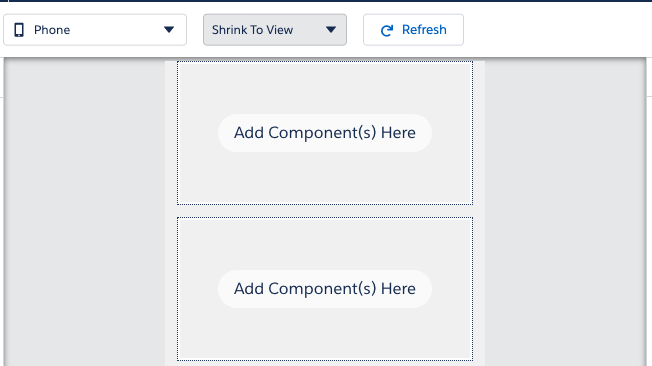
Make sure you’re viewing the template preview using the Phone form factor. The regions on
the template are displayed in a one column layout.
-
Drag the components that you want onto the page.
Drag components up and down to rearrange them. You can also click a component’s top or bottom border to create an insertion point (
 ) for the next component. To increase mobile adoption, we recommend making available the top features that your users use most frequently. For example, the Recent Items can take them back into the records that they were working with. Also, the List View standard components can be set to their open tasks to improve productivity in the mobile app.
Remember that screen space and bandwidth are precious on mobile, so try to limit each page to 4 or 5 components at most. If you overload the page with features, it can be slow and harder to use.
See Preview Mobile App Pages in Lightning App Builder. - Click each component on the page to configure its properties.
-
Click in the empty area of the canvas or on the Page link in the
breadcrumb to configure the page properties.
The Description field is limited to 255 characters. The API Name field is limited to 80 characters, but if you have a namespaced org, we recommend using fewer than 65 characters. When you create a Lightning page, the API name is derived from the first 40 characters of the label that you give the page.
-
Optionally add global actions to your page.
Global actions help your users perform tasks easily from the app page, like log a call, create a new case or event etc.
- In the page properties, click Select.
-
Add, remove, or reorder the actions for your page.
Actions you select appear on the page’s action bar and in the highlights panel at the top of the page in Lightning Experience. An app page is the only type of Lightning page that you can add actions to in this way. Other Lightning pages derive their actions from the object and global page layouts.
- Click OK.
- Click Save when you’re done editing your page.
To give your users access to the mobile app page, you must activate it. You can limit the page to mobile users during the page activation process. After activation, you can add this to any Lightning App in the App Manager for your users to personalize. If your Lightning App is available on both desktop and mobile, you can use the same page across both. Or create a Lightning App specifically for your mobile users, and add it to the navigation there.
