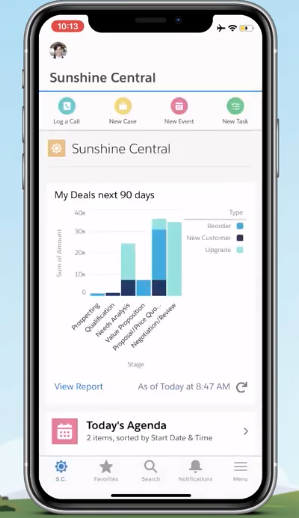
Preview Mobile App Pages in Lightning App Builder
For a consistent experience across devices, use the Lightning App builder to preview your record and app pages.
Required Editions
| Available in: Lightning Experience |
Available in: Group Essentials, Professional, Enterprise, Performance, Unlimited, and Developer Editions |
The Salesforce mobile web experience is no longer available after Summer ’20. To customize and preview your apps and pages for Lightning Experience or the mobile app, use the App Builder. You can also specify certain components as mobile- or desktop-only.
If you need more than a preview, run the Lightning apps and components in the Salesforce mobile app. Testing in the mobile app helps validate that users have the best experience on mobile.
When you build a mobile app page, the steps include:
- Build a new app page with the App Builder
- Activate the page and add the page to your mobile navigation
- Create a Lightning app in the App Manager for your users to personalize
 Watch a Demo
(9 minutes)
Watch a Demo
(9 minutes)
The following sections discuss best practices on building a mobile app page using the App Builder.
Display Mobile-Friendly Components
When you create a Lightning app page or record page via the App Builder, the template you choose controls how it displays across devices.
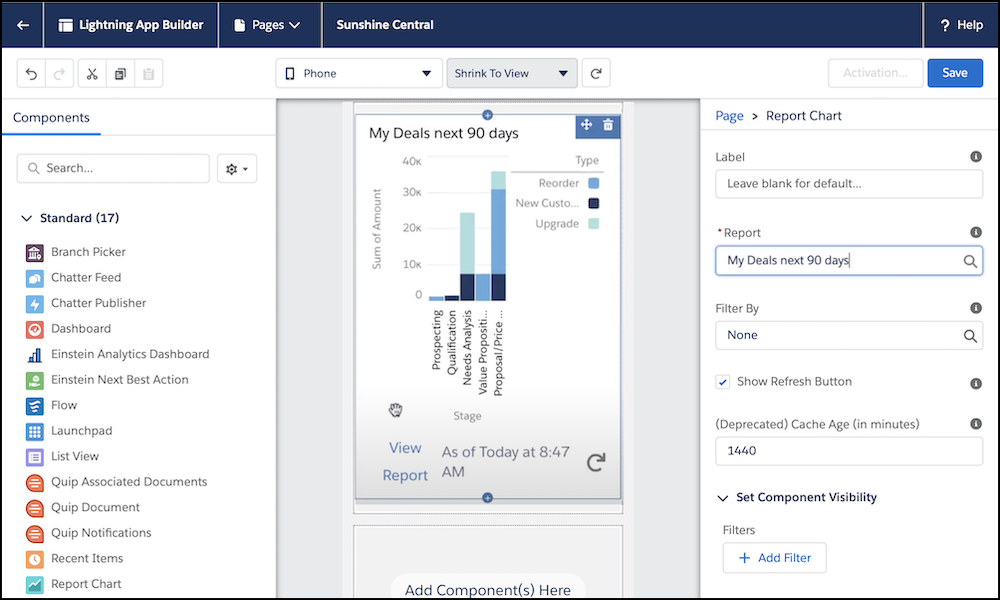
Here are several ideas on including standard components for mobile users. The list can vary depending on your user’s role.
- The Report Chart component displays helpful data, such as your top deals, based on a filter.
- The List View component can display your events, such as today’s agenda.
- The Task List component can display your open tasks, overdue tasks, or another list based on a filter.
- The Recent Items component lets you get back to the records you’re working with recently.
- The Launchpad component lets you add a grid of navigation items, such as your contacts or a custom Visualforce page, which users can access with one tap.
If standard components don’t meet your requirements, create custom components.
Customize Actions for the Mobile Page
If you’re creating an app page, you can also customize the actions available for the page. On the Page link, click Select under the Actions label.
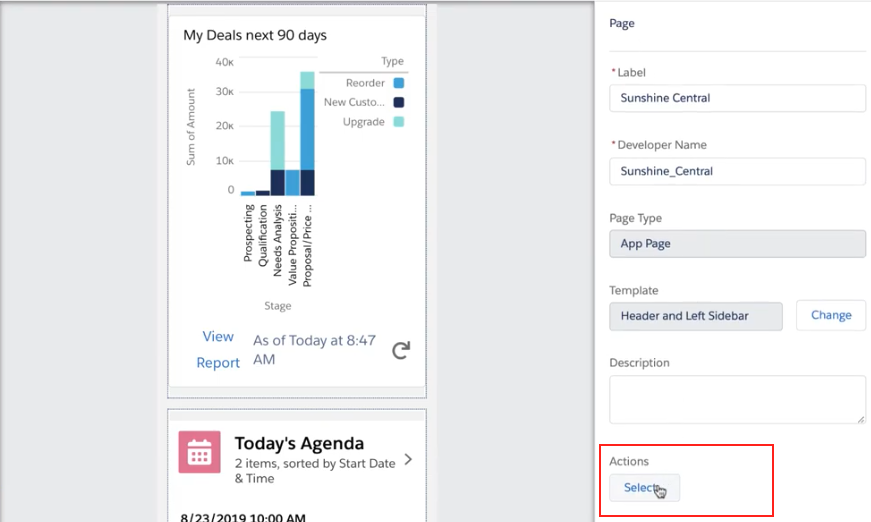
Here are several popular actions for mobile users that make them more productive. Again, the list can vary depending on your user’s role.
- Log a call
- New case
- New event
- New task
Activate the Page for Mobile Users
When you activate the page, you have the option to add the page to both Lightning Experience and mobile app. You can add the page to any mobile-enabled Lightning app. Adding your app page to Lightning Experience makes it available to users viewing the app on desktop and in the Salesforce mobile app.
Enable Users to Personalize Tabs for the Mobile App
If you haven't already, enable your Lightning apps for mobile in the App Manager so your users can access the same navigation on all devices. Or create a Lightning app if you want separate navigation items on mobile.
To customize your mobile experience, personalize the app on desktop with your favorite tabs, and then use them on the mobile app. This guideline is optional but highly recommended to optimize your users’ mobile experience. For this use case, choose the Desktop and phone form factors.
Add navigation items, including the app page you created and several basic tabs like Chatter and Groups. Keep the app lightweight since users can personalize their own tabs using this app.
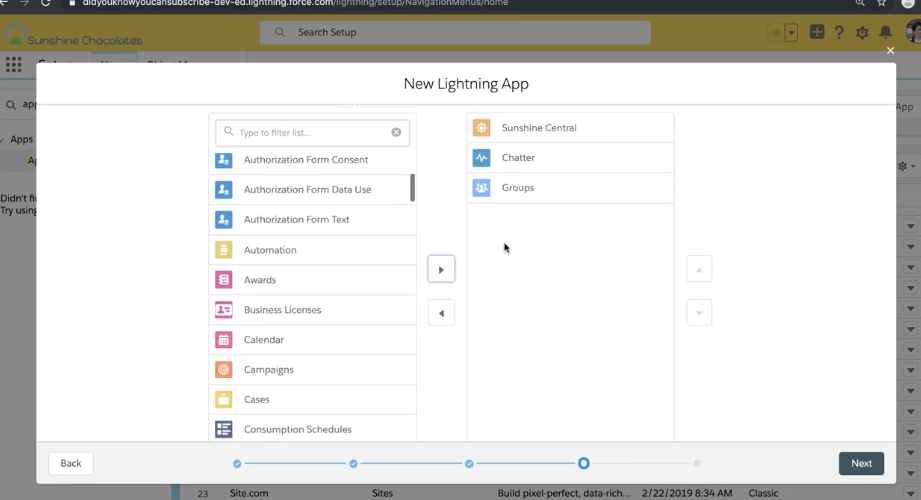
Add the profiles who need mobile access to this app. For example, the mobile app is ideal for your sales and marketing users who need access to the mobile app on the go. Both profiles can then use the mobile app to personalize the tabs they need for their role.
If you have multiple Lightning apps available to different users' profiles, the profiles also get access to the mobile app.
Personalize Tabs for the Mobile App
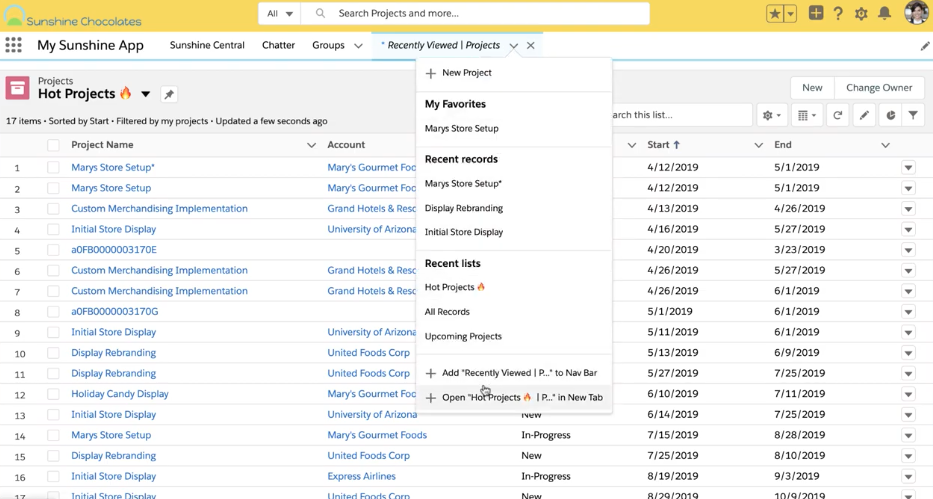
In Lightning Experience on desktop, users can access the Lightning app you created. Go to a list view and open it in a new tab. This adds the list view to the mobile navigation and enable users to be productive in the mobile app.
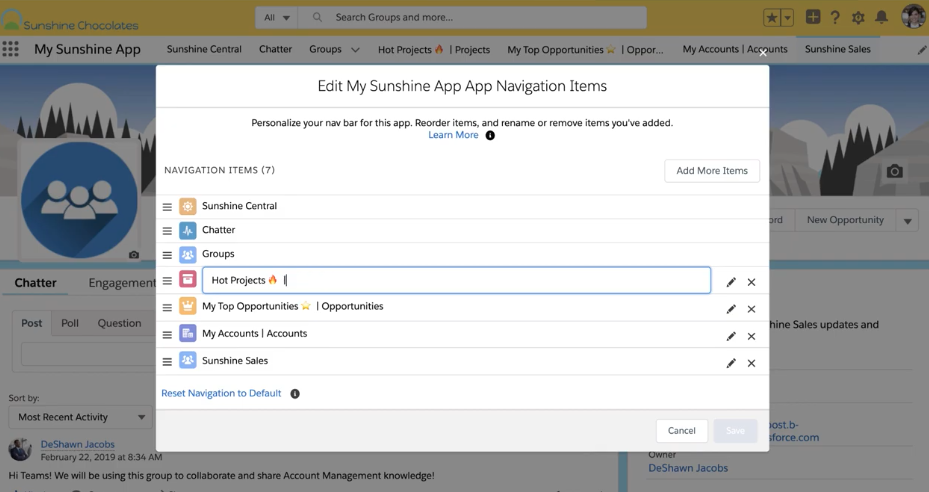
After adding tabs, users can edit the mobile navigation items, edit item names, and reorder the items.
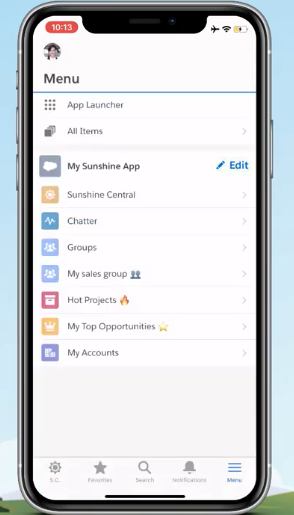
When users log in to the mobile app, the App Launcher lets them switch to the customized Lightning app. For more information, see Customize the Salesforce Mobile App.
The actions you added are displayed on the home page screen with the components you added to the template in the App Builder. Actions are also visible in preview mode.