Build Localized Component Labels and Attribute Values on Lightning Pages with Custom Labels
When you specify labels or attributes in the Lightning App Builder such as for
components, field section headers, or custom tabs, you can use the
{!$Label.customLabelName} expression to help define the
label or attribute’s value.
Required Editions
| Lightning App Builder available in: both Salesforce Classic and Lightning Experience |
| Lightning Home pages available in: Lightning Experience |
| Lightning app and record pages available in: both the Salesforce mobile app and Lightning Experience |
Available in: Group Essentials, Professional, Enterprise, Performance, Unlimited, and Developer Editions |
| User Permissions Needed | |
|---|---|
| To create and save Lightning pages in the Lightning App Builder: | Customize Application |
On a Lightning page, custom Tabs component labels, field section header labels, and other component attribute values aren’t localized when they’re entered as plain text in the Lightning App Builder. For example, if you have an org whose default language is English, and you have a Tabs component with three custom tabs that you entered as Cars, Trucks, and Planes, the non-English users in your org see those tab label values as Cars, Trucks, and Planes when they view the page. The tab label values aren’t translated into your users’ languages.
But configuring custom label values in the Lightning App Builder using the {!$Label.customLabelName} expression lets users
see labels in their chosen language if you created a translation for that label in their
language.
The {!$Label.customLabelName}
expression works with any custom labels that you create in Setup using the custom label feature.
The text that you define in the Value field for your custom label displays as the label value
when the component renders on a Lightning page. And, if you create a translated value for the
label, users using that language in your org see the translated value.
Expressions are supported only in String type fields in component labels and attributes on app, Home, and record pages. You can’t use an expression in page-level properties.
-
Create a translated custom label in Setup.
For more information, see Translate Custom Labels.
- Navigate to the Lightning App Builder. From Setup, in the Quick Find box, enter App Builder, then select Lightning App Builder.
- Open an app, record, or Home Lightning page.
- Select the component whose label or property you want to replace with your translated custom label.
-
Enter
{!$Label.customLabelName}in the label or attribute field, replacing “customLabelName” with the name of your custom label.Label and property fields that support using this expression have an info bubble that says so. -
Save your changes.
Users in your org whose language is set to the language of your translated label see the label or attribute in its translated value.

Example: Create German Translation for Planes Tab
Your org's default language is English, but you want the custom Planes tab on your Lightning page to show a translated custom label for your German users.
- Create a custom label in Setup with the name Planes_Label, and enter the Value as Planes. That's what your English users see.
- From the Translations related list on the custom label detail page, create a translation for the label with the language set to German and the Translation Text value as Flugzeuge.
- Save the translation.
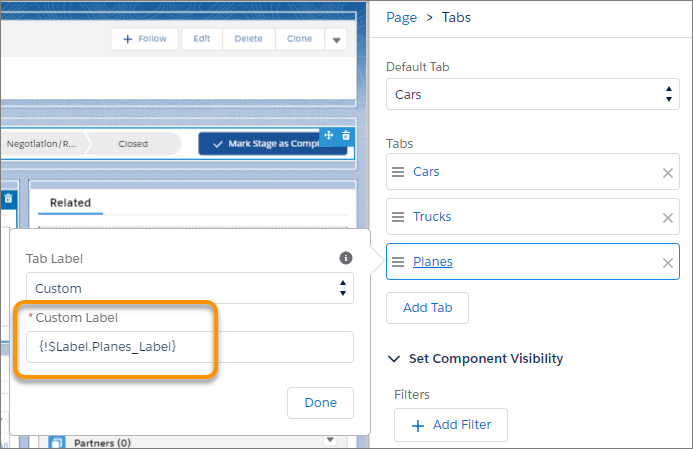
- In the Lightning App Builder, open your page and click the Tabs component on the canvas.
-
In the properties pane, click the Planes tab, and in the Custom Label field, replace
the Planes plain text with
{!$Label.Planes_Label}. - Click Done and save your page.