
Visibility Rules on Lightning Pages
Control when a component appears on a Lightning page by adding filter conditions and logic to its properties in the Lightning App Builder. For example, you can construct a filter that causes a rich text component on an opportunity page to display when the opportunity’s amount is greater than or equal to US$1 million.
Required Editions
| Lightning App Builder available in: Salesforce Classic and Lightning Experience |
| Lightning pages available in: Lightning Experience and the Salesforce mobile app |
Available in: Group Essentials, Professional, Enterprise, Performance, Unlimited, and Developer Editions |
Visibility properties appear when you select a component on a record, app, or Home page in the Lightning App Builder or on a field on a Dynamic Forms-enabled record page. You can also set visibility conditions to dynamically show or hide an individual tab in the Tabs component. This behavior applies to standard components, custom components, and components from AppExchange. No need to do anything to your custom components. The Lightning App Builder handles all of it.
On record pages, you can filter on record fields or advanced fields, such as fields from
related objects or from a global object like User. Field values in visibility filters can’t
span more than five fields. For example, Record.Account.Owner.Manager.Manager.Manager.LastName has six spans, so it isn’t
supported.
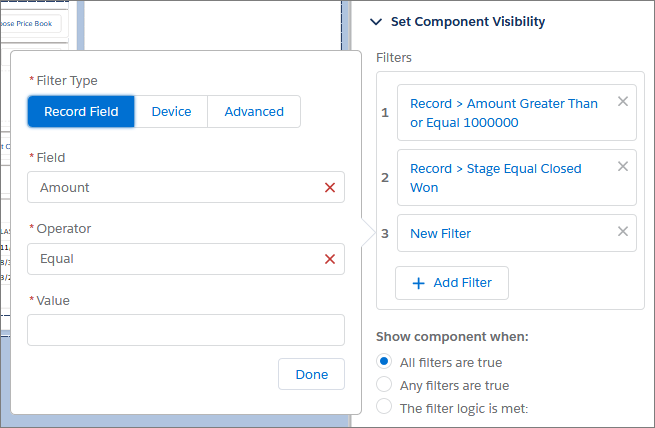
App and Home pages aren’t associated with an object, so the filters you can use are limited to other contexts, such as User, User Permission, or Device. But that doesn’t mean that they’re less powerful.
If you don’t define a filter, the component displays on the Lightning page as usual. When you define one or more filters and set the filter logic for a component, it’s hidden until the filter logic criteria are met.
In the Lightning App Builder, items that have at least one filter assigned are indicated
with an icon ( ).
).
Visibility Rules on Dynamic Forms Fields and Field Sections
You can make your Lightning record pages even more dynamic by setting visibility filters on Field and Field Section components. For example, you can have a field or set of fields hidden until a person with a certain profile, permission, or viewing on a certain device visits the page.
Be careful when setting up visibility rules on multiple components in the same region. If your rules cause all the components in a region to be invisible at run time, the region is empty.
If a field is set to Required in the Lightning App Builder, it’s hidden by a visibility rule at run time, and users can save the record even if that field isn't populated.
Visibility rules on fields are respected in the edit, clone, inline edit, and new record screens. Component visibility rules on field sections behave differently than they do on fields. Visibility rules on fields are assessed dynamically. Changes a user makes while editing a record can make fields appear and disappear as visibility rules are evaluated. Visibility rules on field sections aren’t dynamic and don’t react to what a user does while editing. Field section visibility rules are evaluated only after the record is saved.

Component Visibility Based on Form Factor
With a filter using the Device context, you can set a component to display exclusively when its page is viewed in a specific experience, such as a phone or a desktop.
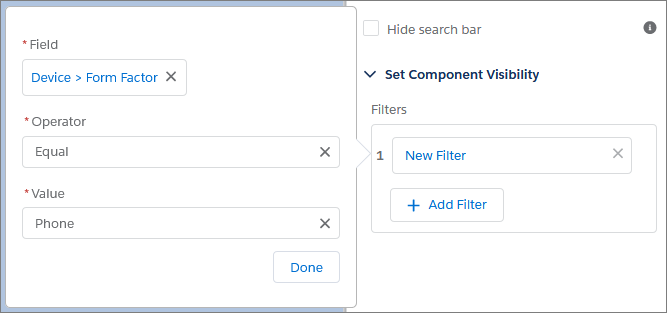
Custom Lightning components can also be set to support different form factors. For Lightning web components, see Configure Your Component for Different Form Factors. For Aura components, see Aura Component Bundle Design Resources.
Supported Objects, Fields, Field Types, and Operators
Two objects aren’t supported for visibility filters: ProcessInstanceStep and ProcessInstanceWorkItem.
On record pages, visibility filters rely on the data captured in fields associated with the page’s object. Not all fields, field types, and operators are supported.
These field types are supported:
- String type fields: Autonumber, Currency, Email, Number, Percent, Phone, Text, Text Area, URL
- ID
- Checkbox (boolean)
- Geolocation
- Picklist
- Formula fields that resolve to one of these preceding types
- Roll-up summary fields that resolve to one of these preceding types
- Lookup fields are supported, however parent lookup fields on Dynamic Forms-enabled pages aren't supported
These operators are supported.
- CONTAINS
- = and == (Equal)
- <> or != (Not Equal)
- > (Greater Than)
- >= (Greater Than or Equal)
- < (Less Than)
- <= (Less Than or Equal)
