
You are here:
Create Shifts in Salesforce Scheduler
Create shifts that vary daily or weekly. You can use shifts to assign service resources for periods that follow a flexible pattern. For example, different working hours at the same service territory or availability of the same service resource at different service territories.
Required Editions
| Available in: Lightning Experience. |
| Available in: Enterprise and Unlimited Editions |
| User Permissions Needed | |
|---|---|
| To view, create, and update shifts: | View, create, and edit on Shifts, Service Territories, Service Resources, Service Territory Memberships |
- From the App Launcher, click Shifts.
-
Perform an action:
- Click New.
- From the schedule view, click an empty space within the calendar.
 Note If the Multiple Topics for Shifts setting is enabled, the option to create a shift isn’t available in the Shift by Work Type Group tab of the schedule view.
-
Enter dates and times for the shift's start and end.
A second set of time fields shows the shift’s start and end in the time zone of the service territory. Salesforce Scheduler shows the second set of time fields only when the user’s timezone is different than the service territory’s timezone.If you create a shift with a service territory that has defined operating hours, the start time and end time of the shift defaults to the operating hours of the service territory. But if you create a shift without a service territory or with a service territory that doesn’t have defined operating hours, the start time and end time of the shift default to 12 AM to 12 AM.Note Ensure that the duration of recurring shifts is less than or equal to 24 hours.
-
Select a status:
Tentative The shift is tentatively defined. Published The shift manager assigns a service resource and publishes the shift. The assigned service resource is notified. Confirmed The assigned service resource acknowledges the shift and the scheduling engine considers the shift as confirmed. A shift is applied only when it’s confirmed. -
Select a service territory and a service resource.
Ensure that the assigned service resource is a member of the service territory.Note If you don’t assign both a service resource and a service territory to the shift, Scheduler doesn’t consider the shift.Note Always select a service territory when you’re creating a recurring shift.
-
Select a work type group.
By using work type groups, bankers can decide when they want to take appointments for specific skills. For example, a banker can decide to cover the appointments for retail banking in the morning and can provide advice to clients on SME loans in the afternoon.Note If you don’t select a work type group, Scheduler considers all work type groups for the shift.
If the Multiple Topics for Shifts setting is enabled, Salesforce Scheduler hides the work type and work type group fields. Instead, you can add a topic to a shift. For more information on how to add topics, see Configure Shift Settings.
-
From the Time Slot Type dropdown list, select Normal.
Note Salesforce Scheduler applies shifts only for the Normal time slot type.
- Choose a background color if necessary.
-
To create a recurring shift, from the Type dropdown list, select
Recurring.
Note Starting with Winter ‘23, the Type field is shown in Salesforce by default. For existing instances, add a section with a single column in the Shift layout and add the Type field to the column. For more information about how to create a section, see User Interface Elements for the Enhanced Page Layout Editor.Note Starting with Winter ‘24, the Recurrence Pattern section appears in the shift layout by default. For existing instances, add the Recurrence Pattern field in the Shift layout under Shift Details. For more information, see Customize Page Layouts with the Enhanced Page Layout Editor.
 Important Salesforce Scheduler shows the recurring shift-related fields when you select Recurring in the Type field. Don’t add the Recurrence Start Date and Recurrence End Date fields to the Shift object layout individually.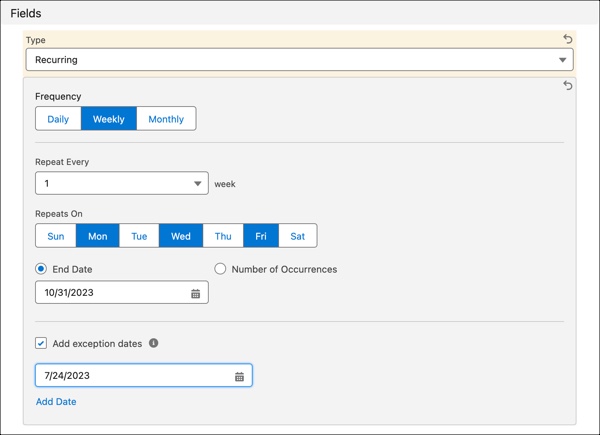
-
Define the frequency of the shift.
Daily Define the days on which the shift repeats. For example, every day, every alternate day, and every third day. Weekly Define the days of the week on which the shift repeats. For example, every Monday, Wednesday, Friday of every week, every Monday and Thursday, or every alternate week. Monthly Define which day of the month a shift repeats. For example, every first Monday of the month or every fifth day of every month. End Date Define the end date for the recurrence period if necessary. Number of Occurrences Define the number of times the shift repeats if necessary. Always either select an end date or specify the number of occurrences for the shift.
Note Salesforce Scheduler considers the recurrence period in the service territory’s timezone. The period of recurrence is limited to 180 days. For example, you create a recurring shift on July 1, 2022. You can choose an end date that's either less than or equal to 180 days from July 1, 2022, or the number of occurrences that are repeated within 180 days from July 1, 2022. -
To add the dates when you’re unavailable between the shift recurrences, select
Add exception dates. Then, add the dates in the boxes.
Note You can specify a maximum of 10 exception dates that are within the recurrence pattern duration. Salesforce Scheduler verifies if the exception dates are within the pattern duration, but doesn’t verify whether the specified date has a shift recurrence. If you change the recurrence pattern and if the date specified as an exception earlier has a shift recurrence in the new pattern definition, then Scheduler excludes the date from the recurrence pattern. For example, you specified an exception date of July 19, 2023 (Wednesday) for a shift that recurs every Monday from July 10, 2023 until August 28, 2023. Salesforce Scheduler accepts this date as an exception, but it has no effect on the shift recurrence. However, if you update the recurrence pattern of the shift from every Monday to every Wednesday, then Scheduler considers July 19, 2023 as an exception to the shift recurrence definition.
- Save your changes.
Did this article solve your issue?
Let us know so we can improve!
