Loading
Manage Appointments with Salesforce Scheduler
Table of Contents
Select Filters

          No results
          No results
          Here are some search tips

          Check the spelling of your keywords.
          Use more general search terms.
          Select fewer filters to broaden your search.

          Search all of Salesforce Help
          Write Salesforce Scheduler Appointments to Salesforce Calendar

          Write Salesforce Scheduler Appointments to Salesforce Calendar

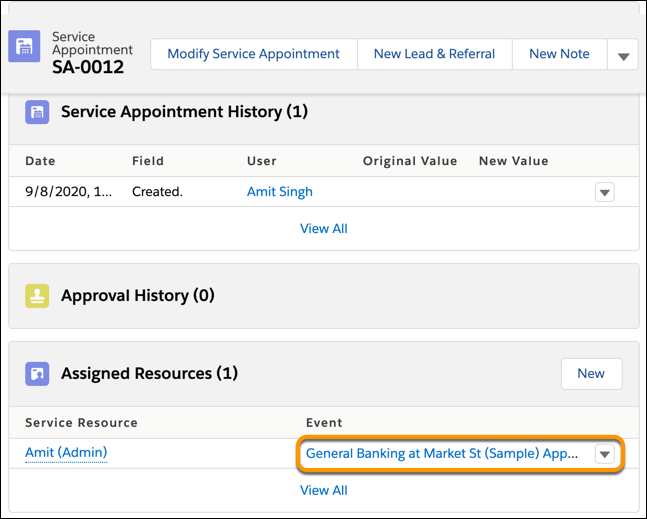
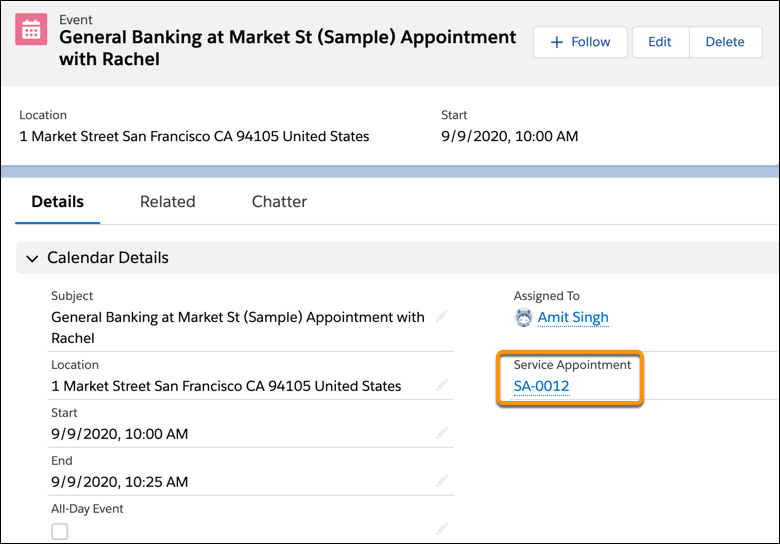
          Use the Event Management setting to write appointments to Salesforce calendar. Service resources see their scheduled appointments as events on their Salesforce calendar. When you add the Service Appointment field to the Event page layout, the event details page shows a link to the corresponding service appointment in Salesforce Scheduler. Service resources can use the link to open the service appointment directly from the event on their Salesforce calendar. The Assigned Resources related list on the service appointment page also shows a link back to the event on the Salesforce calendar.

          Required Editions

          Available in: Lightning Experience.
          Available in: Enterprise and Unlimited Editions
          User Permissions Needed
          To generate an event: Edit Events on Service Resource
          1. From Setup, in the Quick Find box, enter Salesforce Scheduler, then select Salesforce Scheduler Settings.
          2. Enable Event Management.
            Note
            Note
            • Salesforce Scheduler doesn’t create calendar events for assets, such as rooms or equipment, that are booked in an appointment.
            • Salesforce Scheduler creates an event for each service resource assigned to an appointment.

            This table shows how fields on the Event object map to the fields on the Service Appointment or Assigned Resource objects.

            Field on Event Object Fields on Service Appointment or Assigned Resource Object
            Event.Subject ServiceAppointment.WorkTypeId and ServiceAppointment.Subject
            Event.Description ServiceAppointment.AdditionalInformation and ServiceAppointment.Comments
            Event.StartDateTime ServiceAppointment.SchedStartTime
            Event.EndDateTime ServiceAppointment.SchedEndTime
            Event.Location ServiceAppointment.Address
            Event.WhatId (Related To field for Accounts and Opportunities) ServiceAppointment.ParentRecordId
            Event.WhoId (Name field for Leads) ServiceAppointment.ParentRecordId
            Event.OwnerId AssignedResource.ServiceResourceId
            Event.ShowAs ServiceAppointment.Status
          3. If you want to link a Salesforce calendar event to the corresponding service appointment, add the Service Appointment field to the Event page layout:
            1. From Setup, open Object Manager.
            2. In the Quick Find box, enter Event, and then select Event.
            3. Click Page Layouts, and then select Event Layout.
            4. On the palette, select Fields.
            5. Drag Service Appointment to the Calendar Details section on the page.
            6. Save your changes.

            The event details page shows a link to the corresponding Salesforce Scheduler service appointment.

            Image showing a Salesforce calendar event with a link to the corresponding Lightning Scheduler service appointment

            The Assigned Resources related list on the service appointment page shows a link back to the Salesforce calendar event.

            Image showing Assigned Resources related list with a service resource and a link to the Salesforce calendar event
           
          Loading
          Salesforce Help | Article