
You are here:
Flow Screen Component: Review Inbound or Outbound Service Appointment
Enables licensed users and community users to view and modify a service appointment.
Required Editions
| Available in: Lightning Experience. |
| Available in: Enterprise and Unlimited Editions |
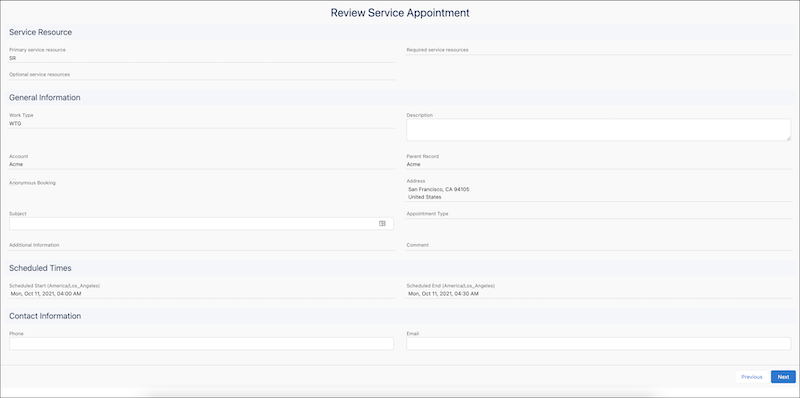
| Attribute | Description | Additional Information |
|---|---|---|
| API Name | Use underscores and alphanumeric characters without spaces. Begin the name with a letter, don’t end the name with an underscore, and don’t use two consecutive underscores. |
|
| Appointment Type | The selected appointment type. Example: Phone |
|
| Contact ID | The contact ID of the community user who is booking the service appointment. When the Contact ID isn’t set, Contact ID is auto-populated when a value for Service Appointment is set. Example: 003xx000004Wht3AAC |
|
| Engagement Channel Type | The selected engagement channel type. Example: Video |
|
| Parent Record ID | The ID of the parent record for which the service resource is selected. Supported values are account ID, case ID, opportunity ID, and lead ID. Example: 001xx000003GZQFAA4 |
|
| Service Appointment Additional Information | The additional information for the service appointment. Users can’t edit these values. |
|
| Service Appointment City | The city of the service territory. Example: San Francisco |
|
| Service Appointment Comments | The comments for the service appointment. |
|
| Service Appointment Country | The country of the service territory. Example: United States |
|
| Service Appointment End Date and Time | The end time of the time slot. Format: YYYY-MM-DDThh:mm:ssZ Example: 2021-06-14T19:30:00Z |
|
| Service Appointment Postal Code | The postal code of the service territory. Example: 94105 |
|
| Service Appointment Start Date and Time | The start time of the time slot. Format: YYYY-MM-DDThh:mm:ssZ Example: 2021-06-14T19:00:00Z |
|
| Service Appointment State | The state of the service territory. Example: CA |
|
| Service Appointment Street | The street of the service territory. Example: 415 Mission St. |
|
| Service Resource ID | The ID of the service resource. Example: 0Hnxx0000004DiiCAE |
|
| Service Territory ID | The ID of the service territory. Example: 0Hhxx0000004DUuCAM |
|
| Work Type Group ID | The ID of the work type group. Example: 0VSxx0000004D0GGAU |
|
| Additional Field Values | The values of attributes of this screen in JSON format. It’s passed to the save appointment action as input in predefined flows. This attribute’s value is auto-populated. Example: {"AdditionalInformation":"","AppointmentType":"","Comments":"","ParentRecordId":"001xx000003GYQxAAO","ServiceTerritoryId":"0Hhxx0000004CIiCAM","ServiceResourceId":"0Hnxx0000004DBYCA2","WorkTypeGroupId":"0VSxx0000004D9wGAE","City":"San Francisco","State":"CA","Country":"United States","PostalCode":"94105","SchedStartTime":"2021-10-11T08:00:00.000Z","SchedEndTime":"2021-10-11T09:00:00.000Z","Description":"","Subject":"","Phone":"","Email":"","IsAnonymousBooking":false,"isSlotChanged":false} |
|
| Anonymous Booking Selected | Indicates whether an appointment is scheduled via anonymous booking. If the value is set to true, the Anonymous Booking attribute in the Service Appointment is set to true. Example: {!$GlobalConstant.True} |
|
| Optional service resource | A comma-separated list of service resource IDs that are used to identify resources to be marked as optional. Here’s how users can add optional resources:
 Important If the Service Resources attribute has a value, this field
doesn’t appear. And the Service Resources field has a value when multi-resource
scheduling is enabled. So, if you want to specify service resources as optional
when multi-resource scheduling is enabled:
Example: 0Hnxx0000004DdpCAE, 0Hnxx0000004DscCAE |
|
| Save Error Message | Any error message that is generated when saving the appointment. In predefined flows, these error messages are generated in the Save Appointment screen. |
|
| Scheduling Policy | The developer name of the scheduling policy that is used by the schedule optimizer.  Note This field doesn’t support Salesforce ID. Example: default_appointment_scheduling_policy |
|
| Service Appointment | The values of all the service appointment attributes. In predefined flows that modify appointments, the Get Records action is used to fetch the service appointment attribute values and store them in this attribute. If you’re using this attribute in flows that modify service appointments, set a value for this attribute, the Service Resource attribute, and the Work Type Group Id attribute. And skip all the other attributes or set empty values for them. The subject, description, phone, and email fields aren’t exposed as flow variables. You can store those values in the Service Appointment attribute. You can use this attribute even in flows that create or show appointments. To populate this field:
Note If a value is set for attributes directly and by using the Service
Appointment attribute, values in the Service Appointment attribute are
used. |
|
| Service Appointment ID | This attribute is used only in flows that modify service appointments. The ID of the service appointment that’s being modified. Example: 08pxx0000004GNwAAM |
|
| Service Resources | A string representation of a JSON object that contains information such as:
In predefined flows, this value is automatically created by the Timeslot screen and sent as output. It’s then passed to the review screen as input. If you want to create a JSON object without using the timeslot screen, provide these details:
AttendanceType supports three values: Primary, Required, and Optional. Set the AttendanceType attribute if you want to use multi-resource scheduling and make some of the resources optional. Note You can’t use the same minimal service resources value provided as example
value in timeslot screen. It's only meant for the review screen. Example: [{"Id":"0Hnxx0000004DqjCAE", "Name":"Resource 1", "AttendanceType":"Primary"}, {"Id":"0Hnxx0000004D56CAE", "Name":"Resource 2", "AttendanceType":"Required"}, {"Id":"0Hnxx0000004DY8CAM", "Name":"Resource 3", "AttendanceType":"Optional"}] |
|
| Show Service Resource | Indicates whether the Service Resources section appears on the review screen. If a value isn't set, true—the default value—is used. Example: {!$GlobalConstant.True} |
|
| Time Slot is Changed | This attribute isn’t used. |
|
| Time Zone | The time zone according to which the service resource's available time slots appear. If a value isn't set, time slots appear according to the time zone of the user running the flow. Here’s the list of accepted time zone values. Example: America/Los_Angeles |
|
| Validations | The error messages in the Review Inbound or Outbound Service Appointment component. This value is auto-populated. For example, the attribute stores the error message that’s generated when a user enters an incorrect email address. |
|
| Work Type ID | This attribute is used only in the flows that modify service appointments. The ID for the work type of the service appointment that’s being modified. Example: 08qxx0000004DDAAA2 |
|
