
You are here:
Flow Screen Component: Select Service Appointment Time
Enables users to select a service appointment time.
Required Editions
| Available in: Lightning Experience. |
| Available in: Enterprise and Unlimited Editions |
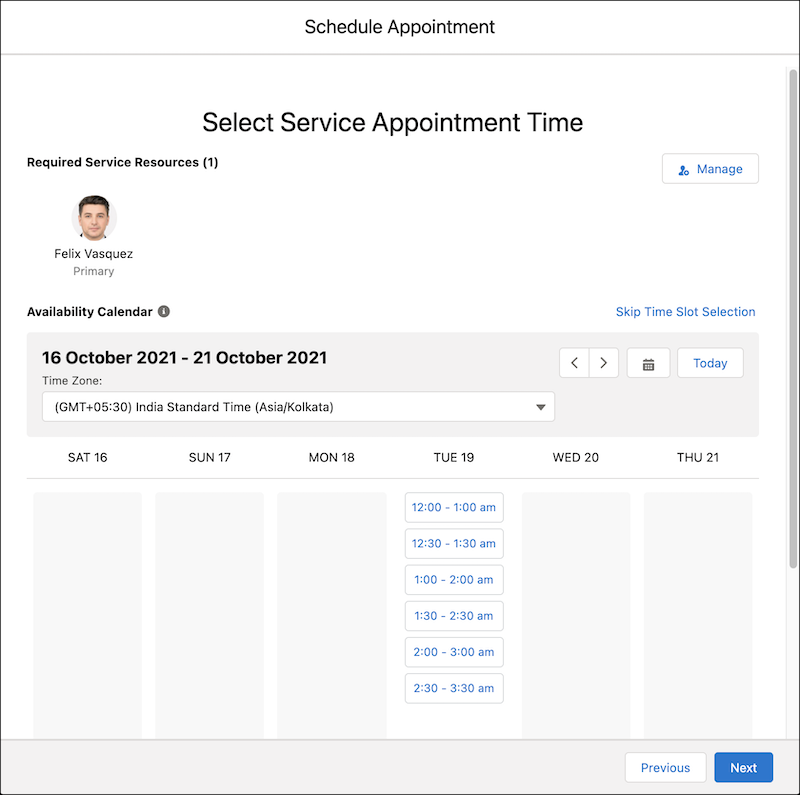
| Attribute | Description | Additional Information |
|---|---|---|
| API Name | Use underscores and alphanumeric characters without spaces. Begin the name with a letter, don’t end the name with an underscore, and don’t use two consecutive underscores. |
|
| Active | Indicates whether the appointment invitation is active. This attribute can also be modified after the invitation URL is created. |
|
| Anonymous Booking Selected | Indicates whether a user selected the Anonymous Booking option. If the value is set to true, available time slots for service resources in the specified service territory are shown. When a user selects a time slot, one of the service resources available in the selected time slot is allocated randomly. If the value is set to false, only time slots for the specified service resources and the specified service territory are shown.  Note Anonymous booking isn’t supported in flows that modify appointments. |
|
| Appointment Invitation Details | JSON string with field-value pairs that map to the flow user's input values for an invitation. This string is passed to an invocable action to create an appointment invitation. |
|
| Appointment Invitation ID | Appointment invitation ID that's used to create an appointment booking. |
|
| Appointment Invitee Details | JSON string with field-value pairs that map to the flow user's input values for an invitee. This string is passed to an invocable action to create an appointment invitee. |
|
| Change primary assigned resource | This attribute is used only if Multi-Resource Scheduling is enabled. Indicates whether a user clicked the change button. In predefined flows, when a user clicks the Change button, the value is set to true and the Triage screen is shown. If a value isn't set, false—the default value—is used. Example: {!$GlobalConstant.False} |
|
| Correlation Id | The unique ID of the appointment scheduling data. Correlation ID is one of the parameters of the ServiceAppointmentRequestInfo class that’s passed to the ServiceResourceScheduleHandler Apex interface. For example, use Correlation Id to identify the system that is calling the ServiceResourceScheduleHandler interface implementation. If a value isn’t set, a random identifier is passed. |
|
| Default Time Zone | The time zone according to which the service resource's available time slots are shown. If a value isn't set, the time slots are shown according to the user's locale time zone. Here’s the list of accepted time zone values. Example: America/Los_Angeles |
|
| Disable Multi-Resource Scheduling | Indicates whether multi-resource scheduling is disabled. For guest, inbound, and mobile flows, always set this value to true, and then set Inbound Scheduling to true. Example: {!$GlobalConstant.True} |
|
| Engagement Channel Type | The engagement channel type related to the service resources that the component shows the time slots for. |
|
| Filter By Resource IDs | This attribute is used only for anonymous booking. A comma-separated list of resource IDs that are used to filter the time slots. If a value is set, the component shows time slots for only these resources. Example: 0Hnxx0000004DdpCAE, 0Hnxx0000004DscCAE |
|
| Inbound Scheduling | Indicates whether the component is used in inbound scheduling flow. If the component is used for an outbound scheduling flow, set the value to false. This attribute doesn’t change any elements on the screen. Only when this value is set to true, the Disable Multi-Resource Scheduling attribute value is considered. Example: {!$GlobalConstant.True} |
|
| Invitation Flow Type | Type of flow in which the component is used. Valid values are:
|
|
| Invitation URL Expiration Date | Date on which the invitation expires. This attribute can also be modified after the invitation URL is created. |
|
| Invitation URL Prefix | Prefix of the appointment invitation URL. The prefix can either be of a community or of a website. |
|
| Is Hide Skip | Indicates whether the Skip Time Slot Selection link is hidden. If this value is set to true, the Skip Time Slot Selection link doesn’t appear. For anonymous bookings, time slot selection can’t be skipped. So, when Anonymous Booking Selected is set to true, the Skip Time Slot Selection link isn’t shown even if this attribute is set to false. |
|
| Number of Resources to Show (Appointment Distribution) | The maximum number of resources that users can choose from when appointment distribution is enabled. |
|
| Parent Record ID | The ID of the parent record that the appointment is being scheduled for. Supported values are account ID, case ID, opportunity ID, and lead ID. Example: 001xx000003GZQFAA4 |
|
| Resource Availability End Date | Date after which a service resource can’t be booked for appointments by using the invitation URL. This attribute can also be modified after the invitation URL is created. |
|
| Resource Availability Start Date | Date on which a service resource becomes available to book appointments by using the invitation URL. This attribute can also be modified after the invitation URL is created. |
|
| Scheduling Policy | The developer name of the scheduling policy that is used by the schedule optimizer. Note This field doesn’t support Salesforce ID. Example: default_appointment_scheduling_policy |
|
| Selected End Time | The end time of the timeslot. If a value is set, a timeslot that ends at this time is selected by default. When a user selects a timeslot on the screen, the value is updated based on the selected timeslot. Format: MM/DD/YYYY, hh:mm AM/PM Example: 6/8/2021, 7:30 PM |
|
| Selected Start Time | The start time of the timeslot. If a value is set, a timeslot that starts at this time is selected by default. When a user selects a time slot on the screen, the value is updated based on the selected timeslot. Format: MM/DD/YYYY, hh:mm AM/PM Example: 6/8/2021, 7:00 PM |
|
| Selected Time Zone | The time zone selected by the user. Here’s the list of accepted Timezone values. Example: America/Los_Angeles |
|
| Service Appointment | This value is used only if the Select Service Appointment Time is used to modify an existing service appointment. The ID of the service appointment. The Select Service Appointment Time component fetches the service resources present in the service appointment and shows them if the Service Territory, Service Appointment, and Work Type values exist. |
|
| Service Resource | This attribute is used only if multi-resource scheduling is disabled. The ID of the selected service resource for which time slots are shown. |
|
| Service Resources | This attribute is used only if multi-resource scheduling is enabled. The details of the service resources selected in the Select Service Appointment Time component. This value is auto-populated when service resources are selected. |
|
| Service Territory | The service territory for which time slots appear. Example: 0Hhxx0000004DUuCAM |
|
| Show Time Zone Pick List | Indicates whether the time zone pick list appears. If a value isn't set, false—the default value—is used. Example: {!$GlobalConstant.False} |
|
| Start Date | The date for which time slots appear. If the value is empty or set to a date in the past, time slots for the current date appear. If the value is set to a future date, time slots for the specified date appear. If the screen can show time slots for 7 days, then time slots appear for the start of the week to the end of the week for the specified date. For example, if the date passed is 2021-06-08T19:30:00Z, which is a Tuesday, time slots appear for 6 June 2021 (Sunday) to 12 June 2021 (Saturday). If the screen can only show time slots for one day, time slots appear only for the specified date. Format: YYYY-MM-DDThh:mm:ssZ Example: 2021-06-08T19:30:00Z |
|
| Start date for the selected service resources’ skills that are required by the work type. | The start date for skills of the service resource. Use this attribute to reduce the number of server calls. It's useful when a service resource isn’t available for a long time. Time slots appear based on the maximum value of this attribute value, Start Date, and the current date. Format: MM/DD/YYYY, hh:mm AM/PM Example: 6/8/2021, 7:30 PM |
|
| Time Slot is Changed | Indicates whether the user selected a time slot. If a value isn't set, false—the default value—is used. Example: {!$GlobalConstant.False} |
|
| Time Slot Preload Multiplier | A multiplier that is used to determine the number of days for which time slots are fetched by each server call. Supported values are 1 and 2. Example, if the screen can show time slots for 7 days and if this value is 2, time slots for 14 days (7x2) are fetched by each server call.  Tip If your users generally look at time slots beyond the default dates that
appear, set the value to 2 to reduce the number of server calls. Example: 1 |
|
| Validations | The error messages in the Select Service Appointment Time component. This value is auto-populated. For example, the attribute stores the error message that’s generated when a user tries to navigate to the next screen without selecting a time slot. |
|
| Work Type | The work type for which you want to show time slots. Always set a value for this attribute if you want to use this component in flows that modify appointments. When both Work Type and Work Type Group are specified, time slots for the specified work type appear. To populate this field:
|
|
| Work Type Group | The work type group for which you want to show time slots. Example: 0VSxx0000004D0GGAU |
|
