
You are here:
Check Salesforce Calendar to Determine Resource Availability
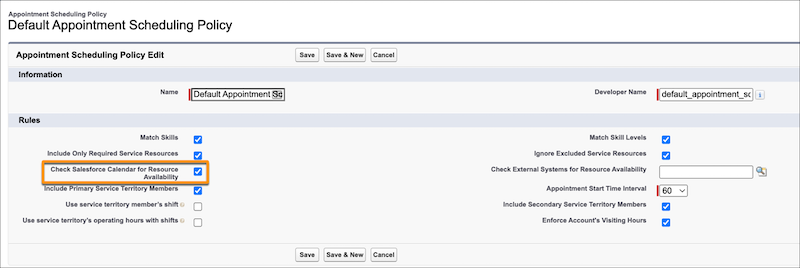
Enable the Check Salesforce Calendar for Resource Availability scheduling policy rule if you want Salesforce Scheduler to avoid scheduling conflicts with manually created calendar events.
Required Editions
| Available in: Lightning Experience. |
| Available in: Enterprise and Unlimited Editions |
For manually created calendar events, the Show Time As field and the Assigned To field values determinewhether Salesforce Scheduler considers the event to determine availability. When the Show Time As field value is set to Busy or Out of Office for an event and a service resource is selected in the Assigned To field, Salesforce Scheduler doesn’t show the time slots that have scheduling conflicts with the event for the service resource. When the Show Time As field value is set to Free for an event, Salesforce Scheduler shows the time slots even if scheduling conflicts exist with the event.
For appointment-related events and buffer-related events created by Salesforce Scheduler, Salesforce Scheduler doesn’t show time slots that have a scheduling conflict with these events irrespective of the Show Time As field value of the events. For more information, see Considerations to Write Salesforce Scheduler Appointments to Salesforce Calendar.

To enable the Check Salesforce Calendar for Resource Availability scheduling policy rule for a scheduling policy:
- From Setup, in the Quick Find box, enter Scheduling Policies, and then select Scheduling Policies.
- Click Edit next to the scheduling policy.
-
Select Check Salesforce Calendar for Resource Availability.
- Save your changes.

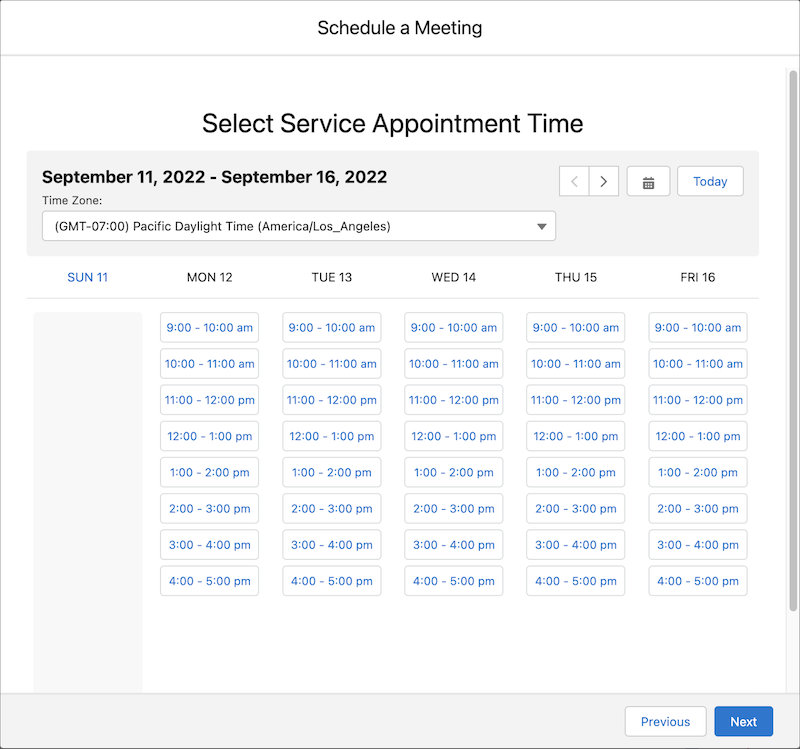
Here are Ryan’s time slots for retail banking.
Manually Created Appointments with Show Time As Free
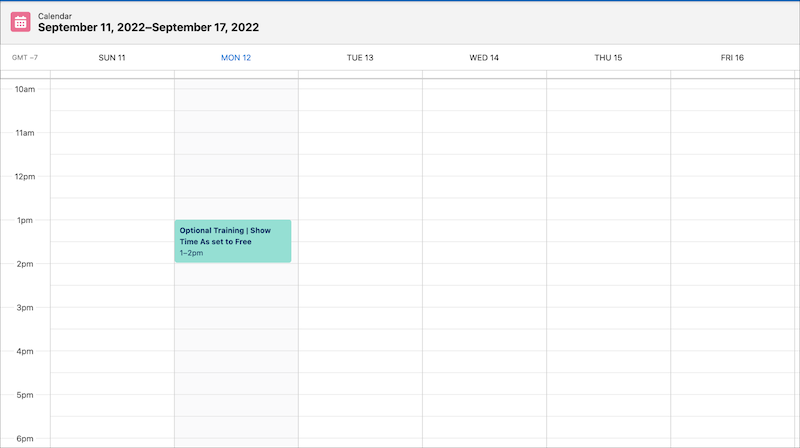
Ryan has an optional training from 1:00 PM to 2:00 PM, which he wants to skip if any customer appointments are scheduled. So, he creates a calendar event from 1:00 PM to 2:00 PM and sets the Show Time As field to Free.
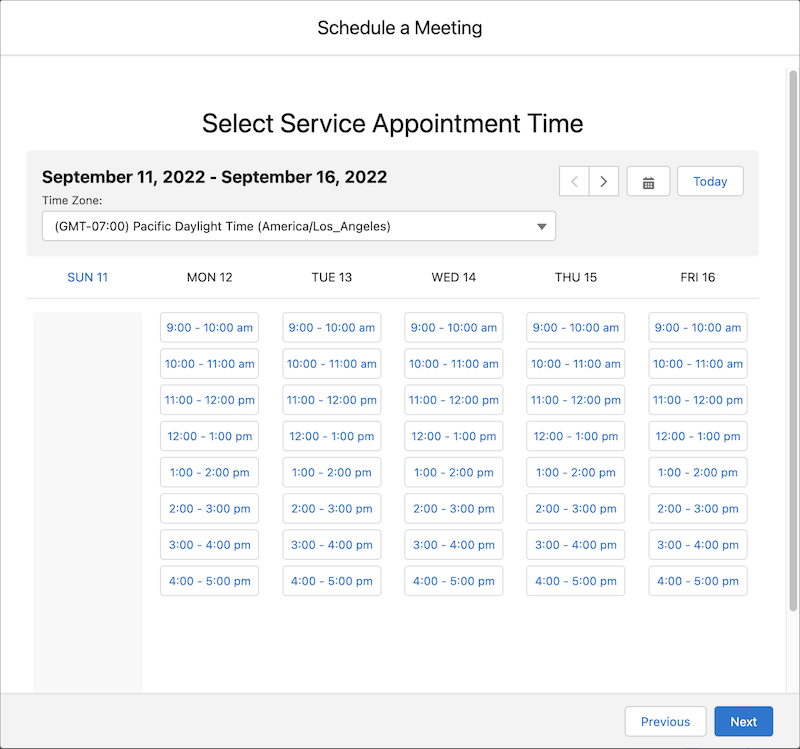
Now Salesforce Scheduler shows the time slots even if scheduling conflicts exist with the training.
Manually Created Appointments with Show Time As Busy
Ryan has an important meeting with his manager from 3:00 PM to 4:00 PM that he can't miss. He creates a calendar event from 3:00 PM to 4:00 PM and sets the Show Time As field to Busy.
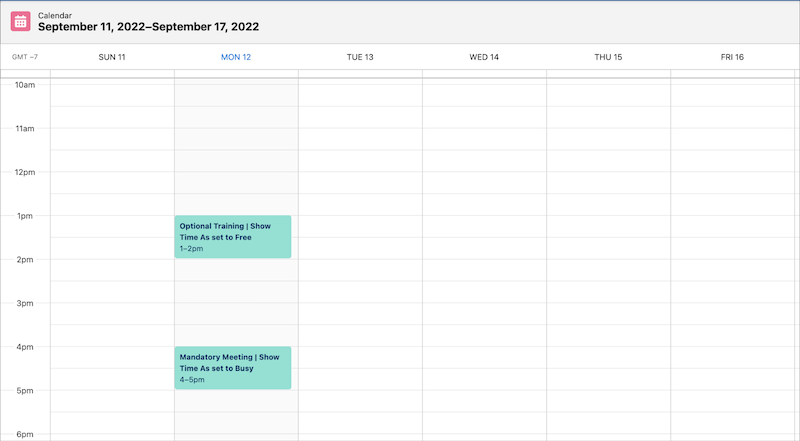
Now Salesforce Scheduler doesn’t show the time slots that have scheduling conflicts with the meeting.
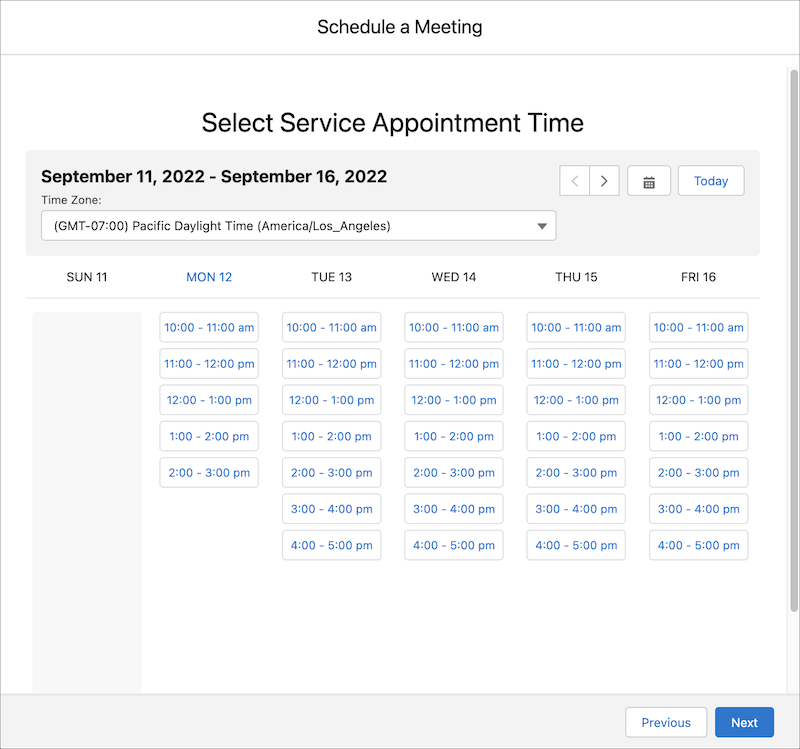
For more information, see the What Happens to Available Time Slots When There Are Calendar Events and Absences section of the How Does Salesforce Scheduler Determine Available Time Slots? topic.
Appointment-Related Events with Show Time As Busy
Kiara Shah books an appointment with Ryan from 11:00 AM to 12:00 PM.
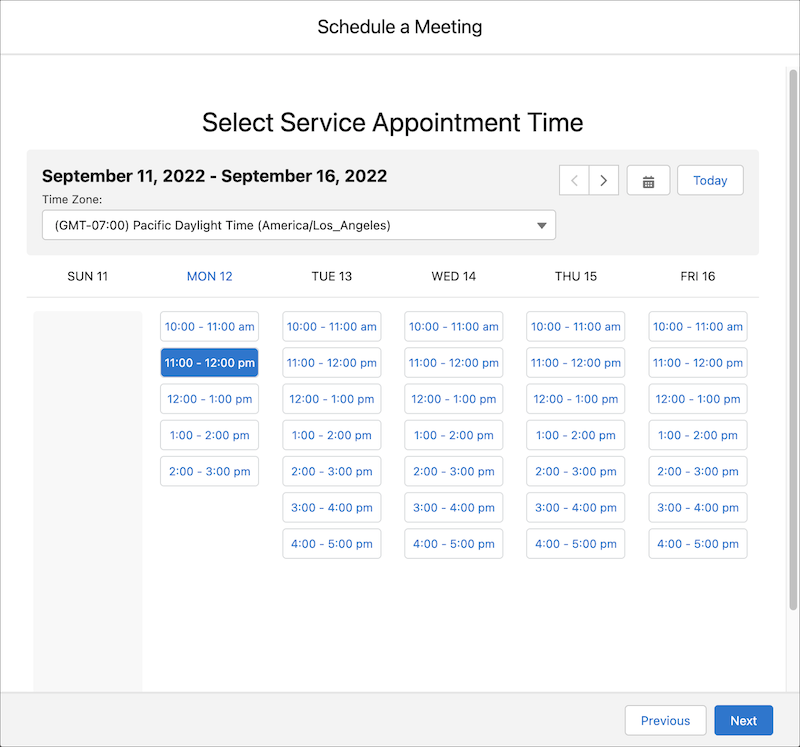
Salesforce Scheduler creates events for the appointment, before appointment buffer, and after appointment buffer with the Show Time As value set to Busy. Here’s how Ryan’s calendar appears when Event Management and Block Resource Availability are enabled.
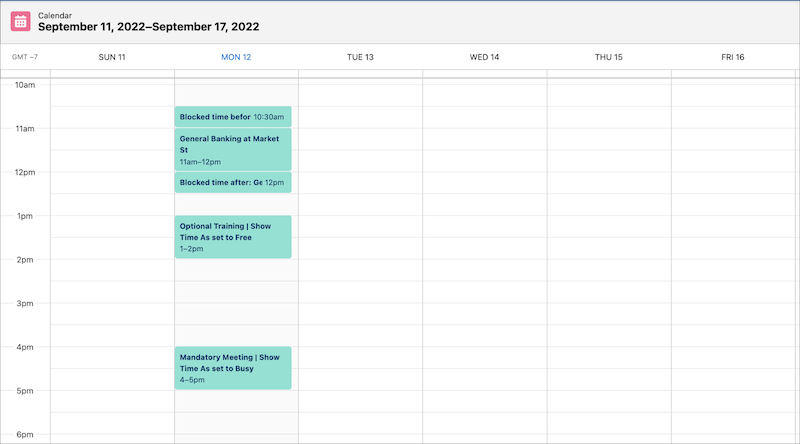
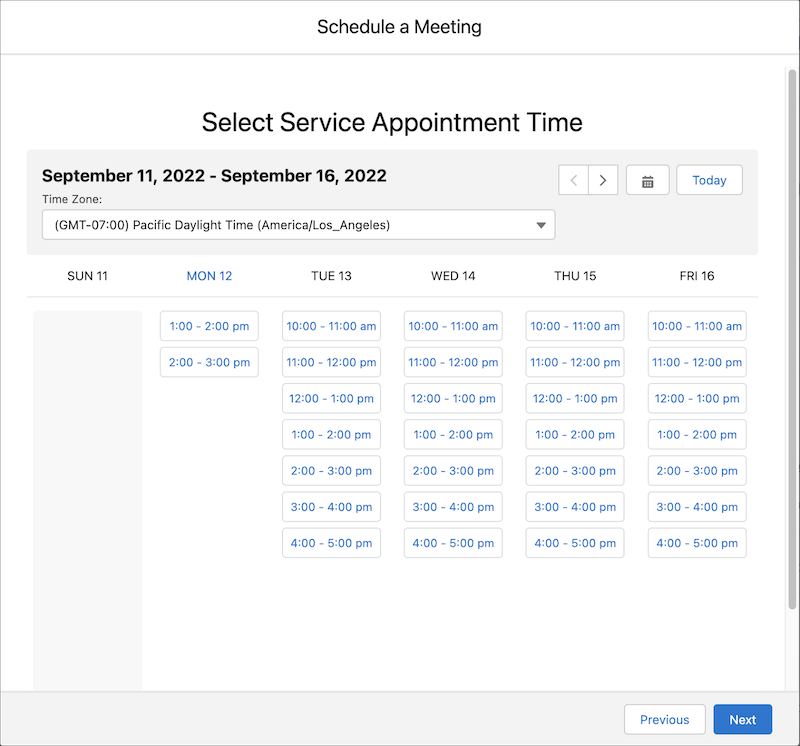
Salesforce Scheduler doesn’t show the time slots that have conflicts with the appointment and buffer-related events. Here are the available time slots after creating the appointment.
Appointment-Related Events with Show Time As Free
Ryan accidentally edits the appointment event and appointment-buffer events and sets the value of the Show Time As field to Free.
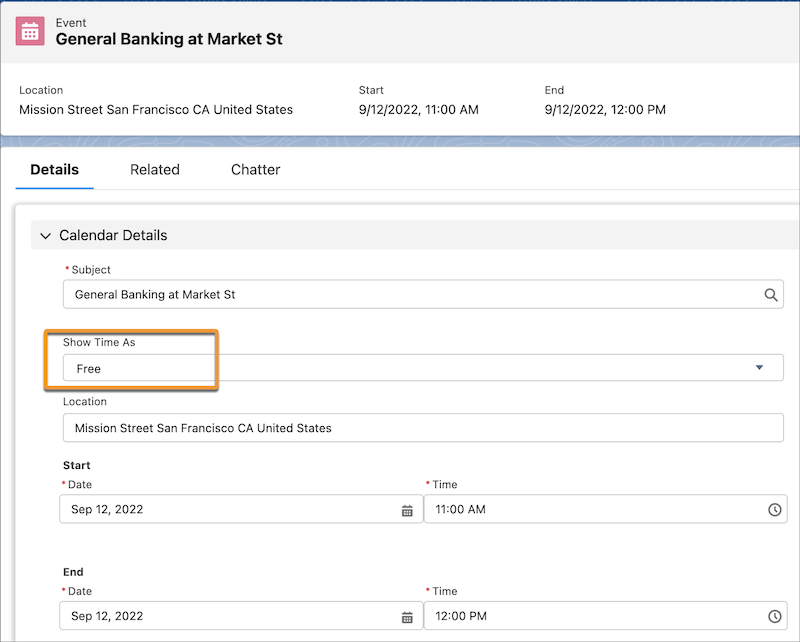
As Salesforce Scheduler doesn’t consider the Show Time As field to determine availability for appointment-related events created by Salesforce Scheduler, the available time slots aren’t affected.
