
Loading
Manage Appointments with Salesforce Scheduler
Table of Contents
Select Filters

          No results
          No results
          Here are some search tips

          Check the spelling of your keywords.
          Use more general search terms.
          Select fewer filters to broaden your search.

          Search all of Salesforce Help
          Explore the Salesforce Scheduler Setup Assistant (Optional)

          Explore the Salesforce Scheduler Setup Assistant (Optional)

          The Salesforce Scheduler Setup app includes a Salesforce Scheduler Setup Assistant tool that you can use to perform key setup tasks, including assigning permission sets, creating appointment resources, and embedding appointment scheduling into leads and referrals, cases, opportunities, and accounts. Alternatively, you can perform these tasks from Setup and object tabs in the Salesforce Scheduler Setup app.

          Required Editions

          Available in: Lightning Experience.
          Available in: Enterprise and Unlimited Editions
          User Permissions Needed
          To view apps: View Setup and Configuration
          To manage apps: Customize Application
          Warning
          Warning Salesforce Scheduler Setup Assistant isn’t supported on the Salesforce mobile app. Attempts to use the assistant on the mobile app can result in exceptions.

          If the Salesforce Scheduler Setup Assistant tab doesn't appear on the Salesforce Scheduler Setup app nav bar, manually add the tab to the nav bar.

          Important
          Important
          • Enable the Salesforce Scheduler Setup Assistant tab only in a production org. In any other org, the setup assistant doesn’t work as expected.
          • The Salesforce Scheduler Setup Assistant is recommended for admin users. Before enabling the Salesforce Scheduler Setup Assistant tab for non-admin users, grant them the object access necessary to create and edit Salesforce Scheduler objects. Also make sure that non-admin users understand that they can’t set up permissions.
          1. From Setup, in the Quick Find box, enter App Manager, and then select App Manager.
          2. On the Lightning Experience App Manager Setup page, edit the Salesforce Scheduler Setup app.
          3. Select Navigation Items.
          4. Move Salesforce Scheduler Setup Assistant to Selected Items, and then click Save.
          5. From the App Launcher, find and open the Salesforce Scheduler Setup app.
          6. Click the Salesforce Scheduler Setup Assistant tab.
            If you don’t see the Salesforce Scheduler Setup Assistant tab, enable it for your profile.
            1. From Setup, in the Quick Find box, enter Profiles, and then select Profiles.
            2. Click the profile that you want to update.
            3. Under Tab Settings, for Salesforce Scheduler Setup Assistant, select Default On, and then save the changes.

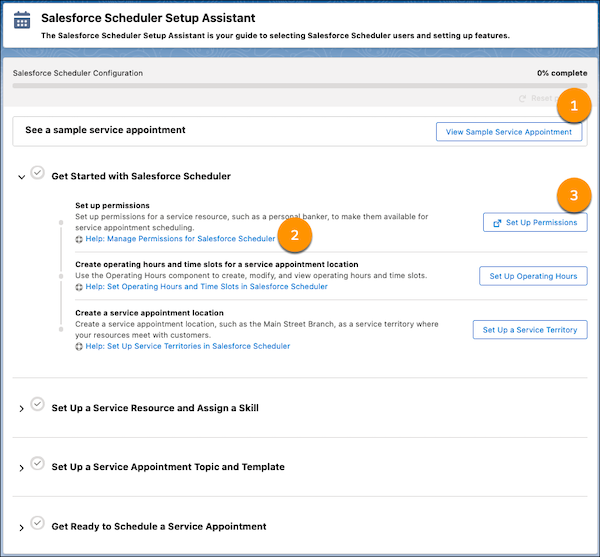
          Here’s what you see on the Salesforce Scheduler Setup Assistant tab.Salesforce Scheduler Setup Assistant with callouts.

          • To see a built-in example of an appointment, click View Sample Appointment (1).
          • Click the link below a setup item (2) to see help on that topic.
          • Click the button next to a setup item (3) to perform that step.
          Important
          Important With the Salesforce Scheduler Setup Assistant tool, you can quickly create resources, but you can’t always configure them from within the tool. For example, by clicking Set Up Operating Hours, you can create operating hours. However, to assign those operating hours to a work type, service territory, or service territory member, you must use the Operating Hours field on that work type, service territory, or service territory member record page.
           
          Loading
          Salesforce Help | Article