
You are here:
Migrate from Profiles to Permission Sets
To simplify user management and encourage the principle of least privilege, we recommend that you use permission sets and permission set groups to manage your users’ access, rather than profiles. Before you transition to a permission set and permission set group-led security model, review this guidance on successfully planning and executing this migration.
Required Editions
| Available in: both Salesforce Classic and Lightning Experience |
| Profiles available in: Essentials, Professional, Enterprise, Performance, Unlimited, Developer, and Database.com Editions |
| Permission sets available in: Essentials, Contact Manager, Professional, Group, Enterprise, Performance, Unlimited, Developer, and Database.com Editions |
| User access policies available in: Enterprise and Unlimited Editions |
| User Permissions Needed | |
|---|---|
| To create or edit profiles: | Manage Profiles and Permission Sets |
| To create or edit permission sets: | Manage Profiles and Permission Sets |
| To create or edit user access policies: | Manage User Access Policies |

Plan Permission Updates
Before you migrate your profiles to permission sets, review Salesforce's recommendations for configuring these features. Identify user personas and their tasks and jobs, and then plan your updated permissions and access configuration.
As part of the planning process, create a detailed access requirements and configuration document that can be referenced and maintained after the migration. As a starting point, you can fill out or modify these planning spreadsheets.
- Understand Salesforce’s recommendations for which features to configure in profiles vs. permission sets. Profiles are for default settings, including assigned apps, record types, page layouts, login hours, IP ranges, and password policies. Permission sets are for object, field, and user permissions as well as other access and feature settings. For more information, see Configure Default Settings in Profiles and Configure Permissions and Access in Permission Sets.
- Identify the user personas in your org that’ll be used to configure your access setup. A persona represents a group of users that have similar job functions and access requirements. Streamline your personas as much as possible for easier maintenance while still allowing for correct access.
- For each persona, list all the tasks or jobs that the persona performs in Salesforce. It’s likely that some tasks are repeated among personas.
-
Using the list of tasks and jobs, document the required permissions and access for each of
your personas. You can document user permissions (app and system) and object permissions
separately, or combine them for a comprehensive permissions record. You can use Salesforce Help
documentation as a reference for which permissions or access settings are required for each
task.
As a method of checking the required permissions, select a current user that’s representative of each persona that can serve as a model for which settings and access to configure. Then, view the user’s access summary to see which permissions they’re assigned and which features are granting them. Note which permissions are being granted only via the user’s profile that you can instead grant using permission sets. Also consider whether any permissions are unnecessary for the persona’s job and can be removed following the principle of least privilege.
You can also review the model user’s assigned permission sets for assigned tab settings, record types, and other access settings in case you want to adjust or consolidate them as part of your migration.
-
Plan your permission sets and permission set groups. Create permission sets that include
all user, object, and field permissions necessary for a specific job or task. Follow a standard
naming convention that details what the permission set gives access to. Use the permission
set’s description to document what it does in more detail.
Bundle these permission sets into permission set groups that correspond to your user personas. Follow a standard naming convention and include details on who the permission set group is for in its description. If different personas perform the same tasks or have shared access requirements, you can add permission sets to multiple permission set groups.For more information, see Guidelines for Creating Permission Sets and Permission Set Groups.
 Note If only a few specific users, not all users in a persona, perform a certain task, you can create permission sets to configure access and grant them directly to the required users. You can additionally use session activation or expiration dates to limit access via these permission sets.
 -
Plan your profiles. If possible, assign users the Minimum Access - Salesforce profile or a
clone of it if you’re modifying the included default settings for different users. You must use
profiles to configure default record types, page layouts, login IP restrictions, and login hour
restrictions. Try to create the smallest number of profiles possible for easier maintenance,
remembering that they’re intended only for controlling default settings, not permissions.
If you’re creating new custom profiles, note which default settings they contain. If you’ll continue to use existing custom profiles, remove any unnecessary permissions and settings as part of the migration.
Migrate from Profiles to Permission Sets and Permission Set Groups
After you plan your permissions and access setup, use user access policies to faciliate your migration from profiles to permission sets.
-
Before migrating your user’s access, test all changes in a sandbox that’s been recently
refreshed. Complete thorough testing to make sure that all user personas have the correct
access to objects, records, and fields and the ability to complete their required tasks. Also
test that users weren’t granted too much access by accident.
 Tip Record how long it takes for you to complete the migration, so that you can negotiate a maintenance period during a time of low activity to make your changes.
 -
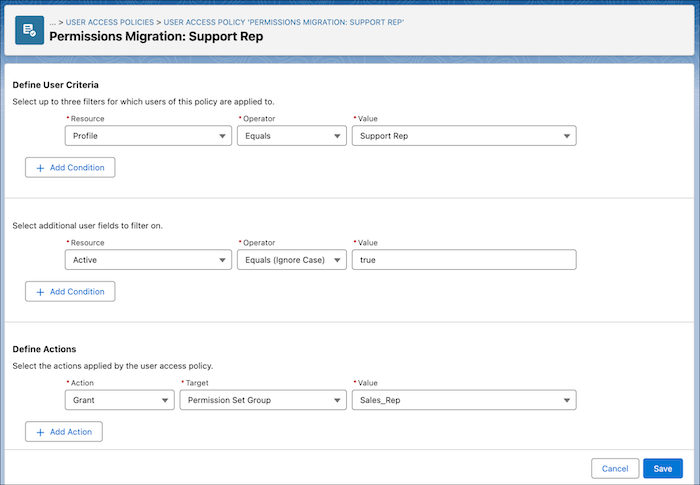
To save time and clicks, create user access policies to manage permission assignments.
Configure your user access policy to target each persona and assign them all relevant
permission sets and permission set groups in one go.
For example, you’re migrating all permissions for your Support Rep profile to a Support Rep permission set group. You create a user access policy that assigns all active users with the Support Rep profile the new permission set group.
-
After permissions are assigned, clean up profiles by assigning users new profiles that
contain only default settings. Or, remove all permissions and unnecessary settings from your
existing profiles.
Tip If enhanced profile list views are enabled for your organization, you can change permissions in up to 200 profiles directly from the list view. For more information, see Edit Multiple Profiles with Profile List Views.
-
Fix additional profile-related settings:
- To set field-level security on permission sets instead of profiles, enable Field-Level Security for Permission Sets during Field Creation in User Management Settings. For fields that you create going forward, you can configure field permissions on permission sets from the start.
- Update organization-wide email addresses to be based on permission sets or your new profiles, as needed.
