
You are here:
Configure Account Relationship Data Sharing Rules
After account relationships are enabled, set up an account relationship data sharing rule. This rule defines the relationship type, the type of information shared, and the record access granted.
Required Editions
Enable Account Relationships to use this feature. After you enable account relationships in your org, you can’t disable it.
| Available in: Salesforce Classic and Lightning Experience |
| Available in: Enterprise, Performance, Unlimited, and Developer Editions |
| Applies to: LWR, Aura, and Visualforce sites |
| User Permissions Needed | |
|---|---|
| To create and manage Account Relationship Data Sharing Rules: | Create and Set Up Experiences |
The following fields define your sharing rule:
| Field Name | Description |
|---|---|
| Name | The name of your sharing rule. We suggest that you use something that describes the rule, such as Lead Sharing for Vendors. |
| Developer Name | API name. |
| Description | A summary of the sharing rule. We suggest that you include information in this description about Object Type, Account Criteria To Field, Account Relationship Type, and Access Level. |
| Account Relationship Type | This field defines the type of relationship between the accounts that are sharing records. This field also associates the account relationship data sharing rule with the account relationship. If the Account Relationship Type picklist doesn’t contain a value that you need, you can create a picklist value from the Account Relationship object definition page. |
| Access Level | The level of record access granted to the account that is receiving the information. Read and Write are the only access levels available. |
| Object Type | The records of the object that you’re sharing. |
| Account To Criteria Field | The field that determines how object records are shared. Use only owner and account lookup fields. |
| Advanced Formula | Static formula criteria that can be applied to the data sharing rule to further refine how objects are shared. When creating your static formula criteria, be sure to use the API name for any object fields that you include in the formula. |
Object Type and Account To Criteria Fields, on the account relationship data sharing rule, determine which data is shared and how it’s shared. Account relationship data sharing rules can apply to; accounts, campaigns, cases, contacts, custom objects, leads, opportunities, orders, partner fund allocations, partner fund claims, partner fund requests, and partner marketing budgets.
- From Setup, enter Digital Experiences in the Quick Find box. Select Digital Experiences.
- Click Settings.
- Check Enable Account Relationships and save your changes.
- Go to Setup and enter Account Relationship in the Quick Find box, then click Account Relationship Data Sharing Rule Settings | New.
- Enter the same value in the Account Relationship Type field as the account relationship that is using this rule.
- Specify the level of access the Account From gets to the Account To’s data, in the Access Level field.
- Search for the type of object that is being shared in the Object Type field.
-
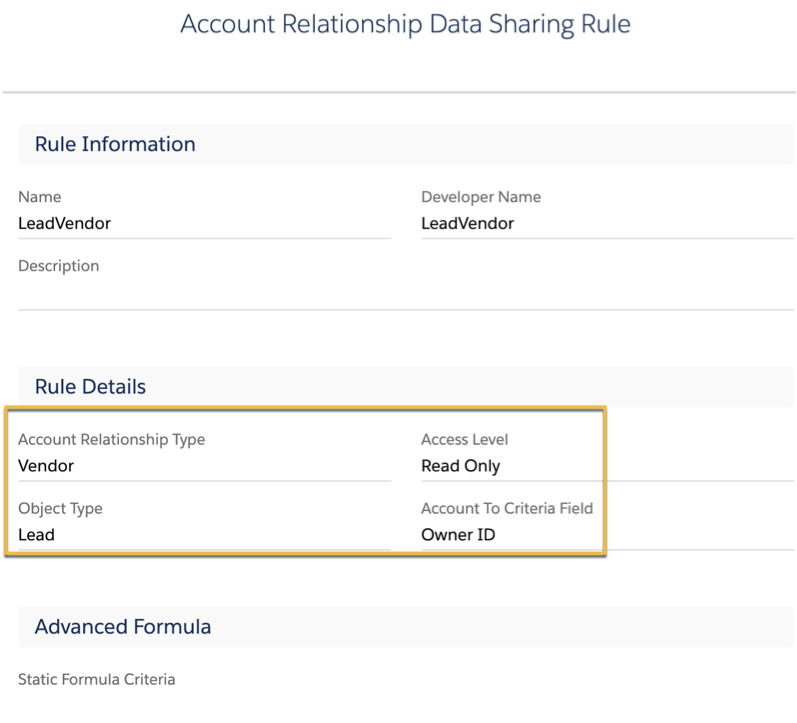
Use the lookup field to select how the object is shared. For example, if Account To wants to share only their partner users’ owned leads with Account From, use Owner Id in the Account To Criteria Field. If Account To wants to share all their account’s leads, the Account To Criteria field value is Partner Account Id.
 Note Custom lookup fields can be used in the Account To Criteria Field as long as they look up to a user or an account. If they look up to a user, then the rule applies to the specified object’s records owned by the Account To’s portal users. If it looks up to an Account, then the rule applies to the object’s records with the Account To name listed as their account.

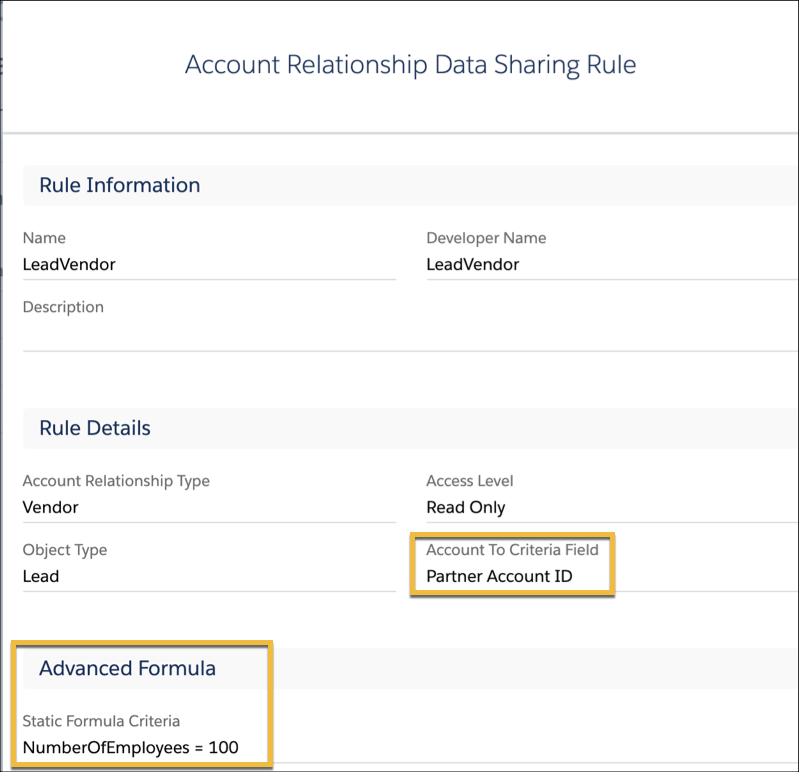
Let’s say you want to share leads that have Northern Trail Outfitters listed as the Partner Account Id and who have 100 employees. Change the Account To Criteria Field value to Partner Account Id and enter the advanced formula, NumberOfEmployees = 100.
- Formula
- Roll-Up Summary
- Currency
- Custom Data Type
- Text Area (Long)
- Picklist (Multi-Select)
- Standard (Id)
- Text (Encrypted)
- Custom and Standard Lookup fields that aren’t required

