
You are here:
Give External Users Access to Manage Other Accounts
Authorize external users to manage permission sets for other users, reset passwords, activate, deactivate, or add members to other accounts. With the Account Switcher component, external users can easily access the other accounts.
Required Editions
| Available in: Lightning Experience in Enterprise, Performance, Unlimited, and Developer Editions |
| User Permissions Needed | |
|---|---|
| To create, edit, and delete profiles: | Manage Profiles and Permission Sets |
| To view accounts: | Read access on Accounts |
| To manage other external users: | Delegated External User Administrator permission |
| To access Target account information: | Read access to the Target account. |
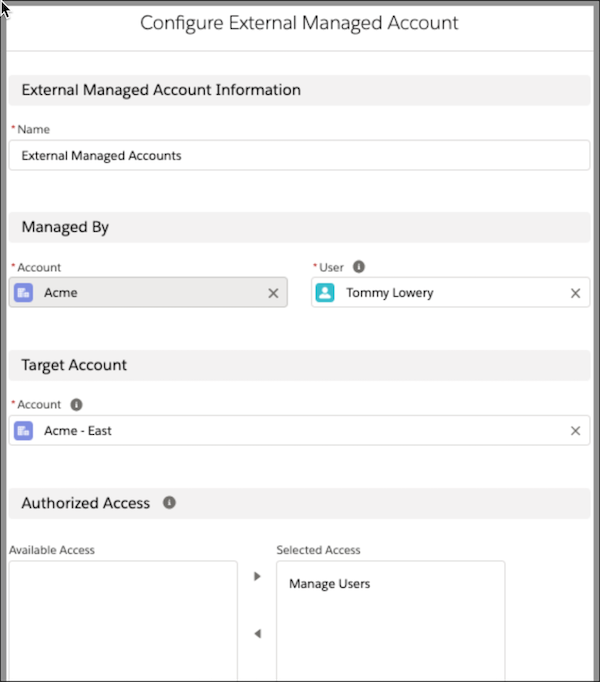
Configure an external managed account to allow an external user to manage another account. An external managed account designates a managing user, the target account that they can manage, and the type of access they’re authorized to on the target account.
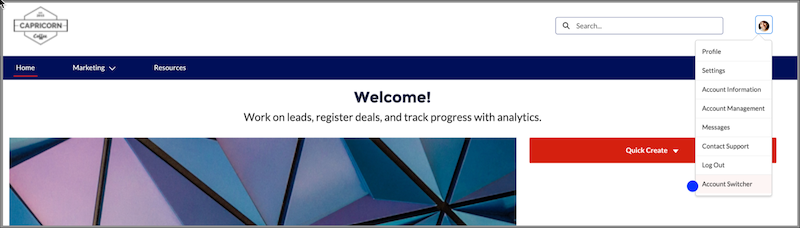
After the managing user receives access to an account, the Account Switcher component gives them easy access to their target accounts. When using the Account Switcher component, the managing user can switch from their account to the target account’s site by clicking their user profile and selecting Account Switcher.
A Switch Account window opens and a list of all their target accounts appears. A blue check mark indicates the account that the managing user is on. (My Account) indicates the account of the managing user.
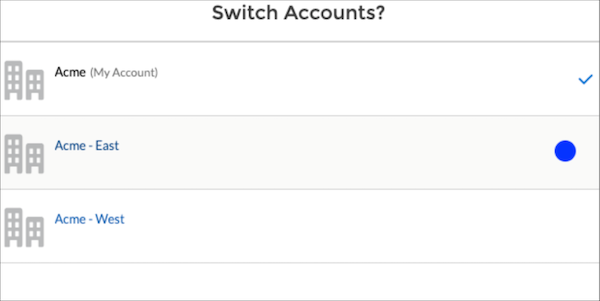
After clicking a target account name, managing users are automatically redirected to the target account’s site.
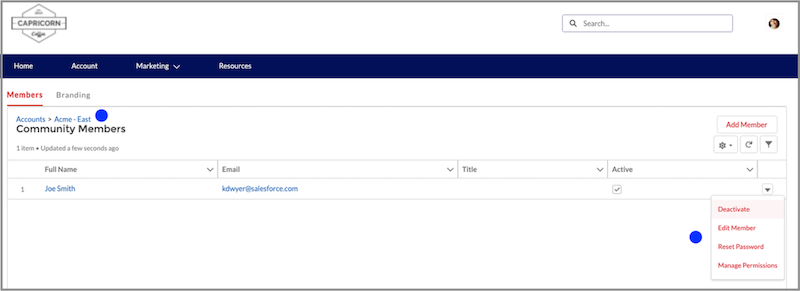
If you’re using other components that track account IDs, you can use the {!CurrentUser.effectiveAccountId} as the Account Id value. This value shows the data of the account that is being switched to. For example, the Related Record list component shows the Members list on the Account Management page and uses {!CurrentUser.effectiveAccountId} by default in the Parent Record Id field. When a managing user uses the Account Switcher component to access a target account, the information on the Account Management page switches to the context of the target account.
You can also drive new behavior based on the account switcher by creating custom components by using {!CurrentUser.effectiveAccountId} as the Account Id value
-
Add the External Managed Account related list to the Account page.
- From the Object Manager, in the Quick Find box, enter Account.
- Select Account | Page Layouts | Account Layout.
- Click the Related List button, and drag the External Managed Account related list to the page.
- Go to the External Managed Account related list, and click the wrench icon to open the related list properties menu.
-
Under Columns, add Authorized Access to the Selected Fields box,
and click OK.
Access is only available for Experience Builder sites.
- Save your changes.
-
Configure the external managed account.
- From the user’s account record, scroll down to the External Managed Accounts related list.
- Click Configure.
- In the User field, enter the user’s name. This user can switch between their account and the target account and view all contacts associated with the account.
- In the Target Account field, enter the name of the account that’s being managed and switched to.
-
Authorize the managing user to reset passwords, add members, and activate or deactivate
members of the target account, add Manage Users access.
- Grant the managing user Delegated External User Administrator permission. For more information on granting this permission, go to Delegate Site Administration to an External User.
- Under Authorized Access, add Manage Users to the Selected Access box.
- Save your changes.
-
Access the target account from a portal or site’s user profile menu. If you’re using the
new customizable user profile menu, add the Account Switcher menu item. Otherwise, it appears
by default.
- Go to Experience Builder, and click the user profile menu at the top of the screen.
- Click Edit User Profile Menu.
- Click + Add Menu Item.
- In the Type field, select Event.
- In the Event field, select Account Switcher.
- Click Save Menu.
- Create the Account Switcher User Permission Set
Create a permission set that allows an external user to switch to a different account from their account.
