You are here:
Guidelines for Creating Permission Sets and Permission Set Groups
Review these recommendations on setting up your permission sets and permission set groups.
Required Editions
| Available in: both Salesforce Classic and Lightning Experience |
| Available in: Essentials, Contact Manager, Professional, Group, Enterprise, Performance, Unlimited, Developer, and Database.com Editions |
- When possible, assign users the Minimum Access - Salesforce profile, or a clone of it if you’re modifying the included default settings for different users. Then, use permission sets and permission set groups to grant users only the permissions that they require. Apply permission sets to users based on the tasks that they do rather than their job title. Because you can reuse smaller permission set building blocks, you can avoid creating dozens or even hundreds of profiles for each user and job function.
- Create permission sets that include all permissions necessary for a job or task. Then bundle these permission sets into permission set groups that correspond to your user personas. If different personas perform some of the same tasks, you can reuse those permission sets in different permission set groups. If a user has more than one persona, you can assign them multiple permission set groups. Permission set groups make managing access easier when you're maintaining multiple personas with overlapping permissions.
- To remove permissions from a permission set group without affecting the included permission sets, create a muting permission set. You don’t need to create nearly identical permission sets with only those few permissions removed.
- Use a naming structure that clearly identifies the contents of each permission set.
- Configure these permissions and features in permission sets.
- Apex classes
- Connected app access
- Custom permissions
- Field permissions
- Object permissions
- User permissions (app permissions and system permissions)
- Tab settings
- Visualforce pages
- Configure these features in profiles.
- Default apps and record types
- IP ranges
- Login hours
- Page layout assignment
- To grant a user a permission via a permission set or permission set group, the user must have a user license or permission set license that supports the permission. For more information, see Licenses Overview in Salesforce Help.
- To set field-level security on permission sets instead of profiles, enable Field-Level Security for Permission Sets During Field Creation.
- To set assignments to end on a specific date, enable Permission Set & Permission Set Group Assignments with Expiration Dates. For short-term tasks or projects with a fixed end date, you can limit user permissions to match and save time cleaning up your users’ access after the work ends.

- View and Edit Accounts, which includes read and edit permissions for accounts. You also set the account field permissions so that the team can view and edit the fields required for their work.
- View and Edit Contacts, which includes read and edit permissions for contacts. You also set the contact field permissions so that the team can view and edit the fields required for their work.
- Create, View, and Edit Cases, which includes create, read, and edit permissions for cases. You also set the case field permissions so that the team can view and edit the fields required for their work.
- Create and Manage Reports, which includes the Create and Customize Reports, Report Builder, and Run Reports permissions.
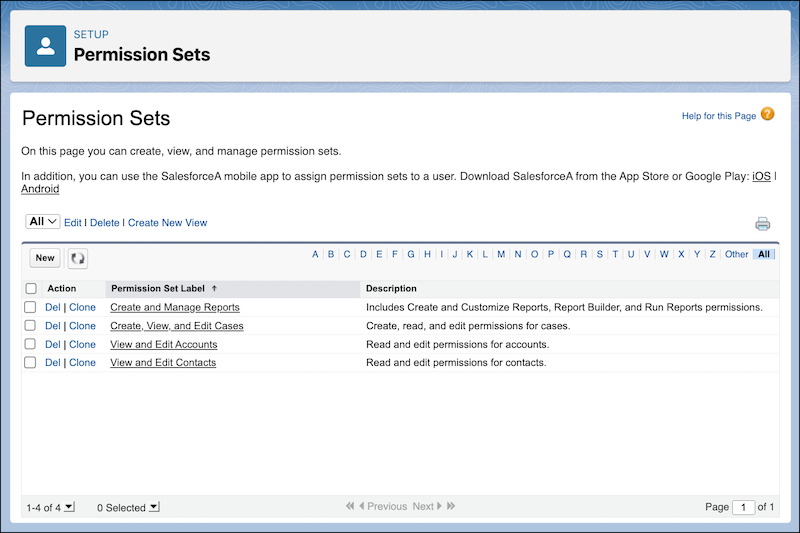
Then you add all four permission sets to a new permission set group named IT Help Desk Team Member. If other personas on other teams perform the same tasks, you can reuse these permission sets in different permission set groups designated for these users.
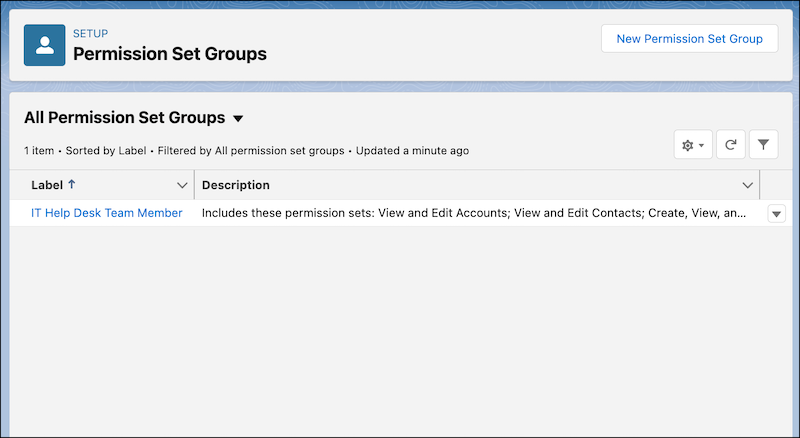
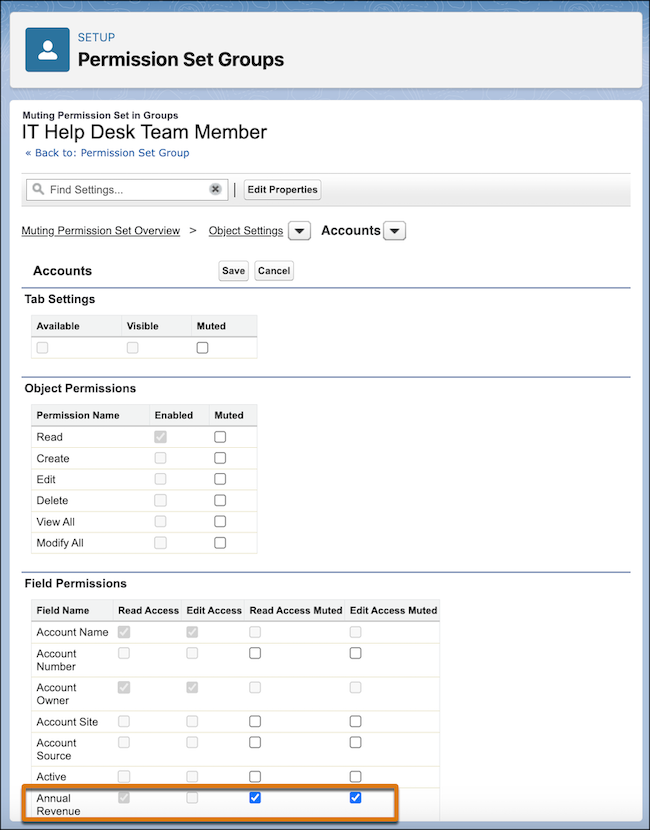
Before you assign users to the permission set group, you review the fields visible via the included permission set. You realize that you don’t want this team to see the Account Revenue field on account records. But you don’t want to remove the read access for this field from the View and Edit Accounts permission set because other personas who are assigned this permission set through other permission set groups still need this field. You create a muting permission set in the IT Help Desk Team Member permission set group.
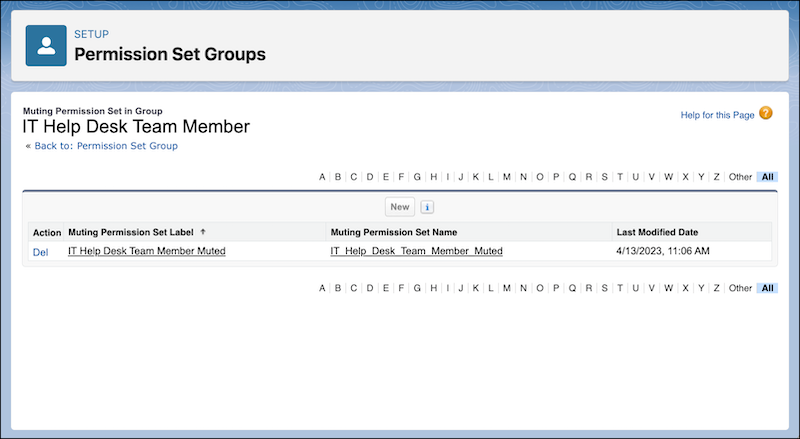
Then remove read access for the Account Revenue field.
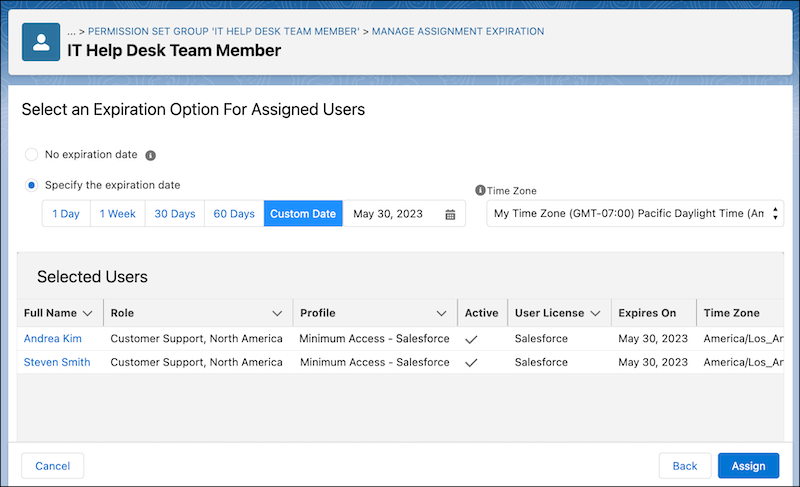
Your company is making some changes, so you expect higher than usual cases for a few weeks and want more users to assist the IT Help Desk team during this time. You assign these users the IT Help Desk Team Member permission set group as well, but you set an expiration date for the assignment. After the expiration date, these users are automatically unassigned from the permission set group and no longer have the included permissions.