You are here:
Who Sees What Explorer Lenses in Secure
The Who Sees What Explorer in Secure provides five lenses—Objects, Records, Users, System Permissions, and Profiles & Permission Sets—to help administrators manage and understand user access to objects, records, and system permissions. Each lens offers detailed insights and specific functionalities to ensure precise access control and compliance monitoring.
Who Sees What Explorer Objects Lens
In the Who Sees What Explorer Tab you can enter a specific object and see the field-level security for each field. This capability helps deduce which profile or permission set can access each field on a specific object.
Click the Who Sees What tab and then click the Objects button in the top left of the tab. When the Objects Lens loads, search for an Object to view. After searching for and selecting an Object, the page loads all "Profiles", "Permission Sets", and "Permission Set Groups" with access to the Object's fields, including the type and level of access.
The levels of access are broken down into two sections, Object Access and Field Access:
-
Object Access
- Create: Profile, Permission Set, or Permission Set Group that has Create access to records of the object.
- Read: Profile, Permission Set, or Permission Set Group that has Read access to records of the object.
- Edit: Profile, Permission Set, or Permission Set Group that has Edit access to records of the object.
- Delete: Profile, Permission Set, or Permission Set Group that has Delete access to records of the object.
- Modify All: Profile, Permission Set, or Permission Set Group that can modify all records associated with the object.
- View All: Profile, Permission Set, or Permission Set Group that can view all records associated with the object.
-
Field Access
- Read: Profile, Permission Set, or Permission Set Group that has Read access to this field.
- Create: Profile, Permission Set, or Permission Set Group that has Create access to records of the object.
- No Field Access: Profile, Permission Set, or Permission Set Group that does not have access to this field.
- No Object Access: Profile, Permission Set, or Permission Set Group that has field level security enabled, but FLS is overridden by No Object Access.
The Objects lens offers two XLSX download options for the selected object, Account Object Data and Multi-Object Download. To download the entire list of fields for the object, use Download Account Object Data. You can also select specific fields to download by selecting Launch Multi-Object Download and then selecting the fields. For each selected field, select whether to download "All Field Data" or "Only High Risk".
Who Sees What Explorer Records Lens
Click the Who Sees What tab and then click the Records button in the top left of the tab. When the Records Lens loads, search for a Record to view:
After searching for and selecting a Record, the page loads all users that have access to that record and the reasons for their access. This includes "Read", "Edit", and "Delete" access:
If multiple reasons are listed, hover over the link to view additional details:
Who Sees What Users Lens
Click the Who Sees What tab and then click the Users button in the top left of the tab. When the Users Lens loads, search for a specific user to view:
After searching for and selecting a user, the page loads a list of all objects, fields, the corresponding data classification Sensitivity Level, Field Name, Field Data Type, if the selected user can View or Edit the field, and the reasons for their view or edit access:
Clicking the System Permissions tab on the searched user displays all of the system permissions assigned to that user, the assignment reasons, risk level of the permission, and the definition of the permission.
Who Sees What Explorer System Permissions Lens
Click the Who Sees What tab and then click the System Permissions button in the top left of the tab. When the System Permissions Lens loads, all system permissions are listed with the "Internal User" and "External User" counts, as well as "Profile", "Permission Set", and "Permission Set Group" counts, and if the permission is "High Risk":
Expanding any System Permission reveals the Profiles, Permission Sets, and Permission Set Groups that are assigned that system permission, the permission type, as well as the Internal and External User counts for that Profile, Permission Set, or Permission Set Group:
When "View by User" is enabled from the Settings tab, expanding each System Permission reveals the users that have the specific system permission. This includes their username, email, last login, and the reason they have that system permission.
Who Sees What Explorer Profiles and Permission Sets Lens
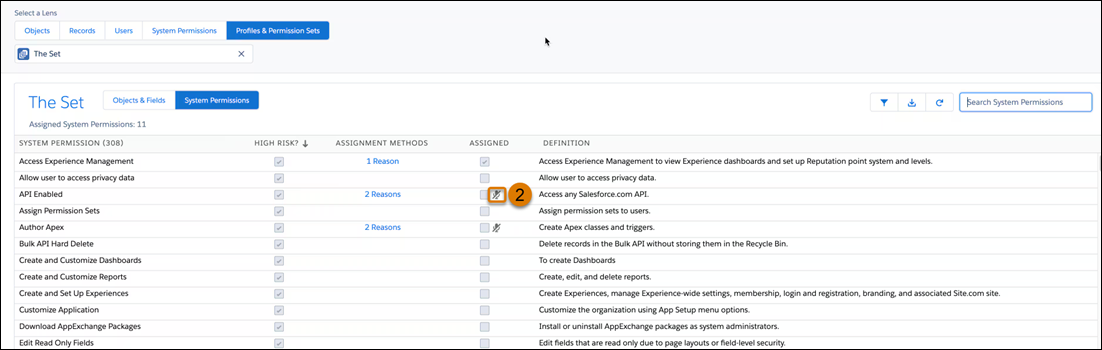
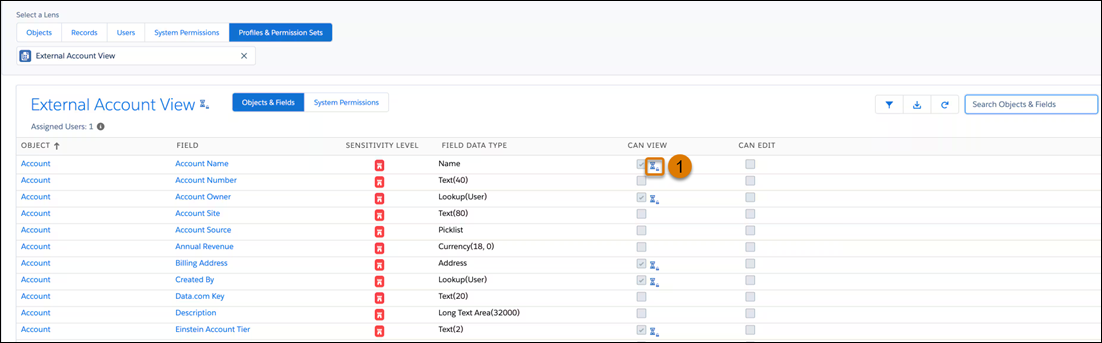
Click the Who Sees What tab and then click the Profile & Permission Sets button in the top left of the tab. When the tab loads, search for a specific profile, permission set, or permission set group. Two lenses are provided for the specified profile or permission set, "Objects & Fields" and "System Permissions".
"Objects & Fields" is used to view the object and field level access that has been assigned to profiles and permission sets.
"System Permissions" is used to view the permissions which have been assigned to profiles and permission sets.
If an assignment is session-based, the session-based icon (1) is displayed.
If a Permission Set Group has muted permissions, the muting icon (2) is displayed.