
You are here:
Create a Restriction Rule
Control the records that a specific user group is permitted to see. When a restriction rule is applied to a user, the data that the user has access to via org-wide defaults, sharing rules, and other sharing mechanisms is filtered by the record criteria that you specify.
Required Editions
| Available in: Lightning Experience |
| Available in: Enterprise, Performance, Unlimited, and Developer Editions |
| User Permissions Needed | |
|---|---|
| To create and manage restriction rules: | Manage Sharing |
| To view restriction rules: | View Setup & Configuration AND View Restriction and Scoping Rules |
Before creating restriction rules, we recommend that you Turn Off Salesforce Classic for Your Org. Salesforce can't guarantee that restriction rules work as intended for end users who are in the Salesforce Classic experience.
Restriction rules are available for custom objects, external objects, quotes, contracts, events, tasks, time sheets, and time sheet entries. You can create up to 2 restriction rules per object in Enterprise and Developer editions and up to 5 restriction rules per object in Performance and Unlimited editions.
Only external objects created using the Salesforce Connect: OData 2.0, OData 4.0, and Cross-Org adapters support restriction rules. For more information, see Restriction Rule Considerations.
-
In the Object Manager, click the object you want to create a restriction rule on.
- For an external object, enter External Data Sources in the Quick Find box in Setup, then select External Data Sources. Select an external object from the related list on this page.
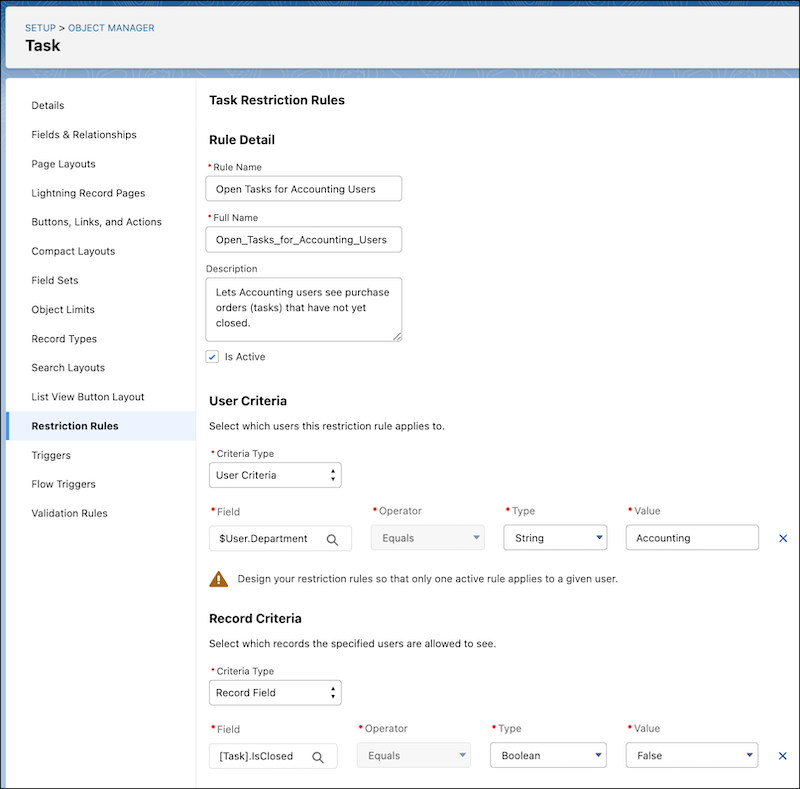
- In the sidebar, click Restriction Rule, and then click Create a Rule.
- Enter the rule’s name and full name. The full name is the name of the component used by the API.
- To have the rule take effect upon saving, select Active.
-
Under User Criteria, select which users this restriction rule applies to.
- If the rule applies to a subset of users such as those in a given role, profile, or
department, select User Criteria. Then, select the field to use as
criteria.
Set the Type field as Current User when the rule applies to the currently logged-in user.
- If the rule applies to a subset of users with a custom permission, select Permission Criteria. To filter records for users with the custom permission, set the Boolean value to True. To filter records for users who don’t have the custom permission, set the Boolean value to False.
- If the rule applies to a subset of users such as those in a given role, profile, or
department, select User Criteria. Then, select the field to use as
criteria.
-
Under Record Criteria, select which records the specified users are allowed to see. For
the Field value, you can reference another object’s field using dot notation.
For picklist values, select a picklist field, and then click Choose values. For other field types, to designate more than one value in the record criteria, you can specify a list of comma-separated strings or 15-character IDs in the Value field.
To include a single value that contains a comma, surround the value with double quotes (”).
-
Save the rule.
 Note Salesforce doesn’t validate that only one active rule applies for a given user. If you create two active rules, and both rules apply to a given user, only one of the active rules is observed. In this case, records that the user shouldn’t have access to could be accessible.
