
You are here:
Scoping Rules
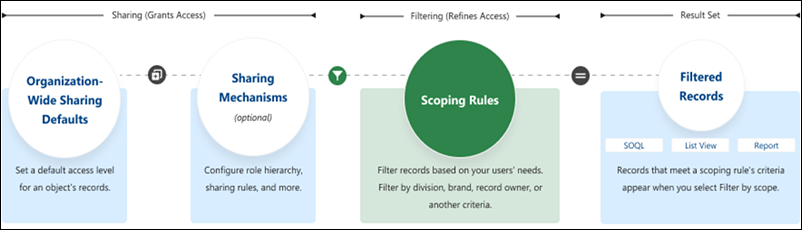
Scoping rules let you control the records that your users see in list views, reports, and SOQL queries based on criteria that you select. You can set up scoping rules for different users in your Salesforce org so that they can focus on the records that matter to them. Users can switch the set of records they’re seeing as needed.
Required Editions
| Available in: Lightning Experience |
| Available in: Performance, Unlimited, and Developer Editions |
Scoping rules are available for custom objects, accounts, cases, contacts, events, leads, opportunities, and tasks. Any partner, ISV, or customer can test scoping rules using a Developer Edition org. Scoping rules are turned on in Developer editions created after April 2022.
This table shows how scoping rules work with other Salesforce features.
| Feature | Description |
|---|---|
| List Views | Applied in Lightning Experience if Filter by scope is selected |
| Reports | Applied in Lightning Experience if Filter by scope is selected |
| SOQL | Applied, unless a scope other than scopingrule is specified |
When Do I Use Scoping Rules?
Use scoping rules when you want to let users control the record set that they see in list views, reports, and SOQL. A scoping rule doesn’t restrict users’ access to other records that they sometimes need. Instead, scoping rules let your users focus on one set of records, then change their focus or search to find a record that’s not in the scoped record set when they need to.
For example, you have users who support multiple agencies in your org. Each user is assigned to a specific agency. You can set up scoping rules so that they filter the records that your users see in list views and reports. Users don’t need to spend time looking for the correct records, but they still have access to the other agencies’ records if they need them.
You can also use scoping rules with Flow Builder to set scope according to a choice your user makes. For example, you have users who work on account records that belong to different divisions in your organization. You want to scope the account records that users see by division, giving your users an easy way to switch between different divisions’ record sets. You can set up a flow that your users access using the Lightning Utility Bar to set the scope of records that the user sees in list views and reports.
How Do Scoping Rules Affect User Access?
Scoping rules are flexible. You can enable and disable them on a query-by-query basis. Plus, they don’t restrict the access that your users have to records. Your users can still open and report on all the records that they can access according to your org’s sharing settings.
How Do I Configure Scoping Rules?
Create and manage scoping rules by navigating to a supported object in the Object Manager. Or use the RestrictionRule Tooling API object or Metadata API type. For information on restriction rules, see the Restriction Rule Developer Guide.
When creating more than one scoping or restriction rule, configure the rules so that only one active rule applies to a given user. Salesforce doesn’t validate that only one active rule applies for a given user. If you create two active rules, and both rules apply to a given user, only one of the active rules is observed.
After creating rules, you can use a change set or unlocked package to move scoping rules from one org to another.
- Create a Scoping Rule
Determine which records your users see by default. When a scoping rule is applied to a user, the data that the user sees in list views and reports is filtered by the criteria you set. - Create a Flow That Applies a Scoping Rule
You can create a scoping rule and then create a flow that users can run to update their user record. Users can filter records by scope to see only the records they need to focus on. - Scoping Rule Considerations
Keep these considerations and limitations in mind while using scoping rules. - Scoping Rule Example Scenarios
Refer to these sample scoping rules, which fulfill different access requirements.
