
You are here:
Create a Seeding Template for Salesforce
Create an initial version of a seeding template for performing data seeding. By default, template creation is based on the blank template. This means that the created template doesn’t have any predefined nodes (objects) or predefined levels. When you create the template you define the template type: Nodes or Levels.
A Nodes Seeding template is used to define the precise data you want to copy. You manually select each object (node) and its associated records to be included in the template. This template is ideal for users who need a high degree of control over their seed data. It's best for scenarios where you need to seed a very specific, granular data set.
With a Levels type template, you define the data to seed (copy) into a destination without having to precisely know the entire data hierarchy. You define the levels of your data hierarchy. The template configuration process is simpler, even streamlined. When building a Levels template, you define one or more root object and, per root object, you define the number of object levels down from the root object to include in the template. This template type is useful if you know your schema and you need all your data to be seeded, or if you aren’t sure of precisely which data you want to be seeded. You can always adjust the number of object levels down from any given root object to fine-tune the necessary data to include in the Levels template.
In a Salesforce data environment, if you select to create a template that’ll be configured to contain nodes (Type of template = Nodes), the Seeding UI makes available to you a selection of predefined templates. These templates are specifically tailored to perform data seeding for these data environments:
- CPQ - Configure, Price, Quote Software by Salesforce. This product is hosted within the Salesforce Sales Cloud platform. See Predefined Nodes Templates for Seeding Salesforce CPQ Data
- FSL - Salesforce Field Service (formerly known as Field Service Lightning, hence the acronym FSL). This product is the extension of the Salesforce Service Cloud. See Predefined Nodes Templates for Seeding Salesforce FSL Data
- nCino - Banking platform built on top of the Salesforce Financial Services Cloud. See Predefined Nodes Templates for Seeding Salesforce nCino Data.
Seeding templates created based on a predefined template are filled with data objects and are ready to use for data seeding. They don’t need any more setup. However, you can edit these templates and further configure their objects to be more specific and better fit your organization’s data seeding needs.
-
Click Seeding.
The Templates tab appears.
-
In the Templates tab, click + New Template.... The Create New Template window opens.
If the + New Template... button isn’t available in the Templates tab, contact your administrator to grant you the required permission.
-
In the Create New Template window:
- In the Name field, enter the name of the new template.
- In the Description field, enter a description about the new template.
-
From the Template Source field drop-down menu, select a service (a Salesforce data
source) from which to copy data when using the template in a seeding job. The icons identify
the type of each listed Salesforce data source:
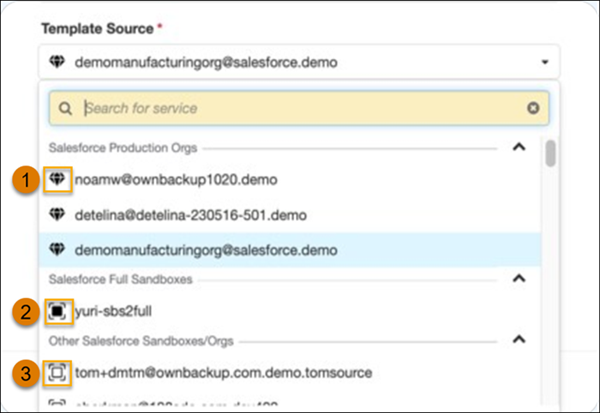
- (1) indicates that the data source is a Production Org.
- (2) indicates that the data source is a Full Sandbox.
- (3) indicates the data source as Other, which means either a Partial, a Dev, or a Pro-dev sandbox.
-
Type of template: Select the type of template you want to create.
- Nodes template - Build this template's data hierarchy by configuring (adding) each and every necessary object (root objects, child objects and optional parent objects) that you want to seed (copy) from a selected seeding source into a destination.
- Levels template - Build this template's data hierarchy by configuring (adding) each necessary root object and then defining the number of hierarchy levels down from that root object that you want to seed (copy) from a selected seeding source into a destination. You define the data to be seeded without having to precisely know the data hierarchy (schema) of the seeding source. The template configuration process is simpler.
- Generate template - Build this template's data hierarchy as you do for a Nodes type template. However, you use a Generate template when you specifically want to generate synthetic data and then seed (copy) that data into a destination. No seeding source, neither production org nor sandbox, is needed to supply object data.
-
In the Create From field select the default Blank template that creates a template that
doesn’t include any predefined data nodes or levels, or a predefined template.
If you select a blank template, you will need to edit the created template and add the necessary data nodes/levels to it. Predefined templates supply a custom, predefined set of data nodes (objects) in the newly created seeding template.
- Click Create. After a brief processing period, the Template Builder tab opens and displays your newly created template in Edit mode. The template is in draft state and can be edited.
Publish the seeding template to make it available for use by others.
- Predefined Nodes Templates for Seeding Salesforce CPQ Data
The template table provides you with a description and details about the predefined Nodes Template tailored for seeding use in a Salesforce-CPQ data environment. - Predefined Nodes Templates for Seeding Salesforce FSL Data
See a description and details about the predefined Nodes Template tailored for seeding use in a Salesforce-FSL data environment. - Predefined Nodes Templates for Seeding Salesforce nCino Data
The table provides a description and details about each of the predefined Nodes Templates that are tailored for seeding use in a Salesforce-nCino data environment.
