Loading
Salesforce now sends email only from verified domains. Read More
Extend Salesforce with Clicks, Not Code
Table of Contents
Select Filters

          No results
          No results
          Here are some search tips

          Check the spelling of your keywords.
          Use more general search terms.
          Select fewer filters to broaden your search.

          Search all of Salesforce Help
          About the Site Map and Page Hierarchy

          About the Site Map and Page Hierarchy

          The Site Pages view on the Overview tab contains the pages and site map links of your website. The Site Map folder reflects the hierarchy or tree structure of your site by housing site pages and links that are included in the site map. When you create pages or site map links, they're automatically added to this folder. The Landing Pages folder houses standalone pages that are excluded from the site map, making it ideal for temporary pages, such as promotional or competition pages.

          Required Editions

          Available in: Salesforce Classic

          Available for purchase in: Enterprise, Performance, and Unlimited Editions

          Available (with limitations) in: Developer Edition

          Tip
          Tip If you can't see the Site Map folder in the Site Pages view on the Overview tab, click Site map.

          When adding a navigation menu to your site, it's important to organize the hierarchy of your site pages and links accurately, because this structure is used to generate the menu. Pages and site map links are displayed in navigation menus in the order you arrange them.

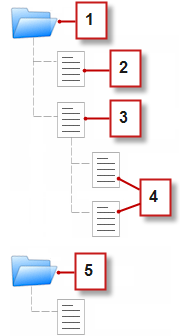
          In this representation of the site hierarchy, you can more clearly see the tree structure.

          Page hierarchy, numbered 1-5

          • 1 is the Site Map folder, which contains four site pages.
          • 2 is a top-level page in the site hierarchy.
          • 3 is a top-level, parent page with two child pages. A child page is a page at a lower level in the site hierarchy than its parent page.
          • 4 are the two child pages.
          • 5 is the Landing Pages folder, which contains a temporary page that's not part of the site map or navigation menu.
          Tip
          Tip If a page has child pages, the Expand icon appears beside it indicating that you can expand the branch.

          By default, when you create a menu, it's generated from the pages and site map links in the Site Map folder in the Site Pages view. However, you can also create a menu that's generated from the pages in the Landing Pages folder or from the child or sibling pages of a site page.

          You can hide a page in menus, breadcrumbs, and the site map by selecting the Hide Page checkbox found on the Properties pane for each page. This setting also prevents website visitors from accessing the page's direct URL. By default, all pages are visible.

          • Add Links to a Site Map
            Pages aren't the only things you can assign to your site map. Add internal or external URLs to your site map to customize your navigation menus and breadcrumbs, and achieve greater flexibility and control.
          • Adding Breadcrumb Navigation to Pages
            Add a Breadcrumb page element to your page to help users navigate through your site and show the page’s location in the site hierarchy.
          • Add a Navigation Menu
            By default, when you create a menu, it's generated from the pages and site map links in the Site Map folder in the Site Pages view. However, you can also create a menu that's generated from the pages in the Landing Pages folder or from the child or sibling pages of a site page.
          • Style Navigation Menus
            Navigation menus are styled using CSS themes that you can customize to match the design of your website. When you add a navigation menu to a page, it uses a default theme to control its appearance. Choose from other existing themes in the Theme Name dropdown list in the Properties pane.
           
          Loading
          Salesforce Help | Article