
Widgets Overview
Widgets let you save time by building custom page elements that you and your team can reuse throughout the site.
Required Editions
| Available in: Salesforce Classic |
Available for purchase in: Enterprise, Performance, and Unlimited Editions Available (with limitations) in: Developer Edition |
Using the existing Site.com page elements, such as panels, content blocks, custom code, or data repeaters, you can create widgets to suit your unique requirements. You can add custom properties to allow greater flexibility over how your widgets are reused. And you can even add a widget to another widget!
By using CSS to style the widget, you can ensure it always appears correctly whenever it's added to site pages or page templates. Additionally, you can let contributors add widgets to site pages and add branding properties that enable contributors to update the widget's appearance.
With widgets, you can:
- Minimize duplication in your site. You build one time, then reuse.
- Reduce maintenance overheads for you and your team. Any updates you make to a widget are automatically reflected in copies of the widget on the page.
- Improve the load time of your pages.

For example, you could use the custom code page element to create reusable social
plug-in widgets, such as Like or
Follow buttons from Facebook, or a Twitter feed. 
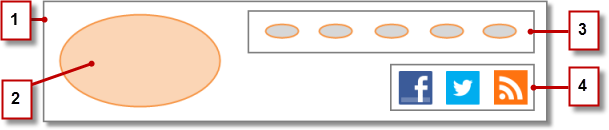
Alternatively, to ensure a consistent look and feel across all of your pages, you could create a corporate header such as this sample header widget. It consists of a panel (1) that contains a company logo (2) and a menu (3). The widget also contains another widget (4) that's composed of a panel containing custom code for Facebook, Twitter, and RSS plug-ins.
You could also use widgets to store commonly used pieces of text, such as company names, addresses, legal text, and so on. Simply create a widget that contains a content block with the relevant text.
Best Practices for Using Widgets
- Wherever possible, use widgets to reduce duplication in your site design. Reducing duplication is particularly important when working with complex designs or site elements, where maintenance can be time consuming.
- If you plan to use the same widgets across several sites, consider creating a basic site to contain all the required widgets. Then, for each new site, create a copy of that basic site. That way, each new site automatically includes all of the widgets you created.
- When using CSS to style widgets, add the CSS to the Site Style Sheet, which is the site's global style sheet. Because every page automatically references the style sheet, you can ensure that each widget appears correctly on the page.
- Create Widgets
Widgets let you create custom, reusable page elements by combining existing Site.com page elements, custom code, and CSS. - Add a Widget to a Page
Add a widget that enhances your page. - Edit and Delete Widgets
Access the site's widgets in the Widgets view under All Site Content (on the Overview tab).
