
You are here:
Troubleshoot DevOps Testing Issues
Here are some tips on troubleshooting common issues encountered while using DevOps Testing. If needed, get help from your test manager or Salesforce system administrator to resolve these issues.
Required Editions
| Available in: Lightning Experience |
| Available in: Enterprise, Performance, Professional (API access required), Unlimited, and Developer Editions |
Issue: Test or test suite run remains in the In Progress status for an extended time, even after the run is complete in the test provider.
Action: Check for Apex job errors. Go to Setup, and then select Apex Jobs. Verify if any Apex jobs are incomplete. If there are no errors or incomplete jobs, request your Salesforce system administrator to manually update the run status in the Test Execution Groups, Test Suite Executions, or Test Executions tab. Rerun the test or test suites if needed.
Issue: Test provider sync remains in the In Progress status for an extended time.
Action: Check for Apex job errors. Go to Setup, and then select Apex Jobs. If there are no errors or incomplete jobs, request your Salesforce system administrator to manually update the sync status on the Test Providers tab. Start a new test provider sync if needed.
Issue: Scale Test is configured for a project, but the Scale Test icon isn’t visible in the DevOps Center pipeline stage.
Action: Verify that you’re logged into the pipeline environment. If not, click the environment links in DevOps Center to log in to the respective environments.
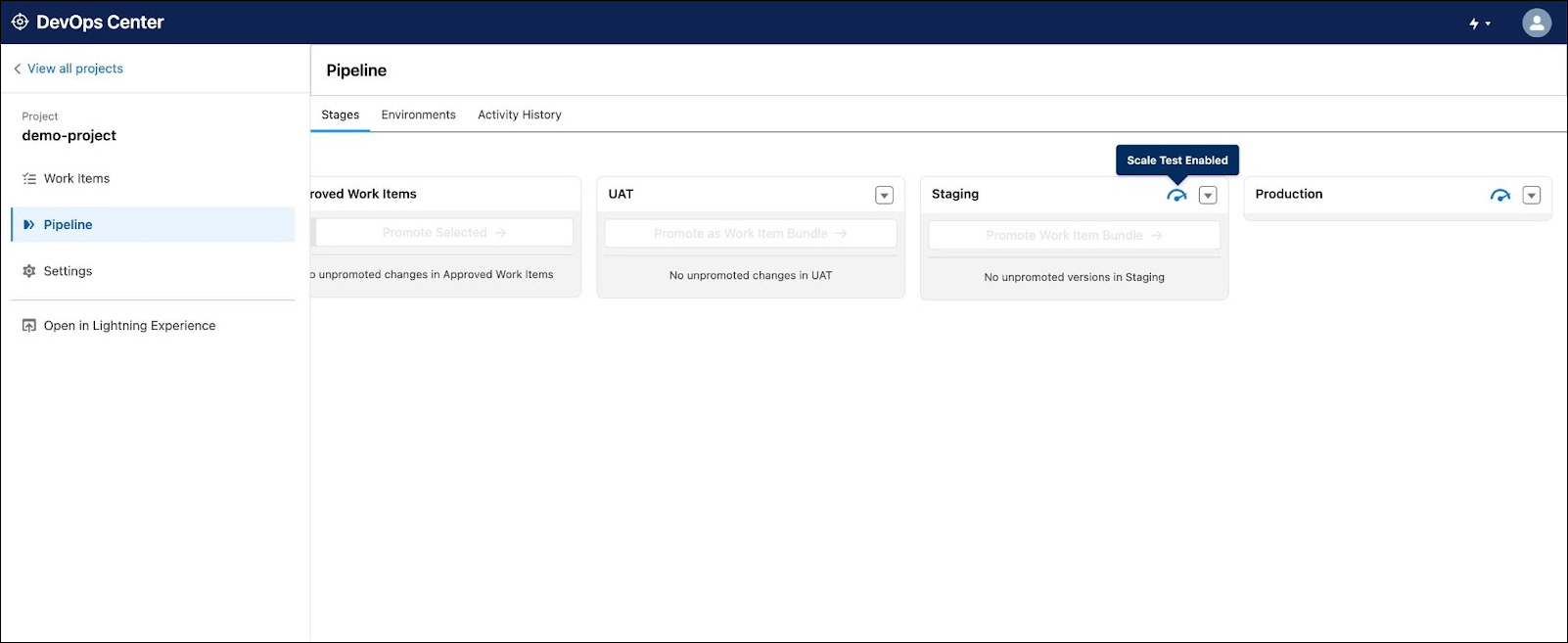
Issue: The Scale Test icon remains disabled even after you add the required license.
Action: This issue happens when the named credential is missing. We recommend that you log in to the environment associated with your DevOps Center project pipeline.
Issue: The create review and promote process fails in DevOps Center.
Action: After you install the DevOps Testing package, make sure that you have the required DevOps Testing permission sets assigned. Also, building and activating a new pipeline in DevOps Center requires the necessary DevOps Testing permissions sets.
Issue: You update the project or stage names in DevOps Center, but the changes aren’t visible in the DevOps Testing Stage Assignments tab.
Action: Make sure that you have the DevOps Testing Manager permission set before retrying to update the project and stage names.
Issue: Scale Test status for a project shows License Required, even though you’ve a license in the production org of the project pipeline.
Action: Verify that you’re logged into the pipeline production environment. If not, use the environment link in DevOps Center to log in.
Issue: Code Analyzer v5 workflow remains in a queued state and doesn't proceed.
Action: This issue occurs if your organization's GitHub environment doesn't support the ubuntu-latest runner. To resolve this, choose one of these options.
- Set up a new GitHub runner with the listed software, and update the runner value in the
workflow files.
- Node version 20.9.0 or higher.
- Java version 11 or higher.
- Python version 3.10 or higher.
- Contact your GitHub administrator to enable the ubuntu-latest runner.
