
You are here:
Create a Permission Set Associated with a Permission Set License
For users to access license functionality, they must both be assigned the permission set license and a permission set containing the feature permissions.
Required Editions
| Available in: both Salesforce Classic and Lightning Experience |
| Available in: Professional, Enterprise, Performance, Unlimited, and Developer Editions |
| User Permissions Needed | |
|---|---|
| To assign a permission set license: | Manage Users |
| To assign a permission set to users: | Assign Permission Sets |
Make sure to follow instructions for your permission set license-related feature. You can’t add permission sets that are associated with permission set licenses to managed packages. If you purchased a license that comes with standard permission sets, such as Sales User, permission sets are auto-generated for you.
- From Setup, enter Company Information in the Quick Find box, then select Company Information and scroll down to Permission Set Licenses.
- From Setup, enter Permission Sets in the Quick Find box, then select Permission Sets.
- Click New.
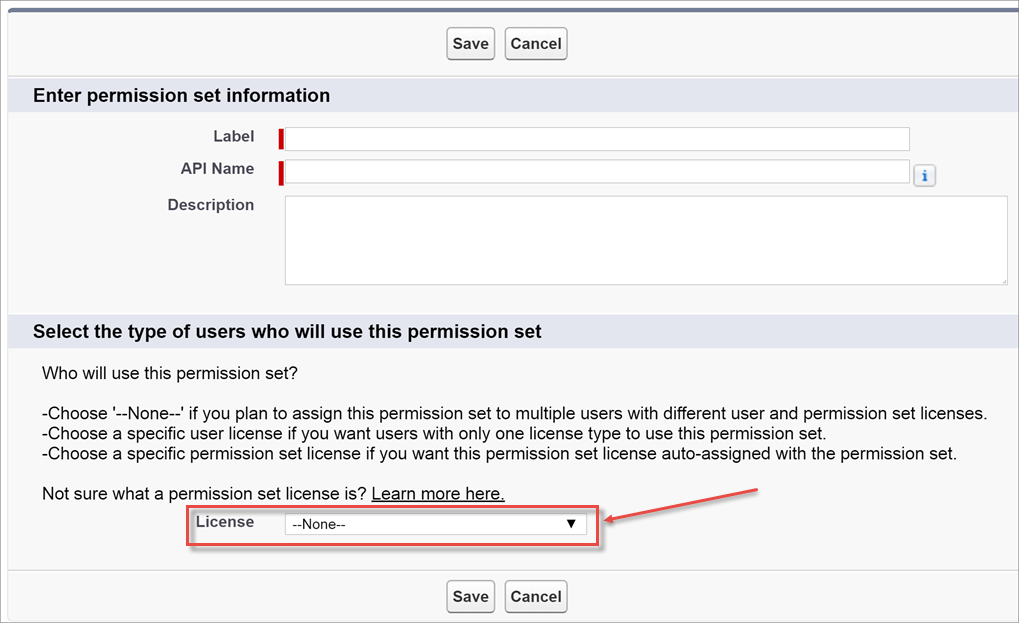
- Enter your permission set information.
-
For License, select the license to associate with this permission set.
When you select a specific permission set license, any user assigned to the permission set is auto-assigned the permission set license. If you select --None--, you must manually assign the permission set license to users before you can add them to the new permission set.
- Select the feature permissions to enable for your permission set. Use Find Settings to search for them quickly. Refer to the documentation for your feature to see which permissions are available with a specific permission set license.

Example Let’s say you purchased an Identity Connect permission set license. This permission set
license contains a permission that grants access to the Identity Connect product features,
such as providing Active Directory integration. To grant a user access to this permission:
- Ensure that the user has the Identity Connect permission set license. Users who don’t have the associated permission set license for a permission set you create can’t use the permission set. You can check which permission set licenses a user has by viewing the Permission Set License Assignments section of the user detail page.
- Create a permission set and name it something like “Identity Connect Permissions.” From License, choose Identity Connect. While still in the permission set, go to Find Settings, search for Identity Connect, and select the Use Identity Connect system permission.
- Assign a user to the permission set.

Note If you remove a permission set from a user, related permission set license assignments
are automatically removed in most cases. Automatic unassignment doesn't occur when updates
are made via user access policies, when the user requires the license through another
permission set, when removing a licensed permission set from a permission set group, or when
unassigning 50 or more permission sets or permission set groups at once.
Did this article solve your issue?
Let us know so we can improve!
